Chapter 2 Getting to Know Remote Desktop 33
Participating computers: This area shows you the computers that will be aected by the task.
Schedule task button: When you click this button in a task dialog, you can set a time
to perform the task as well as repeat the task. For more information, see “Working with
Scheduled Tasks” on page 167.
Save task button: When you click this button in a task dialog, you can name and save the
task as congured. Saved tasks appear in the left side of the Remote Desktop main window.
Task templates: This control lets you save current task conguration settings, or apply
previously saved settings to the current task. These templates are stored on a per-task basis.
For example, the Send UNIX Commands template pop-up has an extensive list of built-in
templates, while other tasks may have none.
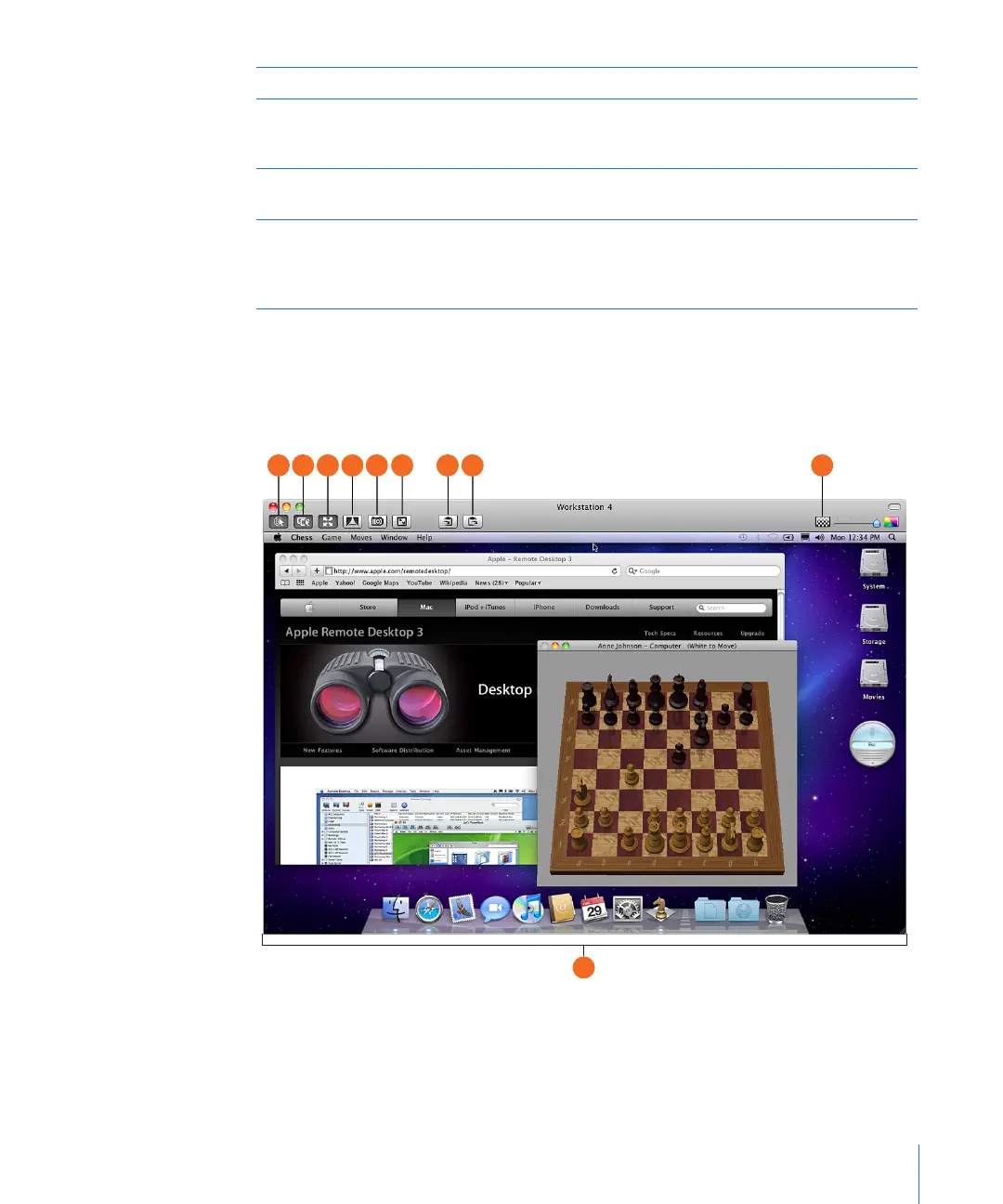
Control and Observe Window
This window is the same for both controlling and observing a single client. The only
dierence is the state of the Observe or Control toggle button. When it’s selected, you
have control over the remote client.



 To Next Page