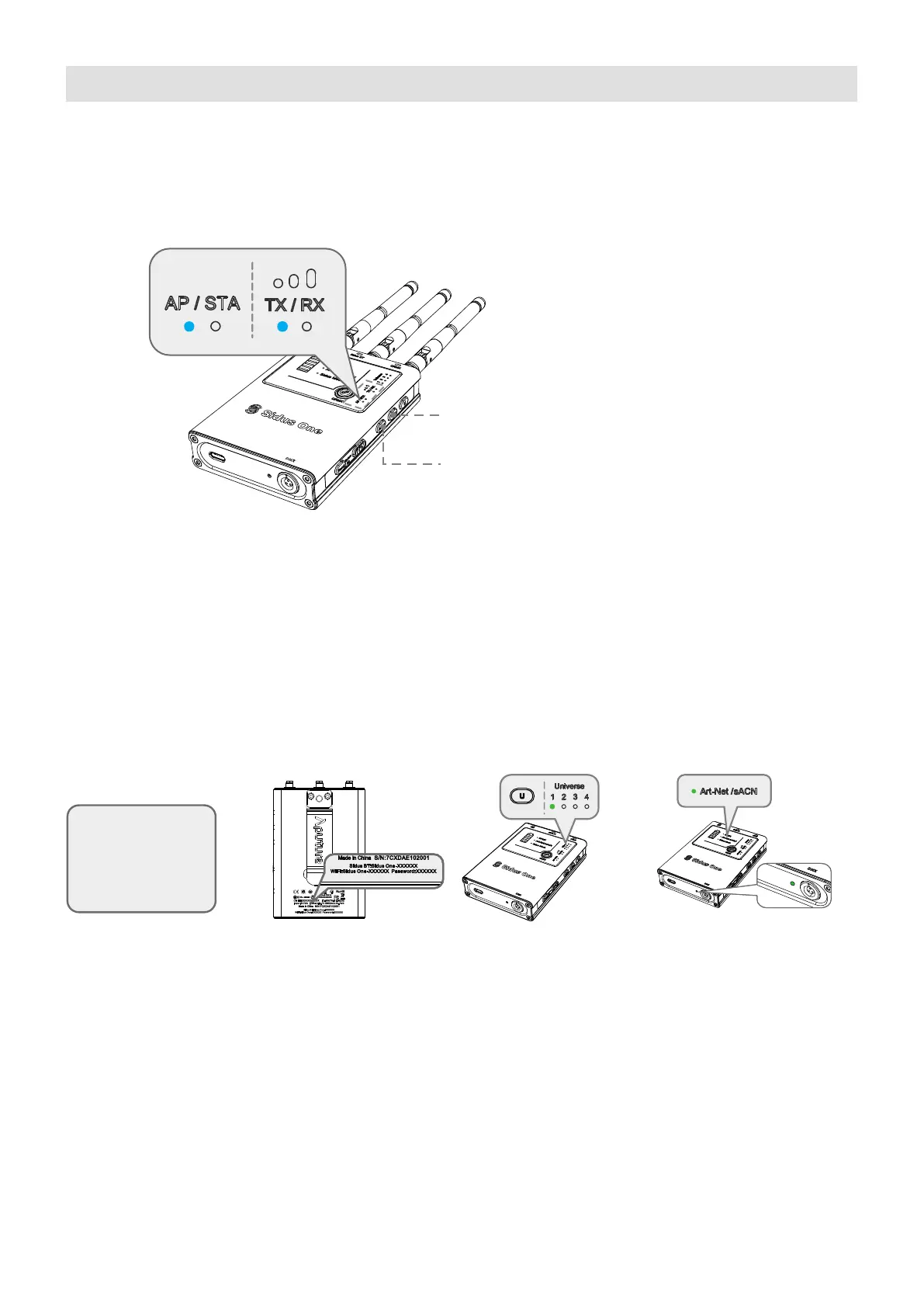
(1) Set Sidus One to AP+TX mode
16
3. Connecting to the Sidus One
3.1.1 Art-Net/sACN over Wi-Fi IN
3.1Art-Net/sACN over Wi-Fi IN to CRMX Transmitter/Wired DMX OUT
Press and Hold to switch
between TX and RX modes
Press and Hold to switch
between AP/STA/Off modes
*NOTE: When in AP Mode, the Sidus One acts as a wireless router–broadcasting a Wi-Fi Network. See the
back of the device for the network’s SSID and password. When in AP Mode, the Sidus One acts as a DHCP
server. When in STA Mode, the Sidus One acts as a wireless client within an existing network–software
update coming soon.
(2) Point the control device to the Sidus One network and log on. Note: The device must support 5GHz
networks and be ready to receive its IP address from the Sidus One DHCP Server.
③ Set the DMX Universe for the Sidus One to listen for by pressing and holding the "U" Button for 1 second.
Sidus One can be set to listen for Art-Net Universe 1 - 4 or sACN Universe 1 - 4.
④ Upon successful connection to the Sidus One, if there are Art-Net or sACN protocols present and data is
patched on the Universe Sidus is listening for from the control device, then the ArtNet/sACN indicator light
will be solid. If DMX data is patched on the Universe Sidus One is set to listen for, the the DMX indicator light
will also be solid.
② The Sidus One unique Wi-Fi Network
Name (SSID) and password are printed
on the back of each Sidus One.
*NOTE: Sidus One does not listen to Art-Net Universe 0. The lighting controller must be set to the same output as
the Sidus One.
③ Press and Hold the U button to
change DMX Universe: U1 - U4
① Open the control device
and connect to Sidus One
Wi-Fi Network
APP/console
/computer
④ With a successful network connection
to your control device and Art-Net/sACN
being present with data, the Art-Net/-
sACN indicator light will light up solid.
DMX Indicator Light


 To Next Page