46
DATA AND SETTINGS
Data and settings > System status > System settings > Settings manager > Import configuration
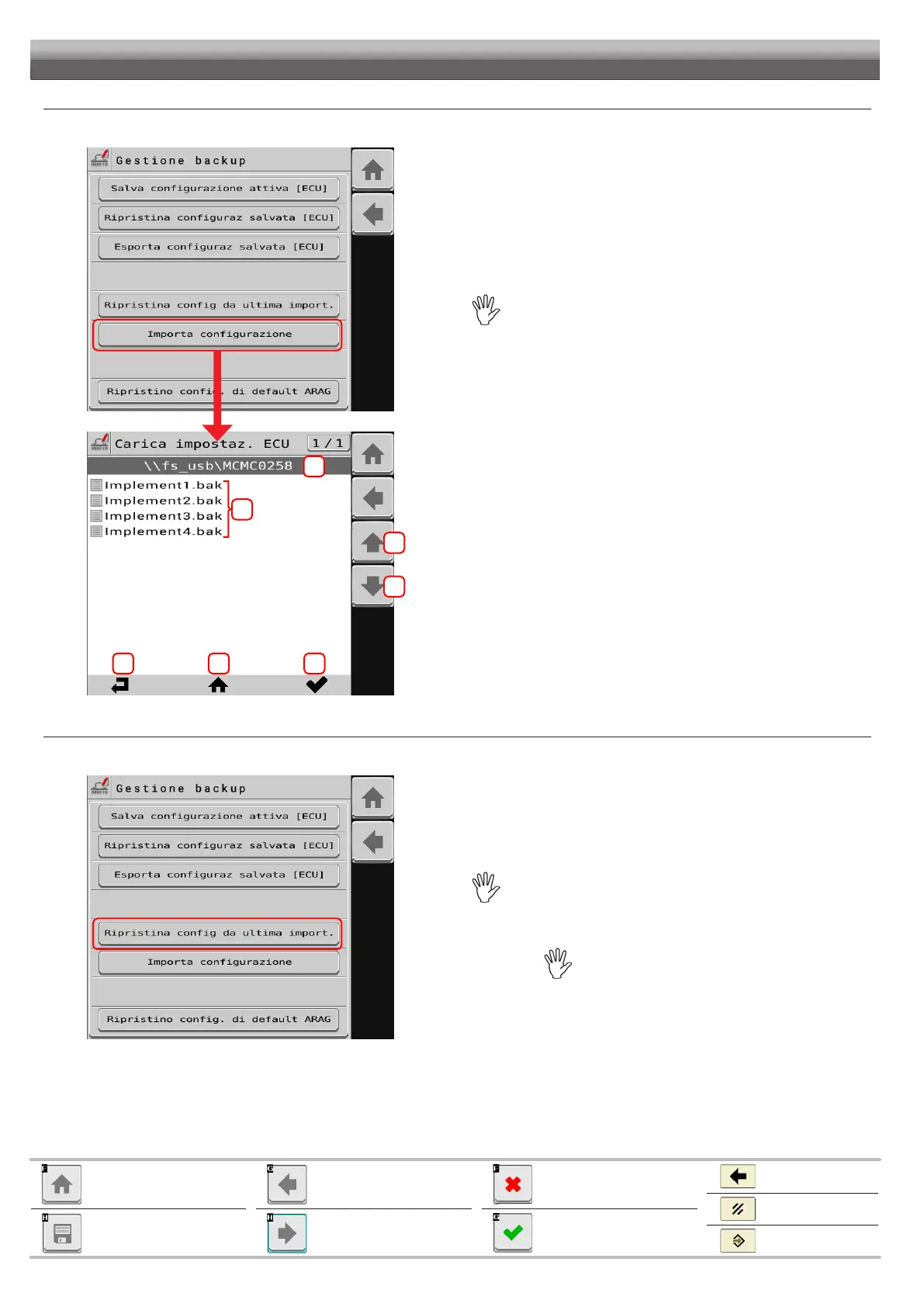
Allows importing a backup file from an external memory connected to the Virtual Terminal.
1
3 4 5
2
2A
2B
Fig. 101
Press Import configuration to enter the File server management menu
from which you can select the folder from which to import the backup
file.
1 Current folder path.
2 List of files contained within the current folder.
In order to be loaded, the backup file must have the extension .bak and must be
inside the folder MCMC0258. This folder refers to ARAG because 0258 is the
code that identifies ARAG as the ISOBUS component manufacturer.
2A - 2B Buttons to select the file to load.
3 BACK. Goes back to the previous folder.
4 HOME. Returns directly to the home folder (MCMC0258) - This
function may not be available in all Virtual Terminals.
5 COPY. Confirms the copy of the selected backup file to the internal
memory of IBX100.
Data and settings > System status > System settings > Settings manager> Restore config from last import.
Allows restoring the settings contained in the last imported backup file.
Fig. 102
Press Restore config from last import to restore all settings in the
previously imported backup file using the Import configuration button
or through the relevant function available on VISIO ISOBUS.
WILL BE PERMANENTLY LOST.
Import configuration
Quits without confirming the
changes
Saves the changes
Cancel
Exits
Confirm
Goes back to previous menu,
or scrolls the pages of a menu
(previous page)
Scrolls the pages of a menu
(next page)
Goes back to main screen
Saves the changes to current
page


 To Next Page