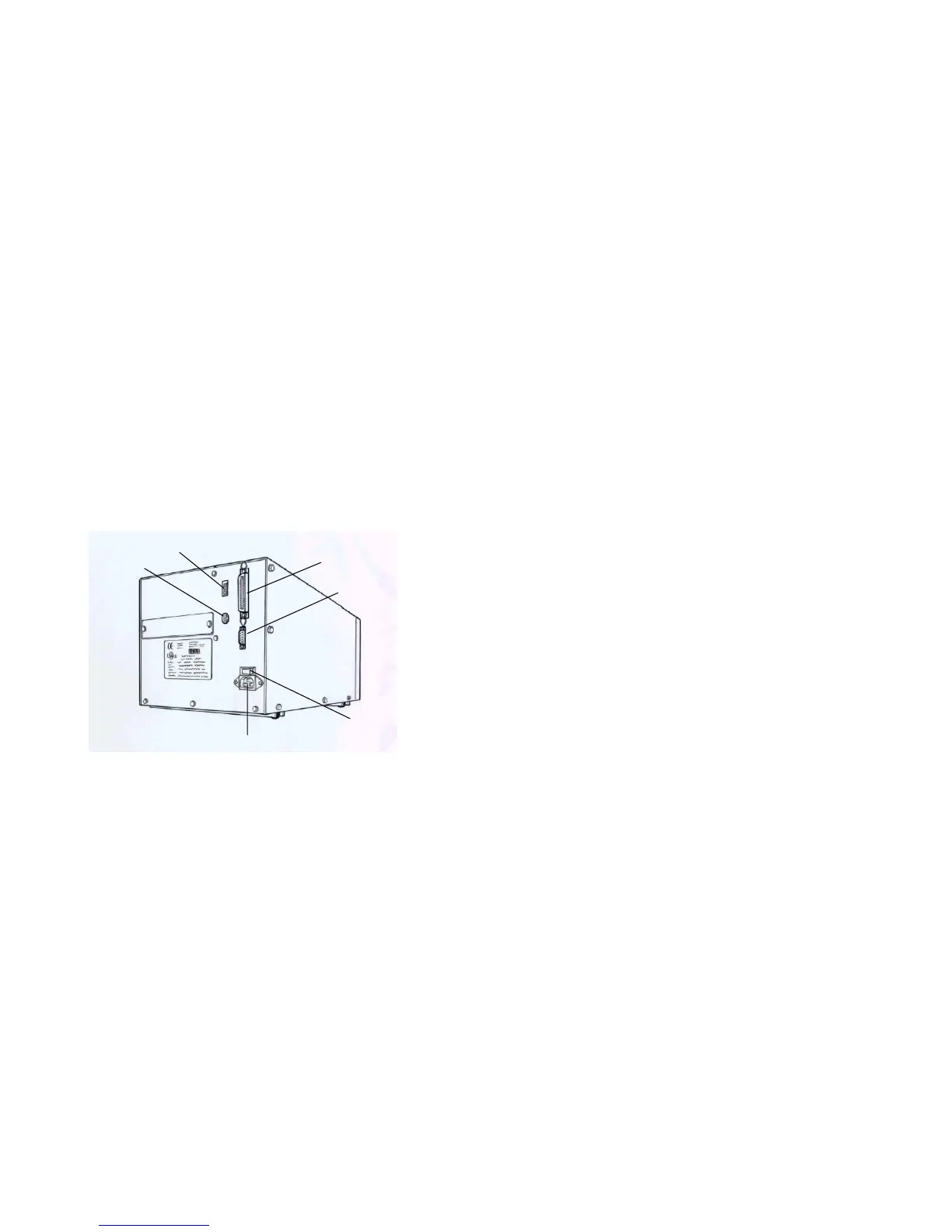
Rear Panel
Printing Configuration Report
The rear panel includes
Performing the Self Test
- An 8-bit DIP switch
- A 36-pin parallel port
1. Turn off the printer. Press and hold the FEED button.
- A 9-pin RS-232 serial port
2. Turn on the power.
- A PS/2 keyboard connector
3. When the message “SELF TESTING …” is displayed on the LCD and
READY indicator blinks, release the button.
- A power switch and power connector
4. The printer will print out a configuration report.
5. Finally the “READY” message is displayed and the READY indicator
stops blinking and lights up.
DIP Switch
Centronics
PS/2 KB I/F
6. The following information will be printed on this report.
RS-232
Serial Port
- Font list
- DIP switch settings
- Hardware configuration and status
- Label parameters
- Firmware version
Power Switch
Power Connecto
30
Note:
After self test the printer will enter character dump mode. For normal
operation press the CANCEL button to stop dump mode.
29


 To Next Page