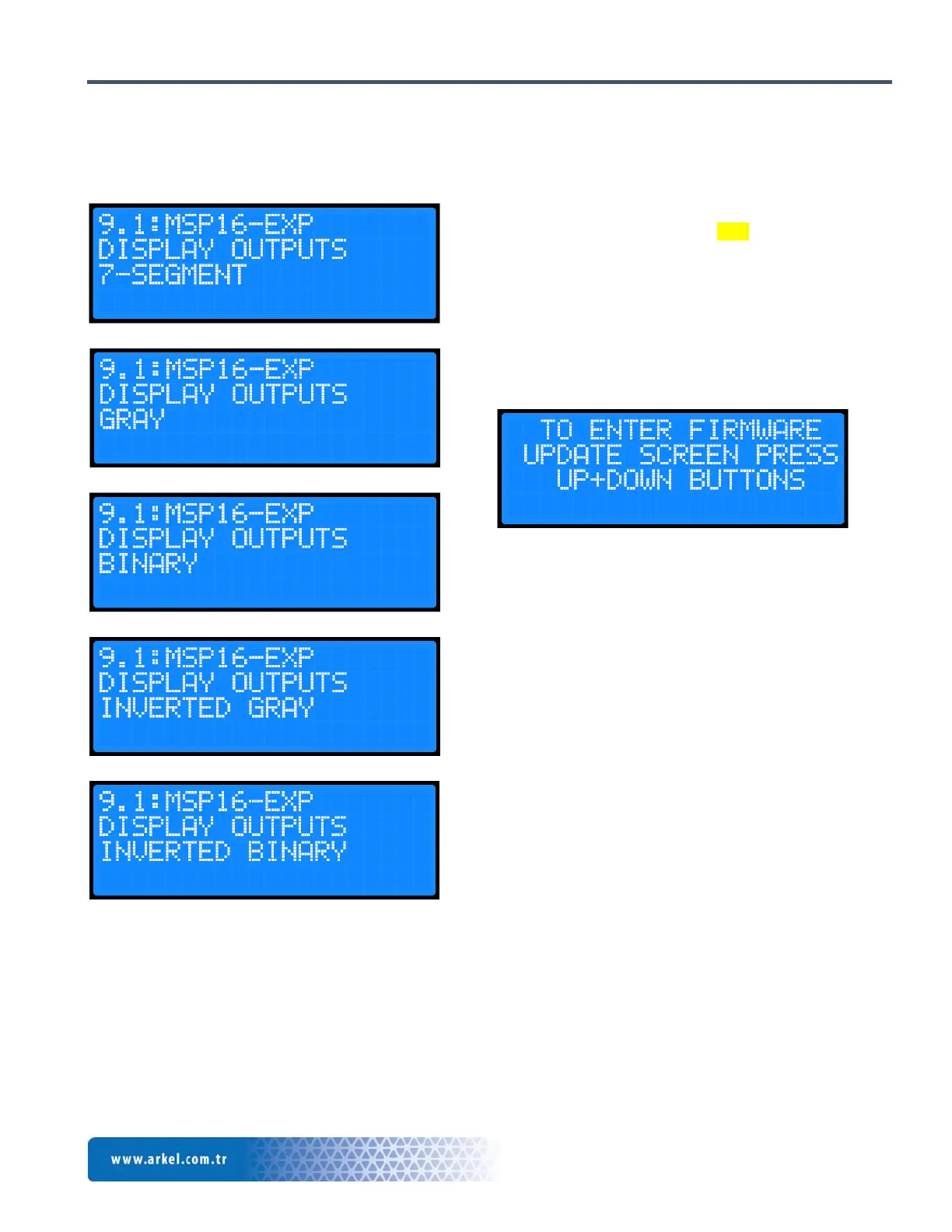
board should be adjusted from the menu. Find “9.1:
MSP16-EXP DISPLAY OUTPUTS” parameter under
“9: DISPLAY SETTINGS” parameter.
7-Segment,
Gray,
Binary,
Inverted Gray,
and Inverted Binary,
options are existing. Select the correct parameter for your
system over here. You may need to readjust “9.4:
GRAY/BINARY CODE START” parameter
depending on the display you used.
8. Software Update
Continue on the main menu by pressing “RIGHT” button
until you see the below screen.
Then, press together “UP” and “DOWN” buttons. The
versions inside SD card will be listed. You can pass
through the versions by direction arrows.
The latest software version is the one which has the latest
date. When you come to the version you want to update,
start update operation by pressing “ENT” button.
After the update operation is completed, the system will
be restarted.
ARCUBE peripherals have feature to be updated. If there
are some peripherals which are not connected to
“CANBus” line while doing installation, it is needed
again to perform update operation after connected them.
Otherwise, these peripherals will not work in the system.
9. ARCUBE Peripherals
These peripherals are all the units working on CANBus
line. Each unit has its own address. After ARCUBE is
updated, the other peripherals are looked for, then
updated.
9.1 FX-Cube
This is an inspection board located on the car top. It
provides the communication between car and control
panel. Also, it is used to get the car calls up to max. 16
floors in parallel.
9.2 MSP-16_Exp
It is a landing call button board used in parallel
installation systems. It can be used up to max. 16 floors
as well. It is used up to 16 floors in the case of using
single button at the floors to get the landing calls. It is
used up to 9 floors in the case of using double button at
the floors to get the landing calls.
9.3 ENCA
It is the board for encoder connection used in
synchronous (Gearless) machines.


 To Next Page