It is necessary to be checked by giving calls if the elevator
is going to the target floors or not. While you see
“WAITS FOR CALL” message in the main menu, press
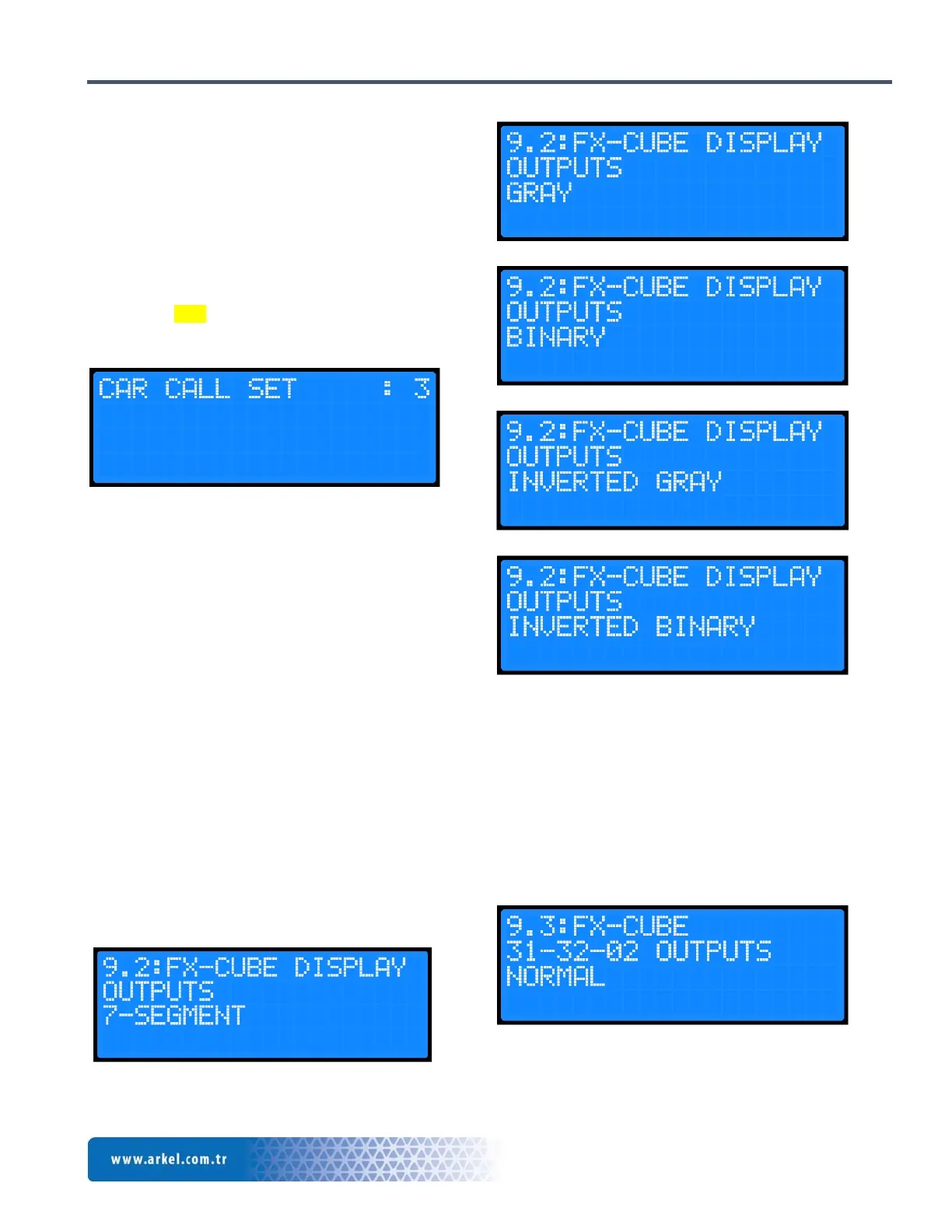
“RIGHT” button until you see the screen shown in
Figure-11. The number next to “CAR CALL SET”
expression shows which floor you want to give a call.
You can change the number with the UP and DOWN
direction arrows, then give a call to the floor you wanted.
For example, while it is written “CAR CALL SET: 3”,
if you press “ENT” button, the car will move to the 3rd
floor as if it gets a car call.
Figure 11 Car call screen
7. Call Settings
7.1 Car Calls
7.1.1 FX-Cube settings
FX-Cube is a board used in ARCUBE system to be used
for car calls. Each button inside the car is connected in
parallel to this board. After connecting FX-Cube board to
ARCUBE CANBus line, after doing the software update
from the menu, it is available to give car calls without
doing any other settings. Before going on with the
landing call settings, check that the car can be moved to
all floors by giving the car calls. FX-Cube board can
collect car calls up to max. 16 floors in parallel.
The display outputs should be adjust from the menu. Find
“9.2: FX-CUBE DISPLAY OUTPUTS” parameter
under “9: DISPLAY SETTINGS” parameter.
7-Segment,
Gray,
Binary,
Inverted Gray,
and Inverted Binary
options are existing. Select the correct parameter for your
system over here. You may need to readjust “9.4:
GRAY/BINARY CODE START” parameter
depending on the display you used.
The direction arrow outputs and out of service output on
the board should be adjusted from the menu. 31,32,02
outputs can be selected as normal and inverted inside
“9.3: FX-CUBE 31-32-02 OUTPUTS” parameter.
Select the correct parameter for your system over here.


 To Next Page