59Change Your Settings
Pro 5S 2K Spotlight Camera
User Manual
Auto Zoom and Tracking
To use Auto Zoom and Tracking and local live streaming, you need an Pro 5S 2K Spotlight
Camera paired with an optional Arlo SmartHub or base station (VMB5000, VMB4540, VMB4500,
or VMB4000, sold separately).
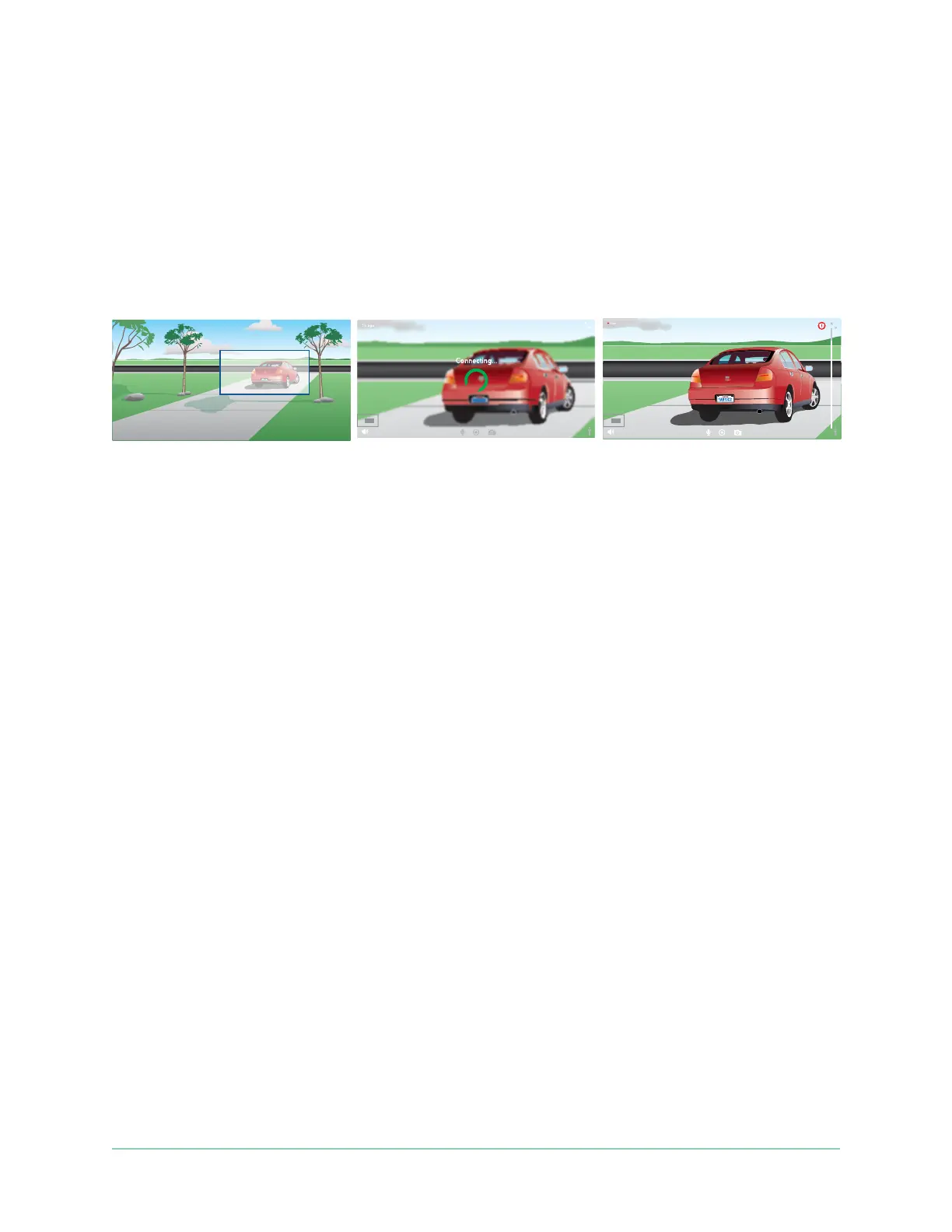
When your camera detects motion, cloud motion recording is triggered. When Auto Zoom and
Tracking is on, your camera zooms in on the object and tracks its movement while the motion
is within its eld of view.
If you’re viewing a live stream recording, you can zoom in to any point of the Auto Zoom and
Tracking recording. Your camera uses its advanced image sensor to enhance the image quality
of the zoomed-in area. (The zoomed-in image is in 1080p video resolution.)
Note: If you paired your camera to an Arlo SmartHub or base station (sold separately), and
you turn on Local 2K Live Streaming, the Arlo Secure App automaticlly turns o Auto Zoom
and Tracking. The reverse is also true. If you turn on Auto Zoom and Tracking, the Arlo Secure
App automatically turns o Local 2K Live Streaming.
To turn on Auto Zoom and Tracking:
1. Open the Arlo Secure App.
2. Tap Devices.
3. Select Edit.
4. Select Settings on the top right corner of the camera.
5. Tap Video Settings.
6. Tap Auto Zoom and Track.
Change the video quality and battery usage
You can set the video resolution as Best Video, Optimized, or Best Battery Life. Using the Best
Battery Life setting reduces the Wi-Fi bandwidth that is required.
1. Open the Arlo Secure App.
2. Tap Devices.


 To Next Page