71SmartHub SD Card Storage
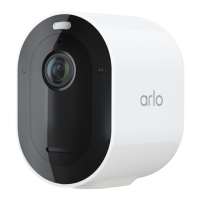
Pro 5S 2K Spotlight Camera
User Manual
Turn on Best Local Recording
The SmartHub recordings saved onto the SD card are 1080p by default, but you can change
this setting to record the best resolution that’s supported for your camera. For example, Ultra
Series cameras support 4K local recording and Pro 5S 2K Spotlight Camera support 2K local
recording.
To turn on Best Local Recording:
1. Open the Arlo Secure App.
2. Tap Devices.
3. Tap SmartHub/Base Station/Bridge
4. Select the SmartHub.
5. Tap Storage Settings > Best Local Recording.
Change the SD card overwrite setting
By default, if the SD card lls up, the oldest Arlo recording is erased to make room for new
recordings. Files on the SD card that aren’t in the Arlo folder aren’t deleted to make room
for Arlo recordings. You can change the setting so that no Arlo recordings are automatically
erased.
1. Open the Arlo Secure App.
2. Tap Devices.
3. Tap Base Station & Bridge > Storage Settings.
4. Tap Overwrite Automatically.
The overwrite setting toggles o and on.
Format a microSD card
Your SmartHub accepts micro SD cards, SDHC or SDXC only, le format FAT32. The Arlo Secure
App displays a message to let you know if you need to format the SD card. The SmartHub can
format the SD card.
1. Open the Arlo Secure App.
2. Tap Devices.
3. Tap SmartHub/Base Station/Bridge > Local Storage.
4. Tap the red Format SD Card button.


 To Next Page