21
In order to add device to multiroom function, click on the “+”
mark of the device you want to be the master device.
A list of available devices will pop out and you can select the
device you want to add as slave device. Click the Done button
when finished.
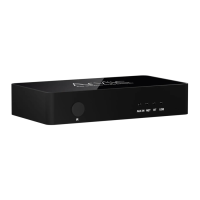
The gray tick icon represents the master device and green tick
icon represent the slave device.
To remove device from multiroom function, click on the “+”
mark again to bring up the device list, and unselect any slave
device you want to remove. Then click on the Done button to
confirm.
If all the slave device is removed, multiroom function will
disable.
8.5.1 Add / Remove Device to Multiroom
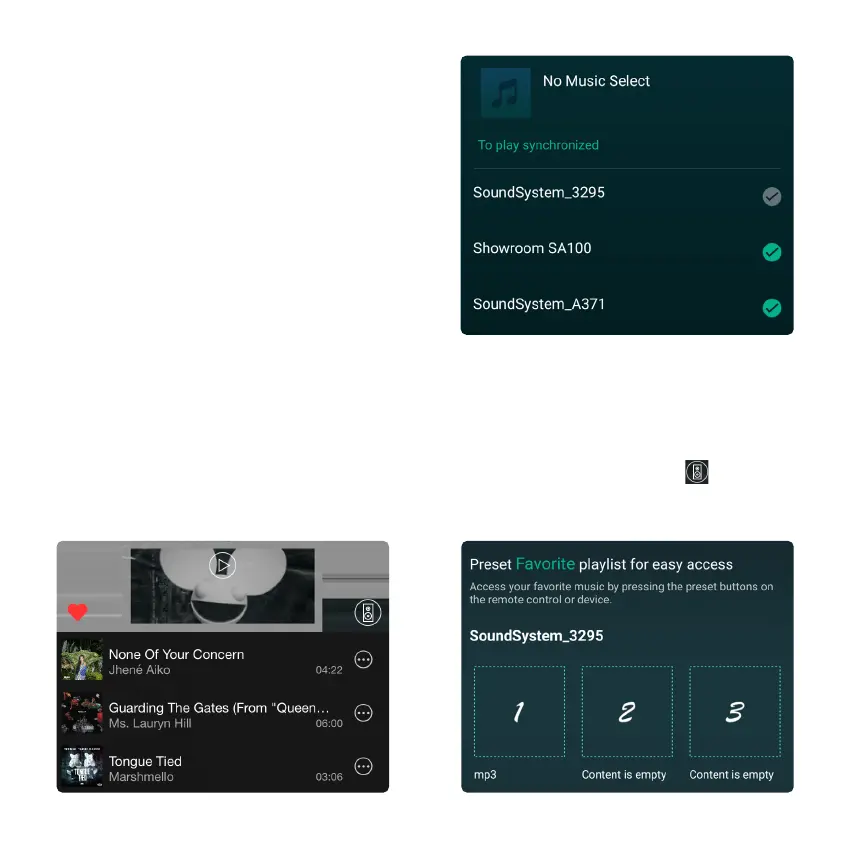
There are 6 buttons on the remote control, users can preset play lists (Only the lists with speaker icon can preset)
on the application from 1~6 for example, then when you press button 1 on the remote, the preset list 1 will play.
(Users can Preset 10 Playlists on the Application, but the remote control can only save from 1-6).
Users can choose the right channel or left channel or stereo mode on the application, or choose left channel on device
A and choose right channel on device B, and group them together and play in sync to make stereo.
8.6 Left and Right Channel
8.7 Preset



 To Next Page