33 | P a g e
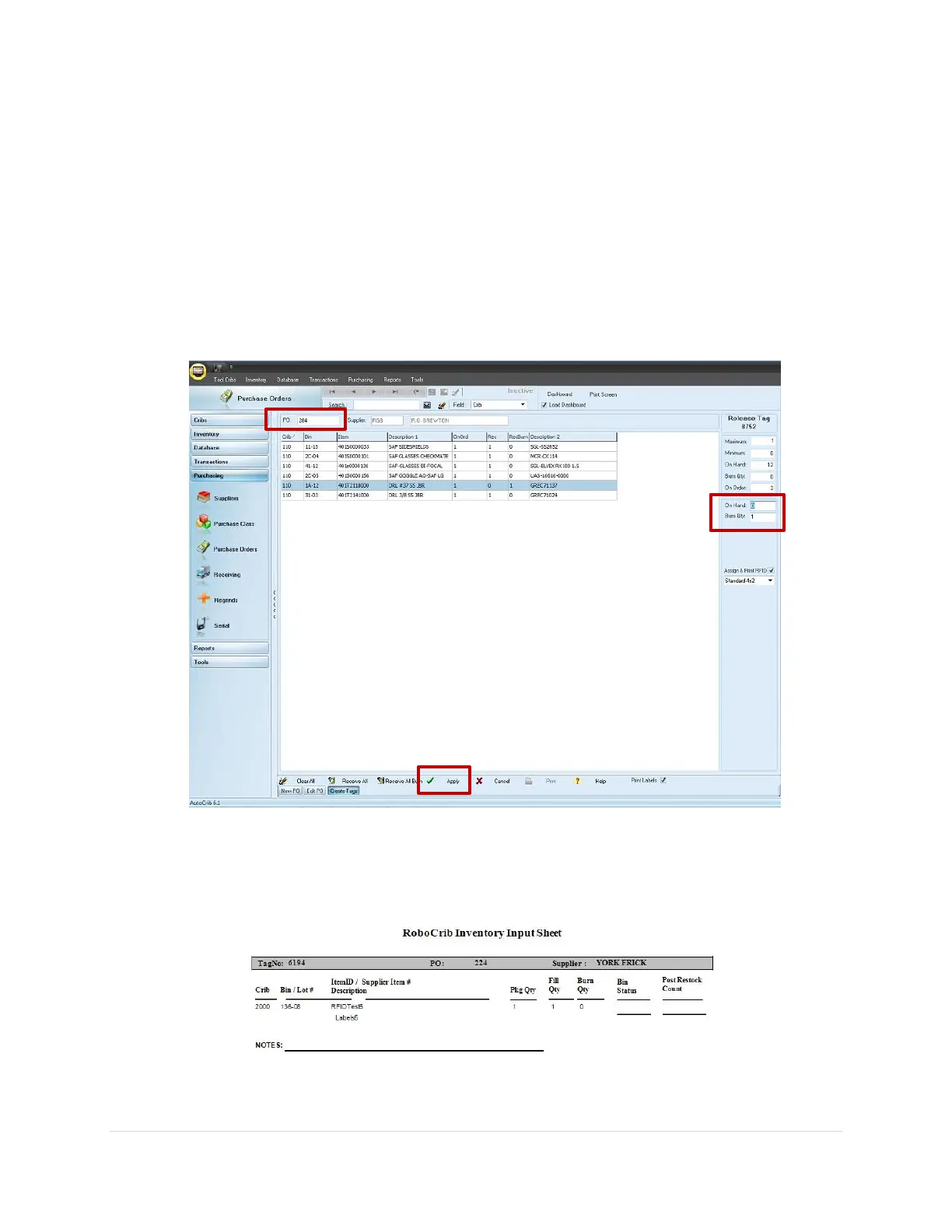
5. Use the Create Tags tab. This can be found in the Purchase Orders module within
the Purchasing menu.
6. Select the Purchase Order number created in step 3 by double clicking in the green
field.
7. If all items can be stocked, choose the ‘Receive All’ or ‘Receive All Burn’ button.
Otherwise, insert the individual quantities into the On Hand or Burn Qty fields. (See
Diagram 4.2)
8. Select the ‘Apply’ button.
9. Print the Inventory Input Sheet – RoboCrib report located within the
“Purchasing” report category of the Reports module. (See Diagram 4.3)


 To Next Page