Need help?
Do you have a question about the Avaya 700500205 and is the answer not in the manual?
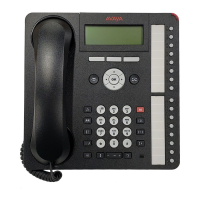
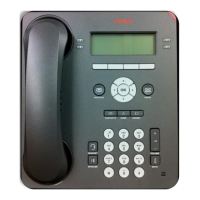
The Avaya 9404 and 9408 models are business telephones designed for efficient communication, offering a range of features for managing calls, contacts, and personal settings. These devices are user-friendly, with clearly labeled buttons and on-screen prompts to guide users through various functions.
At its core, the Avaya 9404 and 9408 telephones serve as primary communication tools, enabling users to make, receive, and manage phone calls. The display provides visual cues for call status, navigation, and feature activation. A prominent Call/Message Waiting Indicator, a red light in the upper-right corner, illuminates when there are new voice mail messages or an incoming call, ensuring users are always aware of important communications. The Message button, when illuminated, also signals waiting voice mail messages and provides direct access to the voice mail system.
The telephones feature four softkeys located directly under the display. These keys are context-sensitive, meaning their functions change based on what is displayed on the screen, with their labels indicating the current action they perform. This dynamic functionality simplifies navigation and interaction with the phone's various menus and options.
Navigation is facilitated by a set of arrows (up, down, right, left) which allow users to scroll through lists, move between menus, and position the cursor during text input. The central OK button acts as a shortcut for actions, such as dialing a number after selecting a contact or history entry. The Prompt Line, at the top of the display, provides guidance on when to use the navigation arrows for alternate screens or menus.
Key dedicated buttons enhance usability. The Phone button returns the user to the main home screen. The Contacts button provides access to a personalized directory, allowing users to store and retrieve up to 100 names and telephone numbers. The History button displays a log of outgoing, answered, and missed calls, with a dedicated Missed Call Indicator illuminating when there are unreviewed missed calls. The Home button is used for configuring various options and settings.
For audio control, a Volume button adjusts the loudness of the handset, headset, speaker, or ringer. A Headset button allows for the use of a connected headset, while the Speaker button activates the speakerphone. The Mute button silences the microphone during a call, preventing the other party from hearing the user, and can be pressed again to unmute.
The Avaya 9404 and 9408 telephones offer comprehensive call management capabilities. Answering incoming calls is straightforward: users can lift the handset, press the Speaker button for speakerphone use, or press the Headset button. If already on a call, selecting the incoming line automatically places the original call on hold, allowing seamless switching between conversations.
Making calls involves lifting the handset or pressing Speaker, then dialing the number directly. Alternatively, users can leverage the Contacts list or History log for quick dialing. The Redial feature allows for immediate re-connection to the last dialed number.
The Contacts feature is robust, enabling users to store and manage a personal directory. To call a person from Contacts, users can press the Contacts button, scroll through the list, or type the first letter of the contact's name, then select "Make Call" or "OK." Adding new contacts involves pressing Contacts, then "More" and "New," entering the name using the dial pad (with options for upper/lower case and backspace), and then entering the telephone number. Editing and deleting contacts follow a similar process through the "More" menu.
Putting a call on hold is achieved by selecting the active line and pressing the "Hold" softkey, which causes the line's light to flash. Pressing the line button again retrieves the call.
Call Forwarding is a key feature for managing incoming calls. Users can set a number to which calls will be forwarded, with the display indicating when the feature is active and the forwarding destination. This can be turned on or off via the "Call Forward" softkey. Remote access to call forwarding is also available, allowing users to activate or deactivate the feature from any phone using a specific access number, extension, and a private PIN code.
Conference calls allow up to six participants (including the user) to join a single conversation. To initiate a conference, users start a call, press "Conf," dial the next participant, and then press "Conf" again to add them. Participants on hold can also be added to a conference. During a conference, individual participants can be dropped using the "Drop" softkey, and the entire conference can be placed on hold or muted.
The History Log provides a detailed record of calls, categorized into Answered, Outgoing, and Missed calls. Users can view these lists, scroll through numbers, and access call details. Numbers from the history log can be directly called or added to the Contacts list. Entries can be removed individually or the entire log can be cleared. Call logging itself can be turned on or off in the "Application Settings" menu.
Bridged Calls allow users to share a line with another person. This means users can see if the line is in use, answer calls on that line, or join a call in progress. Outgoing calls can also be made on a bridged line when it's not in use. Answering a bridged call involves selecting the ringing line (indicated by a flashing LED) and pressing "Answer." Joining an active bridged call is done by selecting the call and pressing "Bridge." Making an outgoing call on a bridged line involves selecting the line and pressing "OK" for a dial tone. Voicemail messages on a bridged line are indicated by a "Msg" light and can be retrieved by selecting the line and pressing the Message button or dialing 7100.
Call Park is a useful feature for transferring calls between Avaya telephones within the system. A user can park an active call, announce the parking extension (e.g., via overhead paging), and then retrieve it from any other Avaya phone by dialing *81 and entering the parking extension.
The Auto Dial feature allows users to store a single number for quick dialing. This is programmed via the "Abr Program" softkey, where users enter the number and save it.
The Call Timer displays the duration of an active call and can be activated or deactivated as needed.
The Ringer Off feature allows users to silence the phone's ringer. When active, incoming calls will flash on the display, showing the calling party number (unless private or blocked), and will eventually forward to voicemail if unanswered. This feature is toggled on or off via the "Ringer Off" softkey.
The Avaya 9404 and 9408 telephones include several settings for personalizing the device and ensuring optimal performance. These are generally accessed through the Home button and the "Options & Settings" menu.
Users can adjust the display's brightness and contrast via "Screen & Sounds" settings, allowing for comfortable viewing in various lighting conditions.
Audible feedback for button presses can be toggled on or off through the "Button Clicks" option under "Screen & Sounds." Similarly, error tones, which signal incorrect actions, can be turned off if desired, preventing unnecessary beeps.
The phone offers eight different ring patterns, which can be previewed and selected under "Personal Ringing" in the "Screen & Sounds" menu, allowing users to choose a preferred alert sound.
For improved readability, a "Larger Display Font" option is available under "Advanced Options" and "Language" settings.
Call settings include options like "Show Phone Screen on Calling," which determines whether the display exits other menus (Contacts, History) to show the incoming call screen. "Visual Alerts" can be turned on or off, controlling whether the LED flashes for incoming calls. "Audible Alerts" controls whether the phone rings for incoming calls; turning this off automatically activates visual alerts. The "Audio Path" setting allows users to configure whether calls automatically use the speakerphone or a connected headset upon initiation. Finally, "Stay in Contacts" determines if the display remains in the Contacts menu after making a call from it. These settings provide a high degree of customization to suit individual user preferences and work environments.
 General
| Type | IP Phone |
|---|---|
| Power over Ethernet | Yes |
| Speakerphone | Yes |
| Network Ports | 2 |
| Supported Protocols | SIP, H.323 |
| Headset Port | Yes |
| Volume Controls | Yes |
| Programmable Keys | Yes |
| Model | 700500205 |
| Connectivity | Ethernet |
| Compatibility | Avaya IP Office |
| Ethernet Ports | 2 x 10/100 Mbps |
| Power | PoE 802.3af |
| Display | Monochrome |

 To Next Page