EasyManua.ls Logo

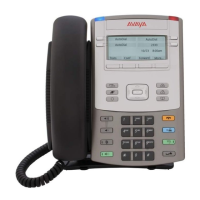
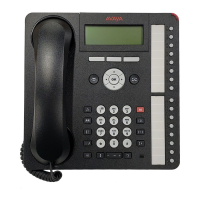
Avaya 1140E - User Manual

Avaya 1140E
298 pages
Print Icon
To Next Page IconTo Next Page
Loading...
SIP Software Release 4.4
Avaya 1140E IP Deskphone with SIP
Software User Guide
Release 4.4.7
NN43113-101
Issue 09.02
August 2017

Table of Contents

Other manuals for Avaya 1140E

Questions and Answers

  • J
    Julian MarquezAug 17, 2025
    What to do if my Avaya IP Phone is locked from login?
    • A
      angelhawkinsAug 17, 2025
      If your Avaya IP Phone is locked from login due to three failed attempts to enter the correct Station Control Password, you can either wait one hour for the lock to clear automatically, or notify your system administrator to clear the lock.
  • N
    Nathan MartinAug 20, 2025
    Why does my Avaya 1140E IP Phone say 'Busy, try again'?
    • B
      Bryan PattonAug 20, 2025
      If you receive a 'Busy, try again' message on your Avaya IP Phone, it could be due to several reasons. First, the remote IP Deskphone might be active (not idle), so you should wait for it to become idle and try again. Second, you might be logged into ACD. Log out of ACD IP Deskphone before initiating Virtual Office from another IP Deskphone. Third, Make Set Busy might be inactive on ACD IP Deskphone. Configure Make Set Busy active on ACD IP Deskphone.
  • A
    Alexandra ParkAug 23, 2025
    What to do if Avaya 1140E shows 'Server Unreachable (1)'?
    • M
      Melissa LewisAug 23, 2025
      If your Avaya IP Phone displays 'Server Unreachable (1)', it indicates a network problem. If the problem persists, notify your system administrator.
  • R
    Riley WillisAug 25, 2025
    What to do if Avaya IP Phone shows 'Server Unreachable (2)'?
    • H
      hjohnstonAug 26, 2025
      If your Avaya IP Phone displays 'Server Unreachable (2)', it indicates a network problem. If the problem persists, notify your system administrator.
  • S
    Sara HarveyAug 27, 2025
    How to fix 'Permission Denied (6)' error on Avaya 1140E?
    • B
      bennettannAug 27, 2025
      If you receive a 'Permission Denied (6)' error on your Avaya IP Phone, it could be due to an incorrect User ID or Station Control Password. Ensure you enter the correct User ID. If the User ID is correct, select Retry, and try again with the correct Station Control Password.
  • R
    Randy CaldwellAug 30, 2025
    What to do if Avaya 1140E shows 'Invalid ID (1)'?
    • K
      Kara MorenoAug 30, 2025
      If your Avaya IP Phone displays 'Invalid ID (1)', it may be due to an incorrect User ID being entered. Ensure you enter the correct User ID. If the User ID is correct, the User ID might not be in the Gatekeeper database, so notify your system administrator.
  • A
    Arthur MoralesSep 1, 2025
    What to do if Avaya IP Phone shows 'Invalid ID (3)'?
    • E
      Emma ChavezSep 1, 2025
      If your Avaya IP Phone displays 'Invalid ID (3)', it may be due to an incorrect User ID being entered. Ensure you enter the correct User ID. If the User ID is correct, the User ID in Gatekeeper database might point to originating Call Server, so notify your system administrator.
  • S
    Sarah RobertsSep 4, 2025
    What to do if Avaya IP Phone shows 'Permission Denied (4)'?
    • D
      Dawn BrooksSep 4, 2025
      If your Avaya IP Phone displays 'Permission Denied (4)', it may be due to an incorrect User ID being entered. Ensure you enter the correct User ID. Another reason may be an attempt to log in to a remote Avaya 1120E IP Deskphone or Avaya 2050 IP Softphone from an Avaya 1140E IP Deskphone (some restrictions apply). Go to an Avaya 1120E IP Deskphone or Avaya 2050 IP Softphone and try again, or consult your local system administrator.
  • C
    christopher04Sep 6, 2025
    What does 'Permission Denied (3)' mean on my Avaya 1140E IP Phone?
    • A
      Amy GordonSep 6, 2025
      If your Avaya IP Phone displays 'Permission Denied (3)', it may be due to an incorrect User ID being entered. Ensure you enter the correct User ID. Another possible cause is that the remote IP Deskphone has no Station Control Password, in which case you should notify your system administrator.
  • M
    Meredith SchultzSep 9, 2025
    What does 'Invalid ID (2)' mean on my Avaya IP Phone?
    • S
      sarah86Sep 9, 2025
      If your Avaya IP Phone displays 'Invalid ID (2)', it may be due to an incorrect User ID being entered. Ensure you enter the correct User ID.

Summary

Introduction to the Avaya 1140 E IP Deskphone

Avaya 1140 E IP Deskphone Controls

Details the physical controls and keys on the Avaya 1140E IP Deskphone, including fixed and soft keys.

Context-Sensitive Soft Keys

Explains the function and usage of the four context-sensitive soft keys located below the LCD screen.

Security Features

Explains the security measures for the IP Deskphone, including user ID and password requirements.

Accessing the Avaya 1140 E IP Deskphone

Logging On

Details the procedure for logging on to the IP Deskphone using a logon ID and password.

Logging Off from the IP Deskphone

Provides steps on how to log off the IP Deskphone from the Services menu.

Making an Emergency Call

Details how to make an emergency call from any screen without logging on.

Installing the 1140 E IP Deskphone

Before You Begin

Provides cautions and preparation steps before installing the IP Deskphone.

Connecting the Components

Guides the user through connecting the physical components of the IP Deskphone.

Connecting the LAN Ethernet Cable

Provides instructions for connecting the IP Deskphone to the LAN using an Ethernet cable.

Making a Call

Making a Call Using Off-Hook Dialing

Provides methods for making calls by going off-hook first, then dialing.

Making a Call Using On-Hook Dialing

Explains how to make calls by dialing the number or SIP address before going off-hook.

Receiving a Call

Answering an Incoming Call

Explains the four methods to answer an incoming call on the IP Deskphone.

The Address Book

Call Inbox

Call Outbox

Instant Messaging

Composing an Instant Message

Provides steps for composing and sending an Instant Message on the IP Deskphone.

While on an Active Call

Making a New Call

Explains how to initiate a new call while already on an active call.

Placing a Call on Hold

Explains how to place an active call on hold using the Hold feature.

Retrieving a Call on Hold

Guides on how to retrieve a call that has been placed on hold.

Transferring a Call

Provides steps on how to transfer a call to another telephone number or SIP address.

Additional Features

Feature Keys

Describes the purpose and configuration of programmable feature keys on the IP Deskphone.

Feature Key Programming

Guides on how to access the screen for programming feature keys on the IP Deskphone.

Using Call Forward

Explains how to use Call Forward to direct incoming calls to an alternate destination.

Configuring Do Not Disturb

Explains how to use Do Not Disturb to automatically block all incoming calls.

Multiuser

Initial Login

Guides through the initial login process, including username, password, and SIP domain.

Making a Call

Explains how to place calls using any of the registered user accounts on the IP Deskphone.

Receiving a Call

Describes how incoming calls are displayed and answered on the IP Deskphone.

Programmable Keys

Describes the use and limitations of programmable feature keys associated with accounts.

Do Not Disturb

Explains how to use Do Not Disturb to block all incoming calls for an account or all accounts.

Call Forwarding

Details how to forward calls to an alternate destination for specific or all accounts.

Advanced Features

Resetting the IP Deskphone

Explains how to log out and re-register to the server by resetting the IP Deskphone.

Visual Indicators

Multi-Level Precedence and Preemption

Making a Call with MLPP

Guides on making outgoing calls with MLPP, specifying precedence levels.

Preemption

Explains the preemption process when higher precedence calls are received.

Avaya 1140E Specifications

General IconGeneral
SpeakerphoneFull-duplex speakerphone
Weight2.2 lbs
DisplayHigh-resolution, backlit, graphical display
Connectivity10/100 Mbps Ethernet
PowerPoE (802.3af) or external power adapter
ProtocolSIP, H.323
ExpansionNo
LinesUp to 6 lines
Headset PortYes
Supported CodecsG.711, G.729

Related product manuals