User’s Manual
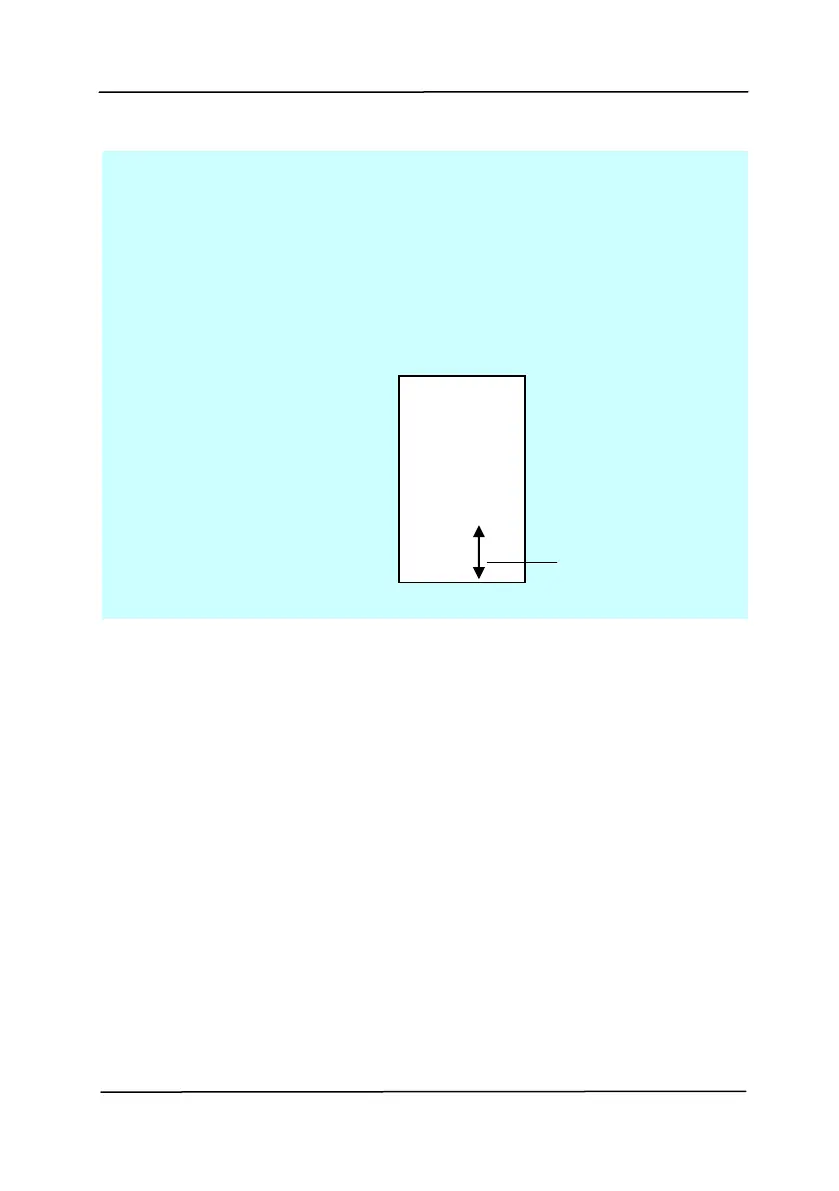
Choose the position you wish to print your
string. Move the slider to the right to increase
the value or to the left to decrease the value.
Range: 0~355mm, default:0 mm
The value indicates the height from the
bottom of your paper to the last letter of your
string. This option is available only if an
external imprinter is installed.
Print Position (for digital imprinter)
Choose the position of your printed string. Choice: Top,
Middle, Bottom, Custom. If Custom is selected, enter the X
and Y offset value to specify the position.
More: Click the [More] button to display more font options.
This option is available for digital imprinter (stamp text on
your scanned image) only. This function is not available on
some models.
Font size: Move the slider to change the font size from 1 to
10. Density: Move the slider to change the source density
from 0 to 255. The selected density will appear at the same
time.
Transparency: Move the slider to choose an appropriate
transparency value from 0% (not transparent) to 100%
(completely transparent) so that your text can be partially
transparent and you can see the background image.
The value of
Print Position



 To Next Page