User’s Manual
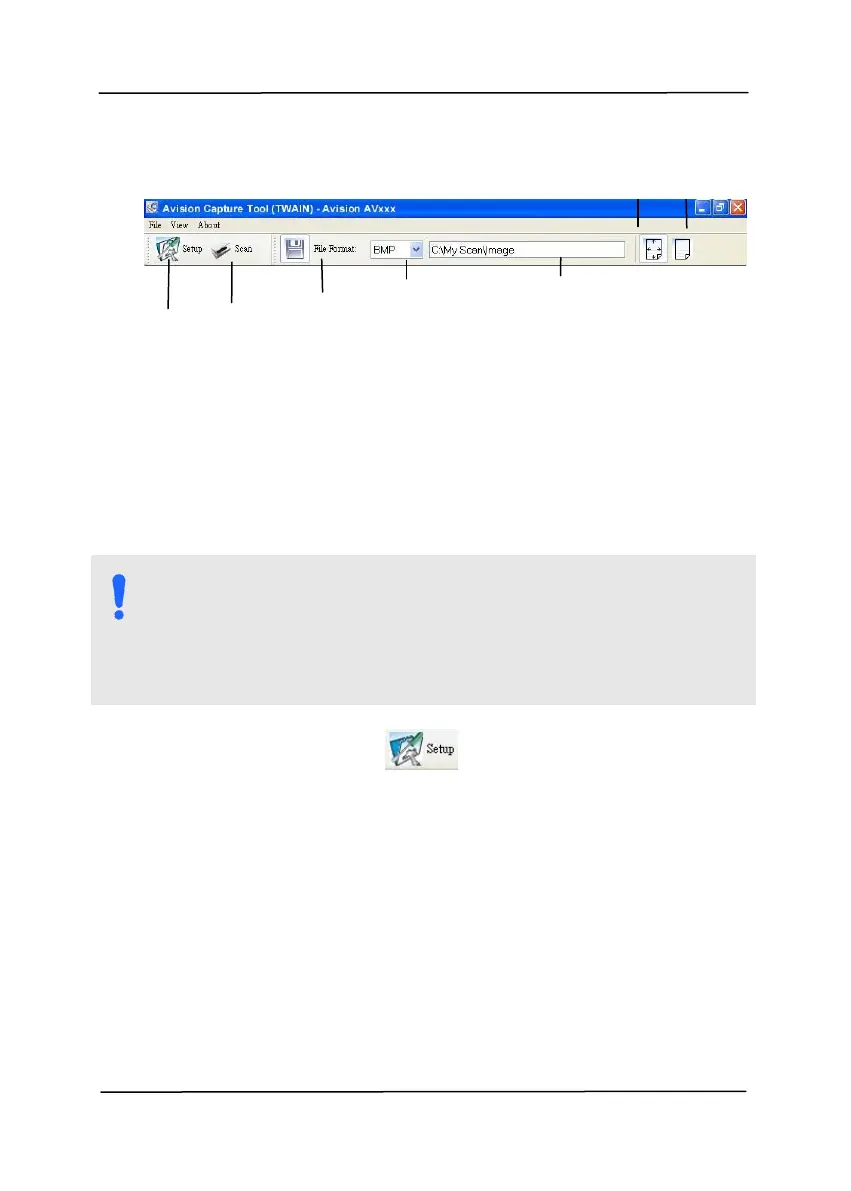
3. Choose your desired file format from the File Format drop
down list box. (Default is BMP, other choice includes TIFF,
MTIFF, PDF, MPDF, GIF, and JPEG.) The supported file
formats vary depending on your scanner model.
4. Type your desired folder name and file name in the File
Path box. (Default is C:\My Scan\Image.)
NOTE:
If you do not wish to save the scanned image, deselect
the Save button since default is Save Enable. In this case,
the thumbnail view will be disabled. And therefore, after
viewing all the scanned images, only the last one will
remain on the screen.
5. Click the Setup button ( ) or choose Setup from the
File menu to prompt the Scanner Properties dialog box.



 To Next Page