EasyManua.ls Logo

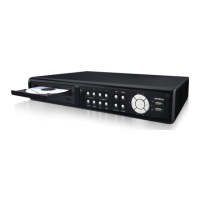
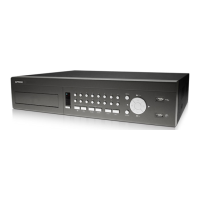
Avtech AVC-756D - User Manual

Avtech AVC-756D
92 pages
Print Icon
To Next Page IconTo Next Page
Loading...
KD678_677_676_675_AC758D_757_756D_755_CD536_538_manual_V1.1
DIGITAL VIDEO RECORDER
USER MANUAL
Please read instructions thoroughly before operation and retain it for future reference.

Table of Contents

Questions and Answers

  • D
    Duane MullenAug 19, 2025
    How to fix Avtech DVR no live video?
    • R
      Robin BennettAug 19, 2025
      To troubleshoot the issue of no live video on your Avtech DVR, first ensure the camera is receiving power. Next, check the camera lens settings, the monitor's video cable and connection, and the camera's video cable and connection.
  • C
    Cassandra LewisAug 21, 2025
    What to do if Avtech DVR is not recording video?
    • J
      Jennifer GonzalezAug 21, 2025
      To resolve the issue of your Avtech DVR not recording video, verify that the HDD is correctly installed and connected. Also, check that the “MANUAL RECORD ENABLE” option is set to “ON” and the record function in the “CAMERA” menu is also set to “ON”.
  • B
    Benjamin GrahamAug 23, 2025
    How to troubleshoot Avtech DVR no power?
    • J
      josephrobinsonAug 23, 2025
      If your Avtech DVR is not powering on, check the power cord connection and ensure that the outlet is supplying power.
  • D
    Daniel OsbornAug 26, 2025
    What to do if Avtech AVC-756D is not working when pressing any button?
    • C
      Chris BakerAug 26, 2025
      If your Avtech DVR does not respond when pressing any button, it might be in “Key Lock” mode. To exit, press any key and enter the password.
  • C
    Cheryl SteinAug 27, 2025
    Why is timer recording not working on Avtech AVC-756D DVR?
    • N
      Nicole ReidAug 27, 2025
      If the timer recording is not working on your Avtech DVR, check if the “TIMER RECORD ENABLE” option is set to “ON” and that the timer schedule has been properly configured.
  • M
    Marcus BartonAug 30, 2025
    Why is motion detection recording not working on Avtech AVC-756D DVR?
    • A
      Anne MatthewsAug 30, 2025
      If motion detection recording is not working on your Avtech DVR, ensure that the “EVENT RECORD ENABLE” option is set to “ON”. Also, verify that the detection function “DET” is set to “ON” and that the detection area “AREA” has been configured.
  • L
    Lindsey WalkerSep 1, 2025
    How to fix failed backup of recorded files on Avtech AVC-756D DVR from remote PC?
    • P
      Pedro HuynhSep 1, 2025
      To fix the issue of failing to backup recorded files from the remote PC side on your Avtech DVR, ensure you have supervisor privileges. Verify that the network connection information (IP Address / Port / User Name / Password) is correct. Also, specify the hard disk (HDD Number) and channel number (Channel) containing the recorded data you need.
  • J
    jessicawilliamsSep 3, 2025
    What to do if Avtech AVC-756D can’t detect USB flash drive?
    • H
      hcastroSep 3, 2025
      To resolve the issue of your Avtech DVR not detecting your USB flash drive, try using a different USB flash drive for testing. Alternatively, format the USB flash drive to FAT32 and try again.
  • T
    Theresa BrownSep 5, 2025
    What to do if Avtech AVC-756D HDD detection failed?
    • B
      bowenthomasSep 5, 2025
      To resolve the issue of HDD detection failure on your Avtech DVR, try replacing the current HDD with another one for testing. Also, try replacing the HDD cable with another one for testing.
  • J
    Jill DavenportSep 7, 2025
    How to fix failed firmware upgrade on Avtech DVR via USB?
    • B
      Brandon GarciaSep 7, 2025
      To resolve the issue of failing to upgrade the firmware or OSD file on your Avtech DVR via USB flash drive, check if the USB flash drive is formatted to FAT32. Also, verify that the firmware or OSD files are correct.

Summary

DIGITAL VIDEO RECORDER USER MANUAL

IMPORTANT SAFEGUARD

CAUTION

Describes risk of electric shock and essential safety precautions.

2. FRONT AND REAR PANEL

FRONT AND REAR PANEL

2.2. Rear Panel

Details on VGA output, LAN connection, LINK ACT LED, and DC power input.

3. CONNECTION AND SETUP

CONNECTION AND SETUP

3.1. HDD Installation

Notes on HDD power connection and initialization process.

3.2. Camera Connection

Instructions for connecting cameras, including power, video, and audio cables.

4. BASIC OPERATION

BASIC OPERATION

4.1 Live Page

Detailed explanation of icons displayed on the live view screen.

4.4. Search

Methods for searching recorded files via DVR and 'Video Viewer' software.

4.3. Playback

How to playback recorded video files using the supplied 'Video Viewer' software.

5. ADVANCED OPERATION

5.2. RECORD

Introduction to the various record setting options available.

ADVANCED OPERATION

5.4. DETECTION

Configuring motion and alarm detection functions.

5.5. REMOTE

Setting up remote control for connected PTZ cameras.

5.7. NETWORK

Configuration options for network settings.

5.8. BACKUP

Introduction to backup options using USB drives or DVD writers.

6. REMOTE OPERATION

6.1. Video Viewer

Introduction to the 'Video Viewer' software for remote DVR control.

REMOTE OPERATION

6.1.2. Control Panel

Detailed explanation of control panel buttons and their functions.

Network Backup

Procedure for performing data backup over the network using 'Video Viewer'.

APPENDIX 2 TROUBLESHOOTING

FAQ (Frequently ask question)

Additional common troubleshooting questions and their solutions.

Avtech AVC-756D Specifications

General IconGeneral
BrandAvtech
ModelAVC-756D
CategoryDVR
LanguageEnglish

Related product manuals