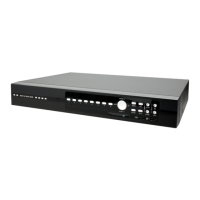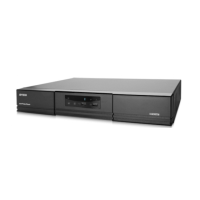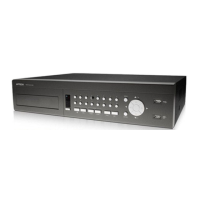
EasyManua.ls Logo

Avtech AVC798 - User Manual

Avtech AVC798
66 pages
Print Icon
To Next Page IconTo Next Page
Loading...
AV798(D)_797_796(D)_795_792(D)_CD541(D)_manual_V1.3
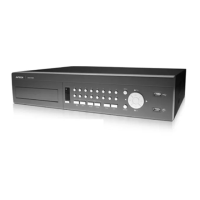
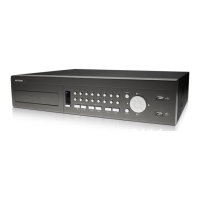
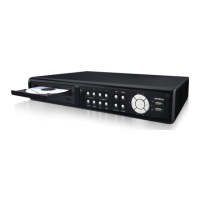
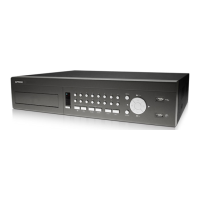
H.264 Network DVR
User Manual
Please read instructions thoroughly before operation and retain it for future reference.

Table of Contents

Other manuals for Avtech AVC798

Questions and Answers

  • M
    martin81Aug 17, 2025
    Why is there no live video on my Avtech DVR?
    • N
      Nina WilliamsAug 18, 2025
      If you're getting no live video on your Avtech DVR, here are a few things to check: * Make sure the camera is receiving power. * Verify the camera lens setting. * Check the video cable and connection for both the monitor and the camera.
  • J
    Jesus MeyersAug 20, 2025
    How to fix Avtech AVC798 DVR with no power?
    • J
      Jennifer MoodyAug 20, 2025
      If your Avtech DVR has no power, check the power cord connection. Also, confirm that the outlet is supplying power.
  • S
    Stefanie WheelerAug 22, 2025
    Why is my Avtech AVC798 not recording video?
    • P
      patricktorresAug 22, 2025
      If you're not getting any recorded video on your Avtech DVR, make sure the HDD is properly installed and connected. Also, check that both “MANUAL RECORD ENABLE” and the record function in the “CAMERA” menu are set to “ON”.
  • T
    Teresa JacksonAug 26, 2025
    What to do if Avtech AVC798 HDD detection failed?
    • J
      John WelchAug 26, 2025
      If your Avtech DVR is failing to detect the HDD, try replacing it with another HDD for testing. You can also try replacing the HDD cable for testing purposes.
  • D
    davidwalkerAug 28, 2025
    Why failed to backup recorded files of Avtech AVC798 DVR from remote PC side?
    • D
      Derek HodgesAug 28, 2025
      If you're having trouble backing up recorded files from your Avtech DVR to a remote PC, ensure your user level is SUPERVISOR. Check that the network connection information (IP Address / Port / User Name / Password) is correct. Also, specify the hard disk (HDD Number) and channel number (Channel) containing the recorded data you need.
  • A
    afosterAug 30, 2025
    Why Avtech DVR can't detect USB flash drive?
    • M
      Mark WalkerAug 30, 2025
      If your Avtech DVR can’t detect your USB flash drive, try replacing it with another USB flash drive for testing. Also, format the USB flash drive as FAT 32 and try again.
  • T
    Timothy KingSep 1, 2025
    Why motion detection recording is not working on Avtech AVC798?
    • J
      Jose WhiteSep 1, 2025
      If motion detection recording isn't working on your Avtech DVR, check that the “EVENT RECORD ENABLE” option is set to “ON”. Also, ensure the detection function “DET” is set to “ON” and that the detection area “AREA” has been set up.
  • D
    Debra DavisSep 4, 2025
    Why is timer recording not working on my Avtech AVC798?
    • K
      Kevin CamposSep 4, 2025
      If timer recording is not working on your Avtech DVR, check if the “TIMER RECORD ENABLE” option is set to “ON” and the timer schedule has been arranged.
  • R
    Robin MccormickSep 6, 2025
    Why can't I play recorded data on my Avtech DVR?
    • L
      Leah WalkerSep 6, 2025
      Your Avtech DVR requires at least 8192 images of recorded data for playback to work properly. If there's less data, the DVR will stop the playback. For example, if the IPS is set to 30, the recording time should be at least 273 seconds (8192 images / 30 IPS) for the playback to work properly.
  • M
    Matthew ManningSep 9, 2025
    Why failed to upgrade firmware on Avtech AVC798?
    • E
      Emily GriffithSep 9, 2025
      If you're failing to upgrade the firmware or OSD file on your Avtech DVR, check that the USB flash drive is formatted to FAT32. Also, verify that the firmware or OSD file you are using is correct.

Summary

Important Safeguards

Grounding

Explains grounding requirements for electrical safety.

Water & Moisture

Details precautions against water and moisture exposure.

MPEG4 Licensing

Outlines licensing terms for MPEG-4 visual standard usage.

GPL Licensing

Provides information on GNU General Public License and its terms.

1. OVERVIEW

1.1 Product Description

Details the H.264 DVR's video quality and file size optimization features.

1.2 Features

Lists the key functionalities and technologies of the H.264 DVR.

1.3 Specifications

Presents technical specifications for different DVR models with and without DVD writers.

1.4 Package Contents

Lists all items included in the DVR package.

2. FRONT AND REAR PANELS

2.1 Front Panel Controls and Indicators

Details the function of LEDs and buttons on the DVR's front panel.

2.2 Rear Panel Ports

Describes the various input/output ports located on the rear of the DVR.

3. CONNECTIONS AND SETUP

3.1 SATA HDD Installation

Provides step-by-step instructions for installing SATA HDDs into the DVR.

3.2 Camera Connection

Explains how to connect cameras to the DVR for video and audio input.

3.3 Power Setup

Instructs on connecting the DVR to a power source and outlet.

3.4 Date and Time Setting

Guides on setting the system date and time for accurate recording and search.

3.5 Password Setting

Details how to set and manage the DVR's system password.

4. BASIC OPERATION

4.1 Live Page

Describes the live viewing interface and its status indicators.

4.2 Recording

Explains different recording modes including continuous, event, and timer recording.

4.3 Playback

Details how to playback recorded video, including navigation and audio selection.

4.4 Key Lock and Unlock

Explains how to enable and disable the key lock function to secure the DVR.

4.5 Upgrade

Guides on upgrading the DVR's firmware and OSD using USB or software.

4.6 Search

Describes methods to search recorded files by list or by time.

5. MAIN MENU

5.1 Menu Configuration

Outlines the structure and options available within the DVR's main menu system.

5.2 Menu Operation Instruction

Provides guidance on navigating and operating the DVR's menu interface.

6. QUICK START MENU

6.1 Status

Allows checking and changing display settings like channel title, event status, and date display.

6.2 Manual Record

Configures manual recording settings such as image size, quality, and frames per second.

6.3 Timer

Enables scheduling of recording and detection functions using a timer.

6.4 Date

Guides on setting the system date and time for accurate recording and search.

7. ADVANCED MENU

7.1 Advanced Configuration

Provides access to advanced settings for camera, detection, alert, network, SNTP, display, record, and remote.

7.2 System Info

Displays system information and allows changes to serial type, baud rate, password, and default settings.

7.3 Event Info

Allows searching recorded files by time or event, and viewing HDD and event logs.

7.4 Backup

Provides options for backing up recorded data to USB flash drives or disks.

8. REMOTE OPERATION

8.1 Supplied Licensed Software

Covers installation, network connection, control panel, E-Map, and Quick Timer Player for Video Viewer.

8.2 IE Web Browser

Details how to view and operate the DVR using an Internet Explorer web browser.

8.3 Quick Timer Player

Explains using QuickTime player for live remote viewing.

APPENDIX 1 PIN CONFIGURATION

APPENDIX 2 COMPATIBLE USB FLASH DRIVE BRAND

APPENDIX 3 COMPATIBLE HDD BRAND

APPENDIX 4 TROUBLESHOOTING

APPENDIX 5 RS485 PROTOCOL

APPENDIX 6 DVR BATTERY REPLACEMENT

APPENDIX 7 RECORDING TIME TABLE

APPENDIX 8 DVD WRITER INSTALLATION

Avtech AVC798 Specifications

General IconGeneral
ModelAVC798
Video Input8 Channels
Recording ResolutionUp to 1080p
Compression FormatH.264
Power SupplyDC 12V
Audio Input1 Channel
Audio Output1 Channel
PTZ ControlYes
Backup MethodUSB, Network
Video OutputHDMI, VGA
StorageSupports up to 6TB HDD (not included)
Network InterfaceEthernet
Remote AccessYes, via mobile app and web browser
Mobile SurveillanceYes
USB2 USB 2.0 ports

Related product manuals