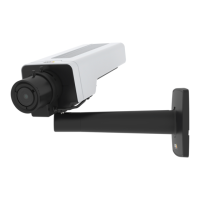
AXIS P1347 Network Camera
Accessing the product
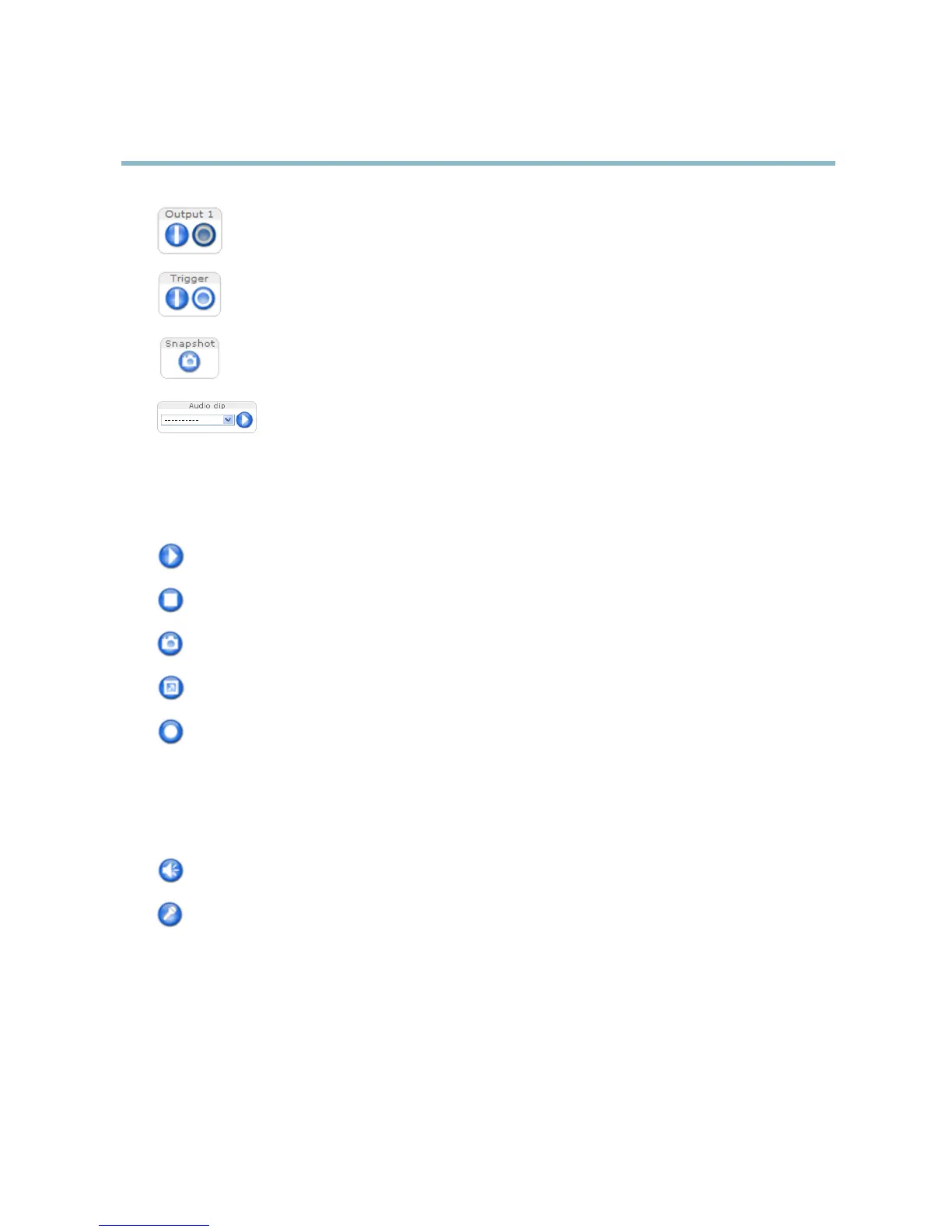
Click the Active/Inactive buttons to manually start and stop a connected device — e.g. switch an external light
on and off.
The Manual Trigger button can trigger an event directly from the Live View pag e. The button is configured under
Live View Config > Action Buttons.
Click Snapshot to save a snapshot of the video image. Right-click the video image to save it in JPEG format on your
computer. This button is p rimarily intended for use wh en the AXIS Media Control vie wer toolbar is not available.
Enable this button from Live View Config > Action Buttons.
The Audio clip drop-down list allows you to play an audio clip from the Live View page. Select the audio
clip and click the Play button.
AXIS Media Control viewer toolbar
The AXIS Media Control viewer toolbar is avail able in Internet Explorer only. See AXIS Media Control (AMC), on page 15 for m ore
information. The toolbar displays the following buttons:
The Play button connects to the Axis product and starts playing a media stream.
The Stop button stops the media stream.
The Snapshot button takes a snapshot of the video image. The location where the image is saved can be specified
in the AMC Control Panel.
Click the View Full Screen button and the video image will fill the entire screen. Press ESC (Escape) on the computer
keyboard to cancel full screen view.
The Record button is u s ed to record the current video stream. The loca tion w h ere the recording is saved can be specified
in the AMC Control Panel.
AMC Audio controls
AMC audio buttons control the speakers and microphone connected to the client computer. The buttons are only visible when
audio is enabled.
Speaker button — Click to turn the speakers on or off.
Microphone button – C lick to mute or unmute the microphone. In Simplex - Network Camera speaker only mode,
click this button to s top sending audio to the product.
13



 To Next Page