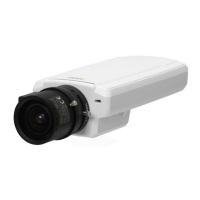
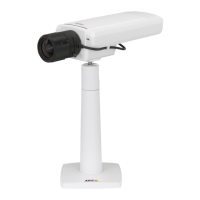
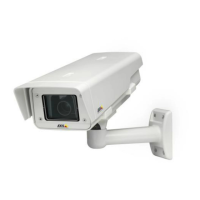
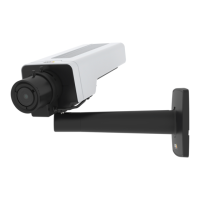
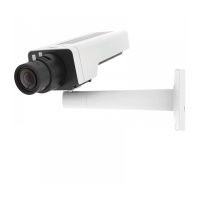
AXIS P1347 Network Camera
System Options
• the default router
• the subnet mask
•thesystemtime
• the IEEE 802.1X settings
• the focus position
Click Default to reset all settings, including the IP address, to the factory default values. This button should be used with caution. The
Axis product can also be reset to factory default using the control button, see Reset to factory default settings, on page 50.
To identify the product or test the Status LED, click Flash LED under Identify and specify the duration in seconds, minutes or hours.
This can be useful for identifying the product among other products installed in the same location.
For information about firmware upgrade, see Upgrad ing the firmware, on p age 51.
Support
Support Overview
The System Options > Support > Support Overview page provid es information on troubleshooting and contact information,
should you require technical assistance.
See also Troubleshooting, on page 51.
System Overview
To get an overview of the Axis product’s status and settings, go to System Options > Support > System Overview . Information that
can be found here includes firmware version, IP address, network and securi
ty settings, event settings, image settings and recent log
items. Many of the captions are links to the proper Setup page.
Logs & Reports
The System Options > Support > Logs & Reports page generates logs a nd reports useful for system analysis and troubleshooting. If
contacting Axis Support, please provide a v
alid Server Report with your query.
System Log - Provides information a bo
ut system e v ents .
Access Log - Lists all failed att
empts to access the pro duct. The Access Log can also be configured to list all connections to the
product (see below).
Server Report - Prov ides information about the product status in a pop-up window. The A ccess Log is automatically included
in the Server Report.
You can view or download the server report. Downloading the server report creates a .zip file that contains a complete s erver report
text file in UTF–8 forma t. Select the Include snapshot with default image settings option to include a snapshot of the product’s
Live View that also shows the settings specified under Video Stream > Image > Im age Appearance. The server report .zip file should
always be included when contacting suppo rt.
Parameter L ist - Shows the prod uct's parameters and their current settings. This may prove useful when troub leshooting or
when contacting Axis Support.
Connection List - Lists all clients that are currently acces sing media streams.
Crash Report - Generates an archive with de bugging information. The r epo rt takes several minutes to generate.
The log levels for the System Log and the Access Log are set under System Options > Support > Logs & Reports > Configuration.
The Access Log can be configured to list all connections to the product (select Critical, Warnings & Info). If required, a different log
level can be used when sending emails.
49



 To Next Page