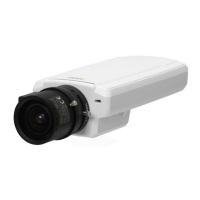
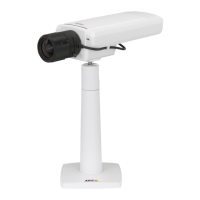
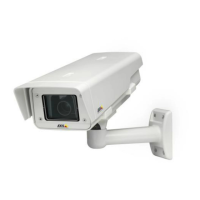
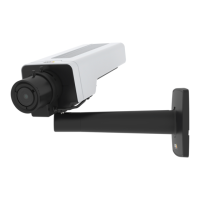
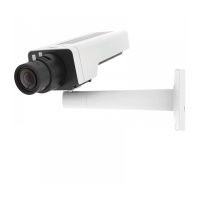
AXIS P1347 Network Camera
Video and Audio
View Areas
A view area is a cropped part of the full view. Each view area is treated as a video source in Live View and has its own video
stream and P TZ settings.
To enable view areas, go to Video & Audio > Camera Settings and select Enable View Areas.
When setting up a view ar ea it is recommended that the video stream resolution is the same size as or smaller than t he vie w area
size. Setting the video stream resolution larger than the view area size implies digitally scaled up video af t er sensor capture,
requiring more bandwidth without adding image information.
To add a new view area:
1. Go to Video & Audio > View Areas.
2. Click Add.
3. The new view area appears under Selected view a rea . Enter a descriptive name in the Name field.
4. Select an Aspect ratio and a Video stream resolution.
5. A new view area covers the whole image. Usethemousetomoveandresizetheviewarea.
6. Select Enable PTZ to enable digital PTZ for this view area.
7. Click Save to save the settings.
To modify a view a rea, select the view a re a in the list and modify the settings as required. Click Save.
To remove a view area, select the vie w area and click Remove .
Tip:
• The PTZ functionality is useful during install ation of the Axi
s product. Use a view area to crop out a specificpartof
the full view.
Overlay
Overlays can be used to provide extra information and are superimposed over the video image. With overlay text it is possible to
include date and tim e or view the cu
rrent bit rate as overlay text.
To include the current bit ra
te as overlay text go to Video & Audio > Video Stream > Overlay Settings,selecttheInclude text check
box option, and enter the overlay code in the field. See the online help
for supported formats.
Overlay image
An overlay image can be used to provide extra information, or to mask a part of the video image.
To use your own image, such as a logo, first upload the image to the Axis product. Go to Video & Audio > Overlay Image, click
Browse to locate the file and the n click Upload.ThefilecanthenbeselectedfromtheUse overlay image drop-down list.
To place an o verlay image at specificcoordinates,gotoVideo & Audio > Video Stream and select the Include overlay image at
coordinates check box option and enter the X and Y coordinates.
For more i nformation see the online help
Privacy Mask
A privacy mask is an area of solid color that prohibits use rs from viewing parts of the monitored area. Privacy masks canno t be
bypassed via the VAPIX® Application Programming Interface (API).
23



 To Next Page