R5900096 /00 CX-50 65
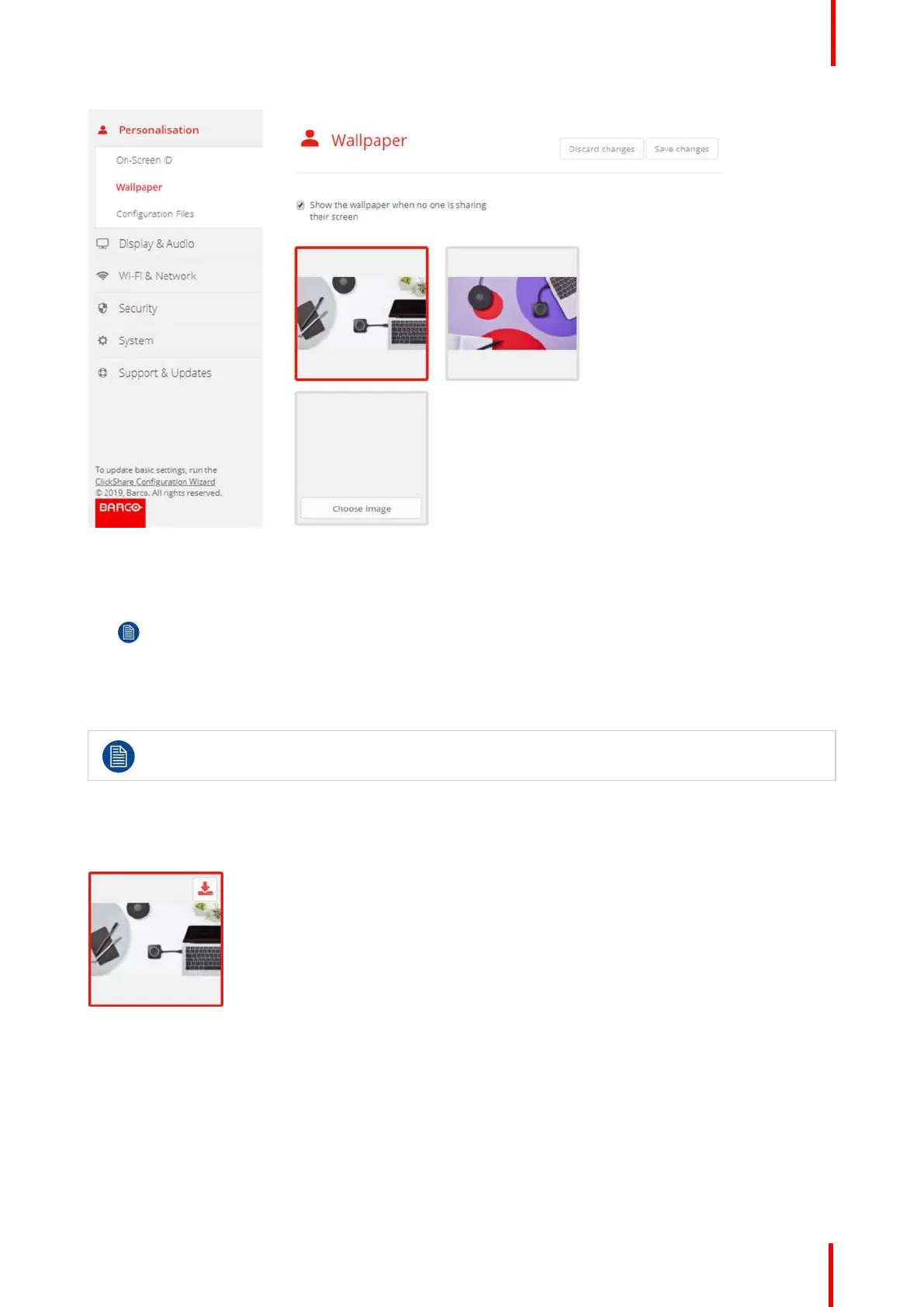
Image 6-8: Wallpaper selection
The Wallpaper selection pane is shown. The current selected wallpaper is shown with a red border.
3. Select one of the available wallpapers and click on Save Changes.
Note: By default two general Barco wallpapers are available.
They are automatically resized to fit the aspect ratio of the screen.
The selected wallpaper is indicated with a red border.
The message Successfully applied changes appears on top of the wallpaper selection window.
You can also add a personal wallpaper, e.g. your company logo. For more information on adding a
new wallpaper to the list, see “Personalisation, Personalized wallpaper”, page 66.
Download wallpaper
1. Hoover with your mouse over the wallpaper to download and click on the download symbol on the upper right
corner.
Image 6-9: Download wallpaper
The wallpaper is downloaded to your PC.
Enable - disable Wallpaper
1. Within the Wallpaper pane, check the check box next to Show the wallpaper when no one is sharing their
screen.
Checked: wallpaper will be displayed when no one is sharing content.
CX-50 Configurator



 To Next Page