R5900096 /00 CX-5086
Power consumption in Deep standby: 0.4W
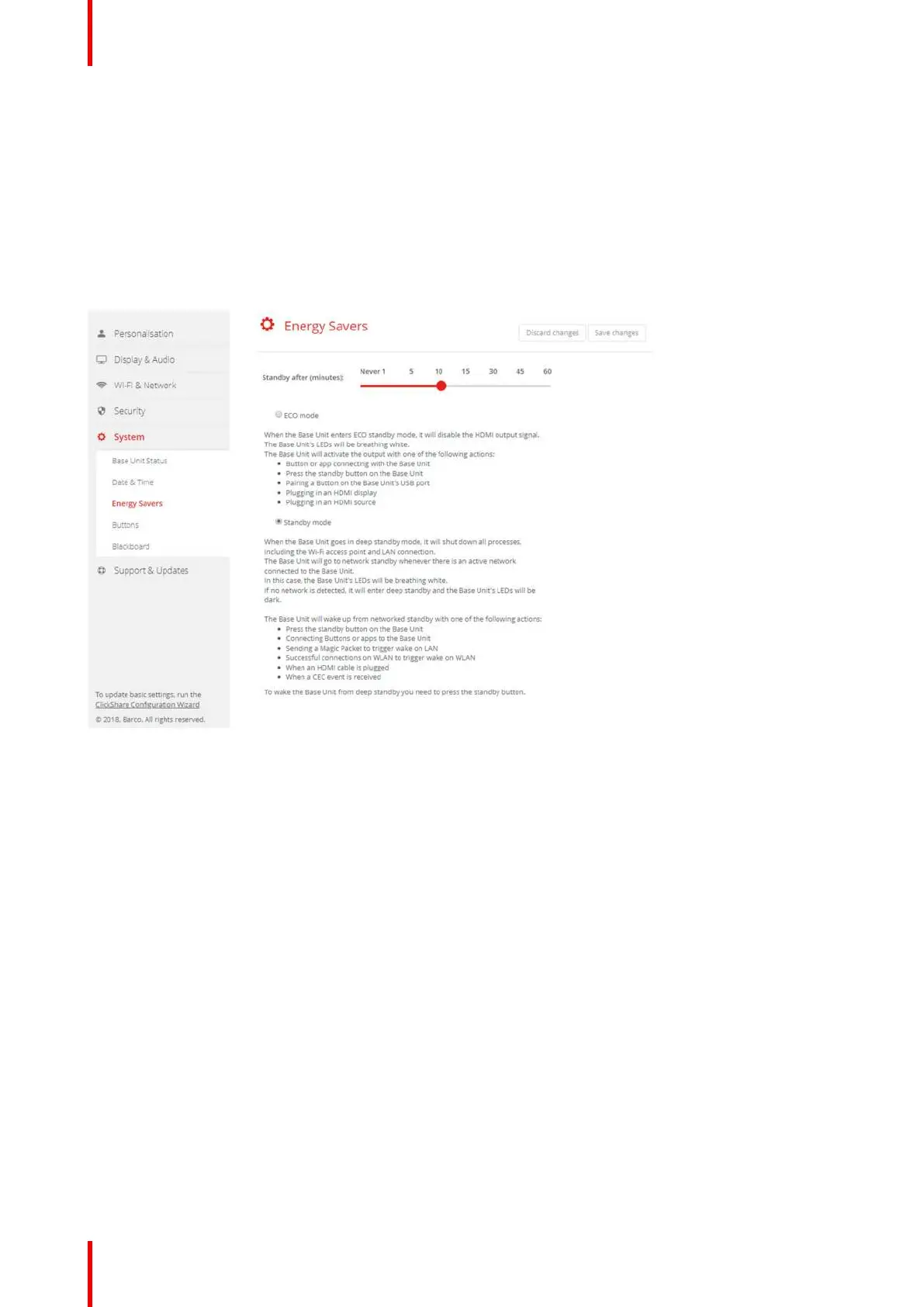
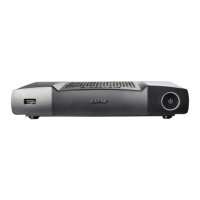
The Base Unit will wake up from networked standby with one of the following actions:
• Press the standby button on the Base Unit
• Connecting Buttons or apps to the Base Unit
• Sending a Magic Packet to trigger wake on LAN
• Successful connections on WLAN to trigger wake on WLAN
• When an HDMI cable is plugged
• When a CEC event is received
To wake the Base Unit from deep standby you need to press the standby button.
Image 6-33: Energy savers
How to change the display timeout
1. Log in to the Configurator.
2. Click System → Energy Savers.
3. To set a display time out, move the slider to the left or to the right until the desired standby timeout is reached.
6.22 Buttons
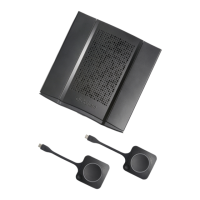
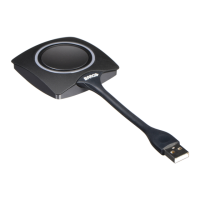
About Buttons
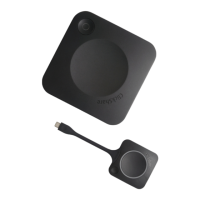
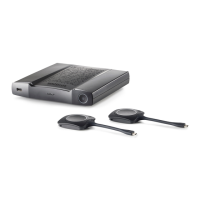
The Button page indicates to which Base Unit the Buttons are connected. It indicates also the current state.
All Buttons used with the Base Unit are indicated in the Buttons List. The list contains the state, the signal
strength, the serial number, the firmware version, the number of connections and last connection.
It is possible to update the software of the Buttons over Wi-Fi.
To edit the settings
1. Log in to the Configurator.
2. Click System → Buttons.
CX-50 Configurator



 To Next Page