User Manual 27
Cura Updates
First IDEX printing
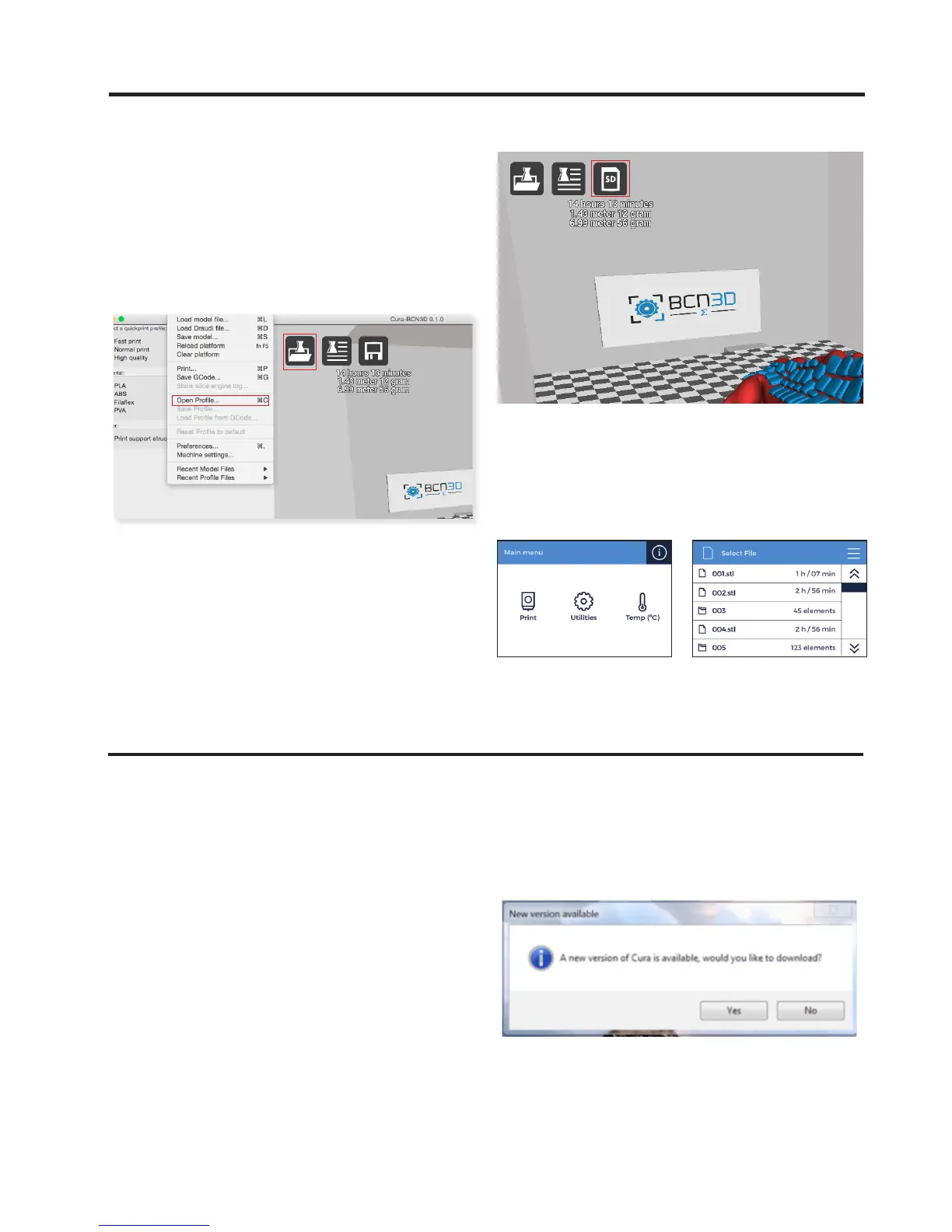
5. You must now select the settings, depending on
the materials to be used and the desired quality. To
do this click on File > Open Profile, or on the icon, and
choose the settings. IDEX folder contains dual extruder
configurations while MEX foldercontains mono extruder
configurations.
6. When you want to start printing insert an SD card
into the computer. The programme will detect the card
when it is inserted, and the Disc icon will be replaced by
an SD card with the Toolpath to SD option. After saving
the file in the SD card, the Eject Card option will appear.
7. You must insert the SD card into the printer in order
to print. After inserting the card you should select Print
in the main menu, as well as the file you want to print.
At BCN3D Technologies we want you to have a great
printing experience, and to achieve this we are con-
tinually working to create new software and firmware
versions for our printers. These updates are made
available at BCN3D´s GitHub once our developers think
that they are ready for release to the general public.
The new versions can either be manually downloaded
or downloaded from Cura-BCN3D.
Software updates
The first time you install Cura-BCN3D you must go to
the GitHub repository and download the most recent
version. After the programme has been installed it will
automatically look for updates, and notify you if a new
version of the programme is available.
If you decide to update the software, a page will open
showing the GitHub repository where you can see the
changes made to the programme, and download the
new version.


 To Next Page