9 Power Up
1
Power Up Procedures
STEP USER’S ACTION RESULT
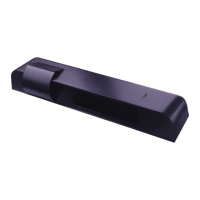
Step 1 With all wiring in place, apply power to door control and 12 to 24
VAC / VDC: -5% to +10% to Wizard. Once powered, observe
LED status on the Wizard. Stop all traffi c through the doorway
while performing this step, and remain clear of the Wizard’s
detection zones.
The Wizard will show a steady red LED during the set-up proce-
dure. Once the Wizard completes setup, the door will close and
begin normal operation thereafter. Setup process takes approxi-
mately 6 seconds, if uninterrupted.
Step 2 If the sensor is being powered for the fi rst time, because of new
installation or sensor is being replaced, unlock the Wizard and
Press the Magic Wand Key, followed by a number 0. Observe
the LED status during setup.
Once set-up is complete, the LED indication will refl ect the
status of the set-up. Observe the LED while standing outside of
the detection zones.
• NO LED UPON COMPLETION = Successful setup
• RED LED ON = Presence being detected -Wizard is seeing an
object.
• GREEN LED MOMENTARILY ON = MOTION DETECTION
(Wizard sees movement). Adjust microwave functions: angle,
sensitivity, immunity.
• ORANGE LED ON = Possible fault. If LED stays on, reset
power and observe LED. If it comes back on steady, replace
Wizard.
Step 3 Proceed with fi ne tuning the mechanical , as well as the program
adjustments of the Wizard. Refer to the applicable sections of
this manual for altering any settings. Be sure to check:
• Motion width & depth • Presence width & depth
• Position of infrared curtain • Sensitivity of motion fi eld
Sensor must always be adjusted to be in compliance with the
current version of ANSI A156.10.
10 Troubleshooting
1
Troubleshooting Procedures
PROBLEM PROBABLE CAUSE CORRECTIVE ACTION
Orange LED is illuminated on Wizard. 1. Wizard IR is in saturation
2. Internal fault within the Wizard
3. Faulty Power Input
1. Launch a new setup and remain all clear
from the detection area.
2. Remove power, then re-apply. Input power
may have fl uctuated beyond tolerances.
Red LED on at Wizard. 1. Wizard in detection. 1. If red LED is on at Wizard:
a. Adjust infrared pattern away from the
door and launch a new set-up. Refer
to page 5 for infrared adjustments. Use
BEA Spotfi nder to accurately adjust the
position of the pattern.
b. If hi-intensity lights or high gloss fl oors
are saturating the area of detection,
change the Infrared Sensitivity setting
to reduced sensitivity – see page 5,
and launch a new set-up to re-learn the
environment.
Red LED fl ashes for approximately 10 sec-
onds when attempting a set-up.
1. Infrared curtains are too close to the door
and the sensor detects a door infl uence.
1. Adjust Infrared curtain as necessary. Use
of BEA’s Spotfi nder during this process is
recommended.
Door opens when it should close. 1. Relay Confi guration on wrong setting. 1. Check Relay Confi guration setting.
Door will not close Red LED off at Wizard. 1. On-Off switch at door control in wrong
position or is faulty.
2. Improper Relay Confi guration on Wizard.
3. Faulty door control.
1. Check to insure On-Off switch for door is in
the ON or AUTOMATIC position. If switch
is in correct position, check switch with
multi-meter for proper operation.
2. Insure correct polarity at Brown and Blue
wires
3. Check Relay Confi guration setting on each
Wizard. Refer to page 6 for settings.
4. Remove all sensor inputs from the door
control. If door remains open, fault ex-
ists with door control or motor. Refer
to manufacturer’s manual for further
troubleshooting. If door closes with sensor
inputs removed, fault exists with sensors or
related wiring.
Door will not open. 1. On-Off switch at door control in wrong
position or is faulty.
1. Check to insure On-Off switch for door is in
ON or AUTOMATIC position. If it is in cor-
rect position, check switch with multi-meter
for proper operation.
Page 8 of 13 75.5122.05 20070427



 To Next Page