GB Sound module USM-RC-3
11.10.2021 BEIER-Electronic 109
Please note that we are not the developer of the “Audacity” software, have no rights
to it and cannot offer any further support for this product.
The following example explains how you can record sounds with the “Audacity”
software.
1. Start the program "Audacity"
2. Select a recording device (to the right of the microphone in the "Recording
devices" toolbar).
3. On the top right of the picture next to the microphone is the volume control for
the recording. Set the volume here so that the recording is optimally controlled.
Experience has shown that the slider is usually in the upper third. The level
display should not reach the maximum value when recording. The highest value
is shown as a blue line.
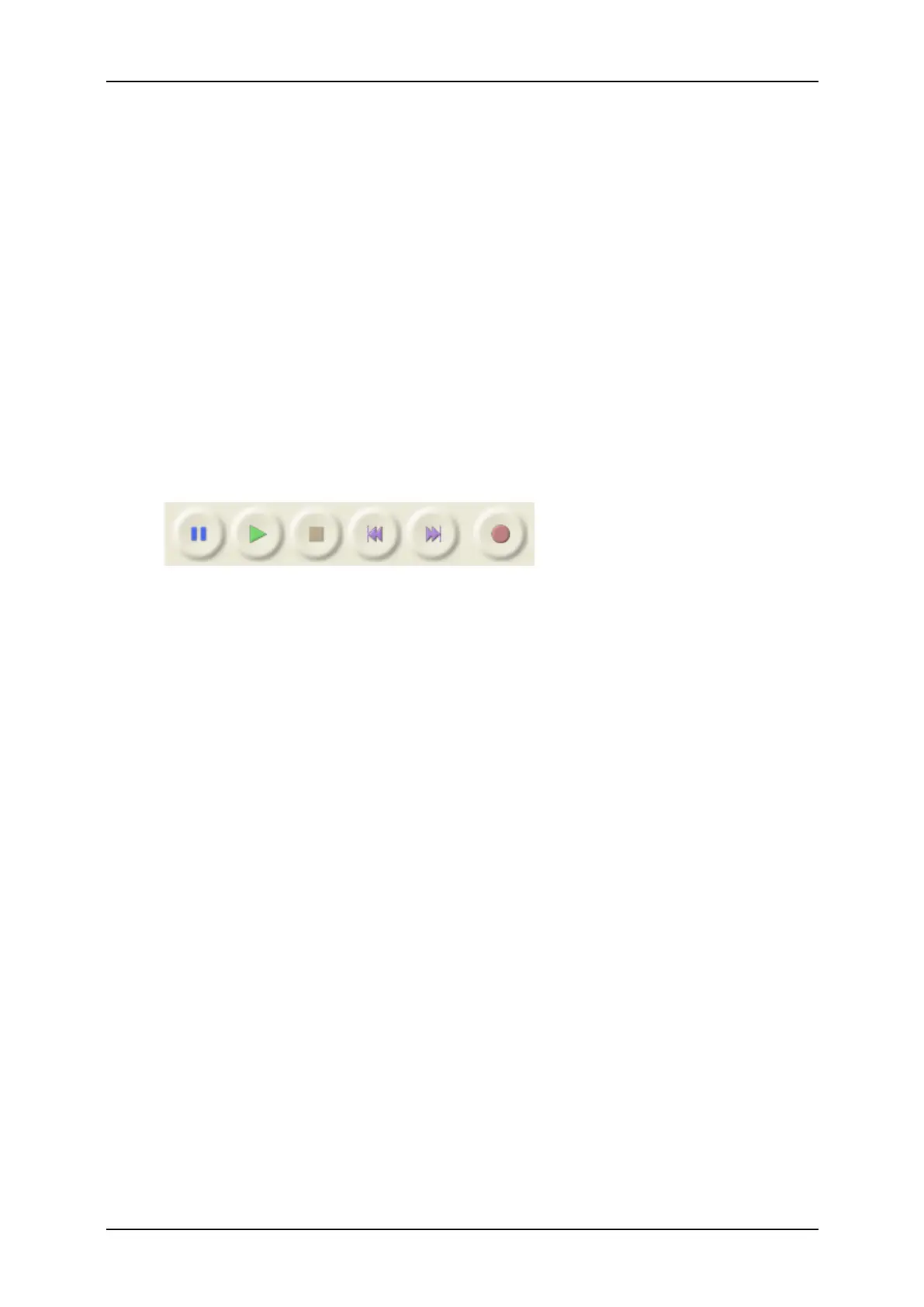
4. Control elements:
The recording is started by clicking on the record button (red dot). A working
recording can be recognized by the fact that the level indicator moves and a blue
curve is recorded.
There can be several reasons if the recording is not working:
• Sometimes Audacity has problems recording in mono. Therefore select “2 (Stereo)
Channels” as input channels.
• Check that the recording device is present and activated. In Windows XP, double-
click the loudspeaker symbol in the lower right corner of the system tray. This opens
the "playback controls". Click on “Properties” in the “Options” menu.
Now select "Recording" and activate the device to be used. In Windows Vista / 7 you
have to right click on the loudspeaker symbol and select “Recording devices”. Then
right-click in the white window and check “Show deactivated devices”. If the
recording device used is not displayed, a new driver for the sound card may help.
Now set the recording device as under point 2.
• If you want to record a sound that is currently being played on your PC (e.g. from
the Internet), you must select "Stereo Mix", "Record Sum" or "Wave" as the
recording device. This designation varies depending on the manufacturer of the
sound card.
Troubleshooting:
5. Check whether the volume setting you made under point 3 was correct. If
necessary, correct the volume setting as described above.
6. Click the stop button (brown square) to stop the recording again.


 To Next Page