GB Sound module USM-RC-3
11.10.2021 BEIER-Electronic 111
How to convert sound files
If the sound files are not available in the required format, they must be converted
before they can be read by the sound speed controller.
Any sound processing program that offers the required functions can be used for this
purpose.
Using the “Audacity” program, we will now briefly explain how an existing sound file
is converted:
1. Start the program "Audacity"
2. Open the sound file you want to convert.
3. If 2 audio tracks can now be seen, it is a stereo track.
4. This stereo track needs to be converted to mono.
5. To do this, click in the “Tracks” menu on
“Convert stereo track to mono”.
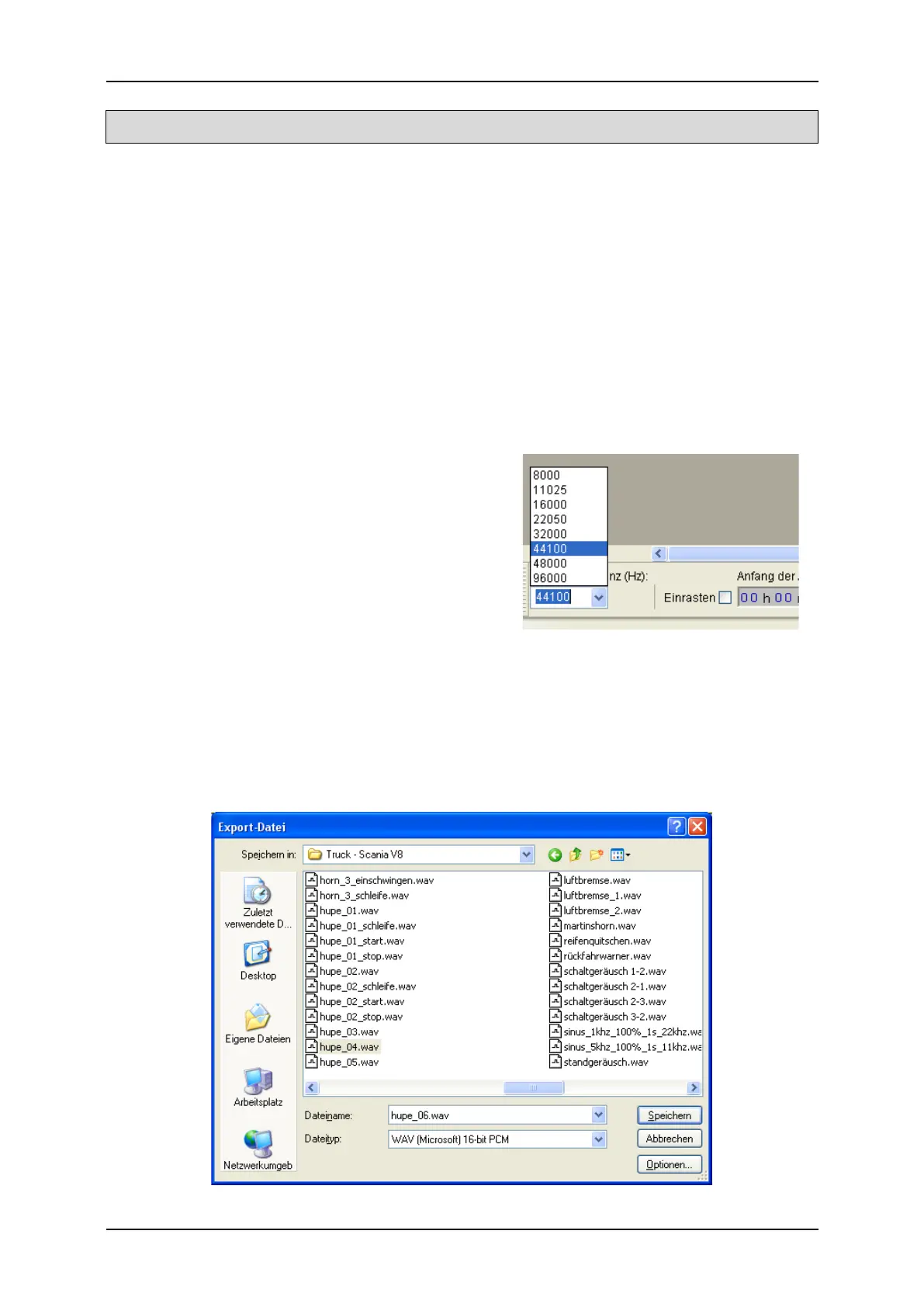
6. Set the "Project frequency (hz)" at the
very bottom left. Select 44100 there.
7. Now save the file under a new name:
• To do this, click on "Export ..." in the
"File" menu.
• Specify in which folder and under which
name the file should be saved.
• Under "File type" select "WAV (Microsoft) 16-bit PCM".
• Now confirm your selection with "OK" and save the file.
8. In the "Edit metadata" window, please do not enter anything in the fields or
delete existing values. Otherwise the WAV files cannot be played using the
sound simulation in the Sound-Teacher!
9. 9. Now the newly created file can be edited further with Audacity or loaded
directly with the software "USM-RC-3 Sound-Teacher".


 To Next Page