Menu operations56
Active pen setting
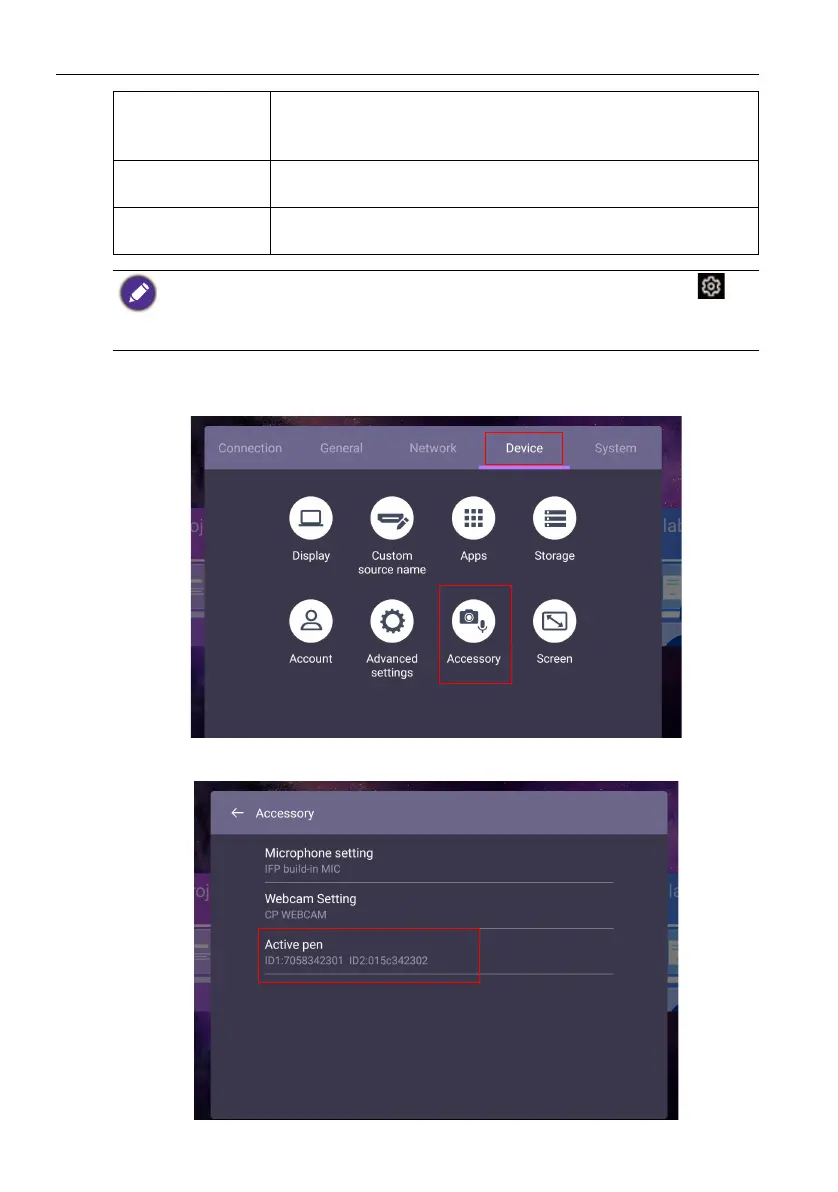
Go to Device > Accessory.
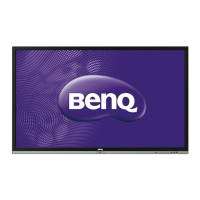
The active pens are paired with the device by default. Press Active pen to see the
status.
IR lock Press OK on the remote control or click the switch to lock or
unlock the remote control IR sensor on the front panel of the
display.
Touch lock Press OK on the remote control or click the switch to lock or
unlock the screen.
Pixel shift Press OK on the remote control or click the icon to set a pixel
shift preventing from image retention.
• If keypad, IR and touch are locked all at once, please follow the steps to unlock: Press on
the remote control for five seconds.
• For image retention, please see Notes on the LCD panel of this display on page 7 for more
information.


 To Next Page