Operation
30
Magnifying and searching for details
If you need to find the details on the projected picture, magnify the picture. Use the
direction arrow keys for navigating the picture.
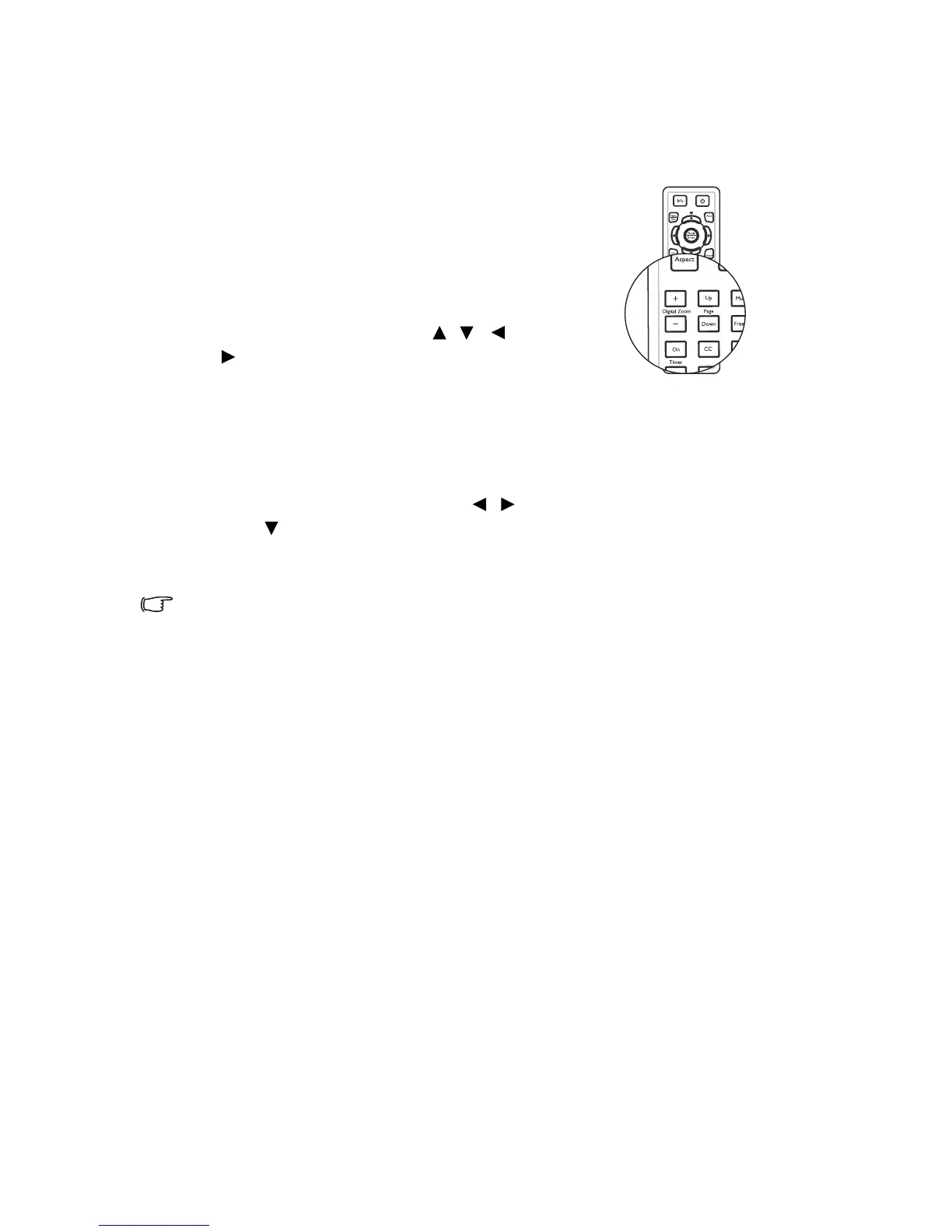
• Using the remote control
1. Press Digital Zoom +/- to display the
Zoom bar.
2. Press Digital Zoom + to magnify the
center of the picture. Press the key
repeatedly until the picture size is suitable
for your need.
3. Use the directional arrows ( , , ,
) on the remote control to navigate the
picture.
4. To restore the picture to its original size,
press Auto. You can also press Digital Zoom -. When the key is pressed again,
the picture is further reduced until it is restored to the original size.
•Using the OSD menu
1. Press Menu/Exit and then press / until the DISPLAY menu is highlighted.
2. Press
to highlight Digital Zoom and press Mode/Enter. The Zoom bar
displays.
3. Repeat steps 2-4 in the section of "Using the remote control" above.
The picture can only be navigated after the picture is magnified. You can
further magnify the picture while searching for details.






 To Next Page