Operation 41
Personalizing the projector menu display
The On-Screen Display (OSD) menus can be set according to your preferences. The
following settings do not affect the projection settings, operation, or performance.
• Menu Display Time in the SYSTEM SETUP: Basic > Menu Settings menu sets
the length of time the OSD will remain active after your last key press. Use / to
select a suitable time frame.
• Menu Position in the SYSTEM SETUP: Basic > Menu Settings menu sets the
OSD position in five locations. Use / to select a preferred position.
• Language in the SYSTEM SETUP: Basic menu sets your familiar language for the
OSD menus. Use Enter to select your language.
• Reminder Message in the SYSTEM SETUP: Basic > Menu Settings menu sets
whether to display reminder messages on screen. Use / to select your desired
setting.
• Splash Screen in the SYSTEM SETUP: Basic menu sets a preferred logo screen to
be displayed during projector start-up. Use / to select a screen.
Select the lamp saver mode
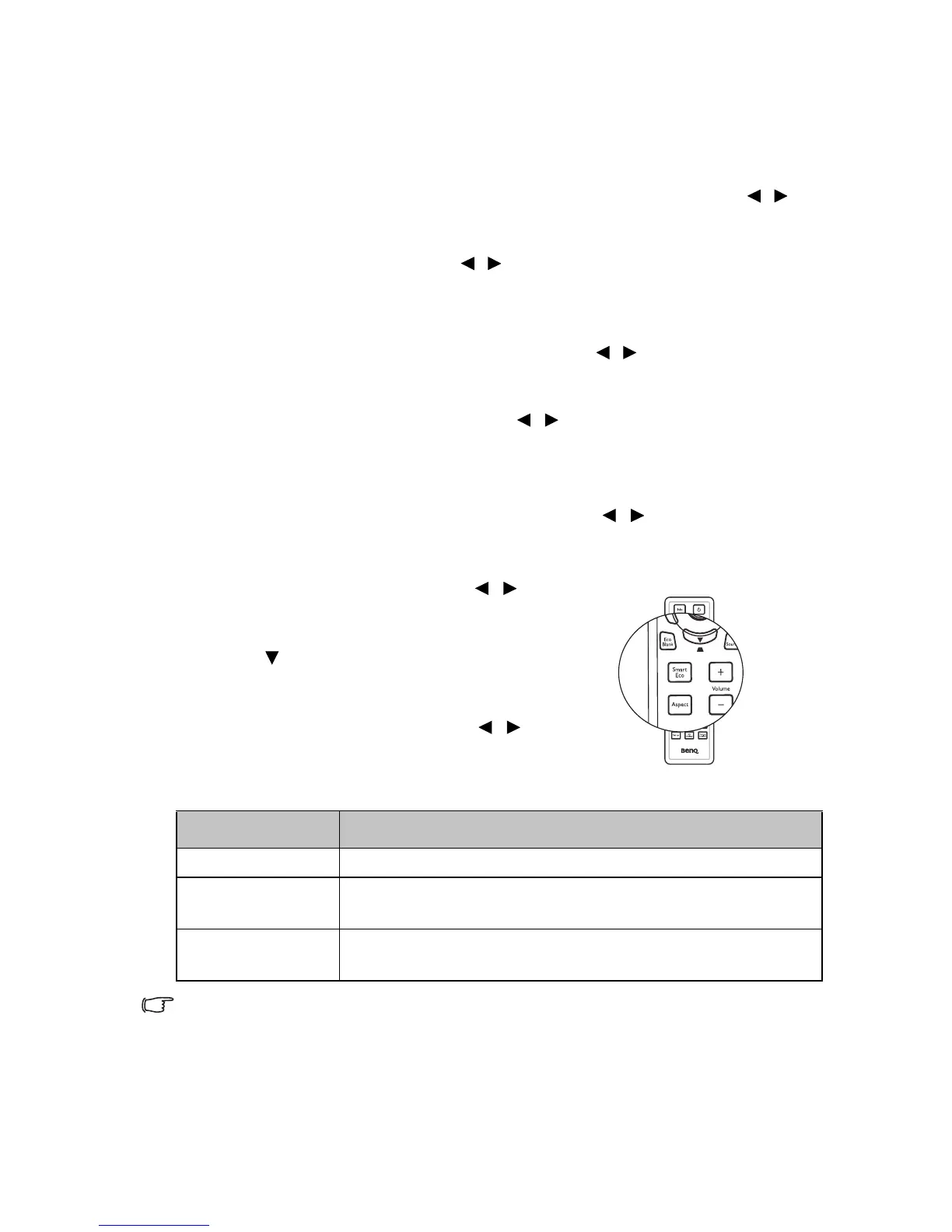
• Using the remote control.
Press SmartEco and highlight Lamp Mode and press / to select Normal/
Economic/SmartEco.
•Using the OSD menu.
1. Press Menu/Exit and then press /
until the SYSTEM SETUP: Advanced
menu is highlighted.
2. Press to highlight Lamp Mode and
press Mode/Enter. The Lamp Settings
page displays.
3. Highlight Lamp Mode and press /
to select Normal/Economic/
SmartEco. The lamp brightness vary
from the different lamp mode, see the description list in table below.
If the Economic mode or SmartEco mode is selected, the light output will
be reduced and result in darker projected pictures.
Lamp Mode Description
Normal Provides full lamp brightness
Economic
Lowers brightness to extend the lamp life and decreases the
fan noise
SmartEco
Adjusts the lamp power automatically depending on the
content brightness level






 To Next Page