Operation
32
Optimizing the image
Selecting a picture mode
The projector is preset with several predefined
picture modes so that you can choose one to
suit your operating environment and input
signal picture type.
To select an operation mode that suits your
need, you can follow one of the following steps.
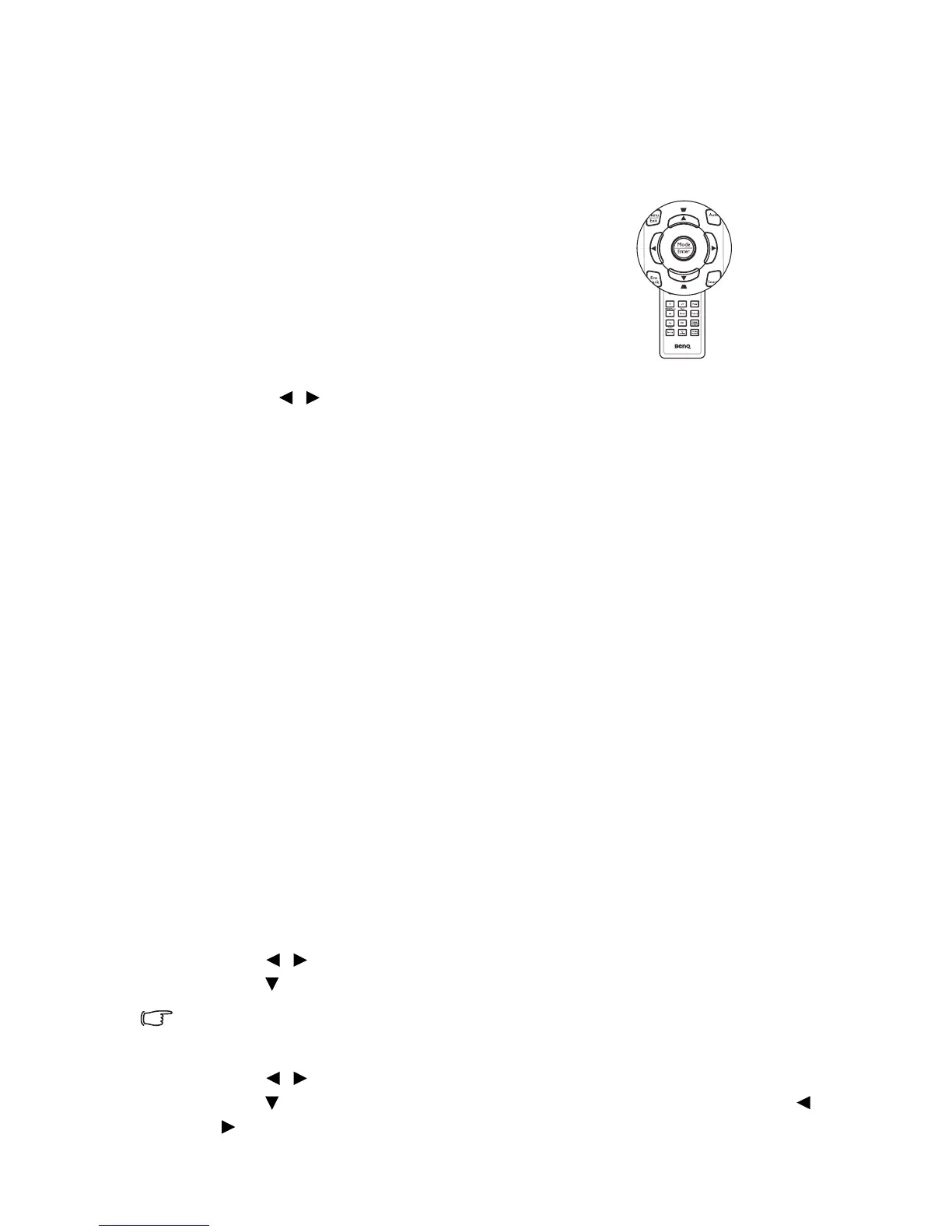
•Press Mode/Enter on the remote control
repeatedly until your desired mode is
selected.
• Go to the PICTURE > Picture Mode menu
and press / to select a desired mode.
The picture modes are listed below.
1. Dynamic mode: Maximizes the brightness of the projected image. This mode
is suitable for environments where extra-high brightness is required, such as
using the projector in well lit rooms.
2. Presentation mode (Default): Is designed for presentations. The brightness
is emphasized in this mode.
3. sRGB mode: Maximizes the purity of RGB colors to provide true-to-life
images regardless of brightness setting. It is most suitable for viewing photos
taken with an sRGB compatible and properly calibrated camera, and for viewing
PC graphic and drawing applications such as AutoCAD.
4. Cinema mode: Is appropriate for playing colorful movies, video clips from
digital cameras or DVs through the PC input for best viewing in a blackened
(little light) environment.
5. User 1/User 2 mode: Recalls the settings customized based on the current
available picture modes. See "Setting the User 1/User 2 mode" on page 32 for
details.
Setting the User 1/User 2 mode
There are two user-definable modes if the current available picture modes are not
suitable for your need. You can use one of the picture modes (except the User 1/
User 2) as a starting point and customize the settings.
1. Press Menu/Exit to open the On-Screen Display (OSD) menu.
2. Go to the PICTURE > Picture Mode menu.
3. Press / to select User 1 to User 2.
4. Press to highlight Reference Mode.
This function is only available when User 1 or User 2 mode is selected up in
the Picture Mode sub-menu item.
5. Press / to select a picture mode that is closest to your need.
6. Press to select a sub-menu item to be changed and adjust the value with /
. See "Fine-tuning the image quality in user modes" below for details.







 To Next Page