Introduction 13
Remote control
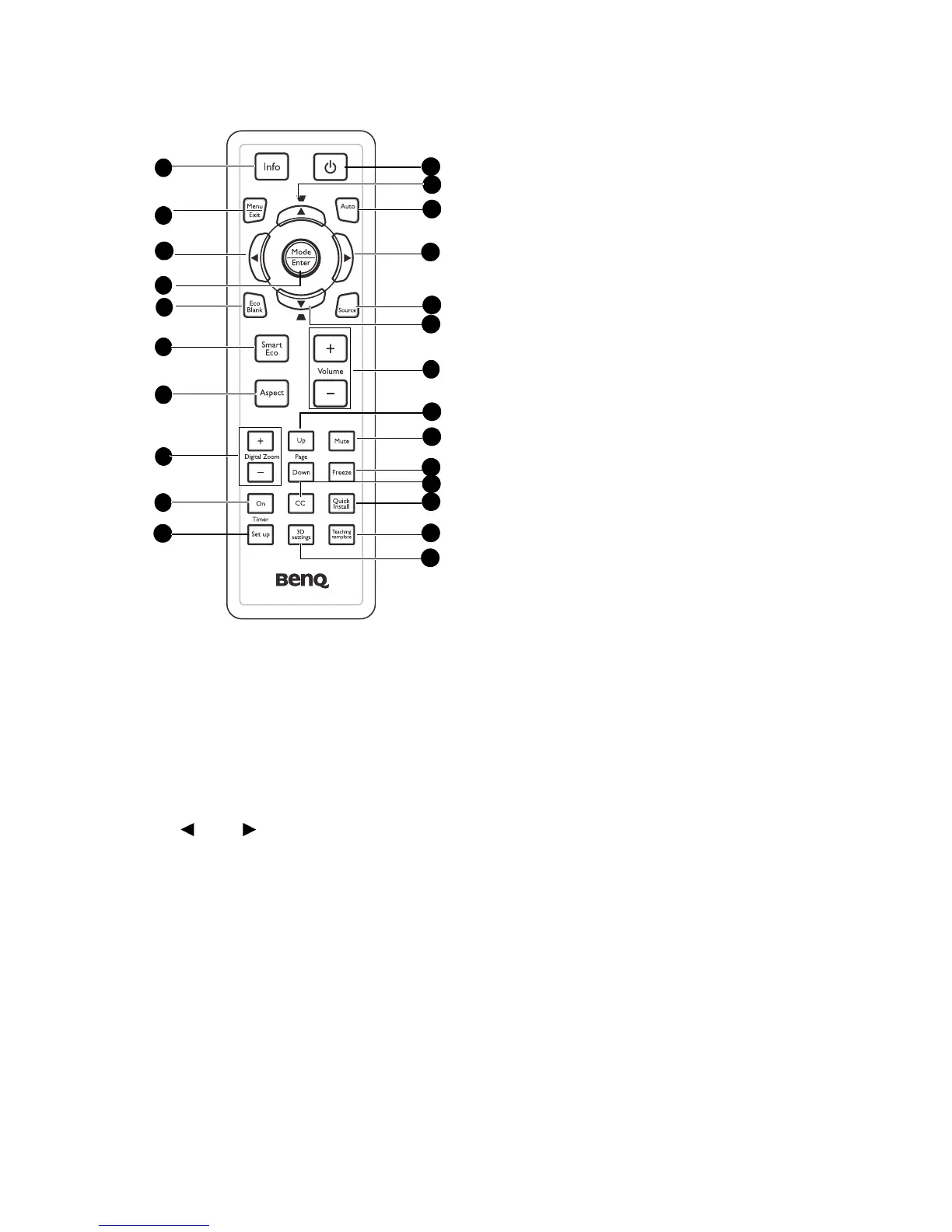
1. Info
Showing the status information of the
projector.
2. Menu/Exit
Turns on the On-Screen Display (OSD)
menu. Goes back to previous OSD
menu, exits and saves menu settings. See
"Using the menus" on page 25 for details.
3. Left/ Right
When the On-Screen Display (OSD)
menu is activated, the #3 and #12 keys
are used as directional arrows to select
the desired menu items and to make
adjustments. See "Using the menus" on
page 25 for details.
4. Mode/Enter
Selects an available picture setup
mode. See "Selecting a picture mode"
on page 32 for details.
Activates the selected On-Screen
Display (OSD) menu item. See "Using
the menus" on page 25 for details.
5. Eco Blank
Press the Eco Blank button to turn off
the image for a period of time with
70% lamp power saving. Press again to
restore the image. See "Hiding the
image" on page 38 for details.
6. Smart Eco
Displays the lamp mode selection bar
(Normal/Economic/SmartEco).
7. Aspect
Selects the display aspect ratio. See
"About the aspect ratio" on page 31
for details.
8. Digital Zoom keys (+, -)
Magnifies or reduces the projected
picture size. See "Magnifying and
searching for details" on page 30 for
details.
9. Timer On
Activates or displays an on-screen
timer based on your own timer
setting. See "Setting the presentation
timer" on page 36 for details.
10. Timer Setup
Enters presentation timer setting
directly. See "Setting the presentation
timer" on page 36 for details.
1
12
2
4
16
8
15
9
14
3
11
10
6
13
5
7
3
17
18
19
20
21
22
12






 To Next Page