25
BenQ Smart Control (remote control app)
The projector also supports the BenQ Smart Control app, which lets you transform your Android or iOS device into a remote control to control
the ATV dongle (QS01) via buttons and/or touch gestures.
As there are various apps available to you, if you find the supplied remote control does not work well on some of the apps, try with BenQ Smart
Control.
To begin using the BenQ Smart Control app, you need to complete the basic installation and initial setup as instructed in Operations on page 32
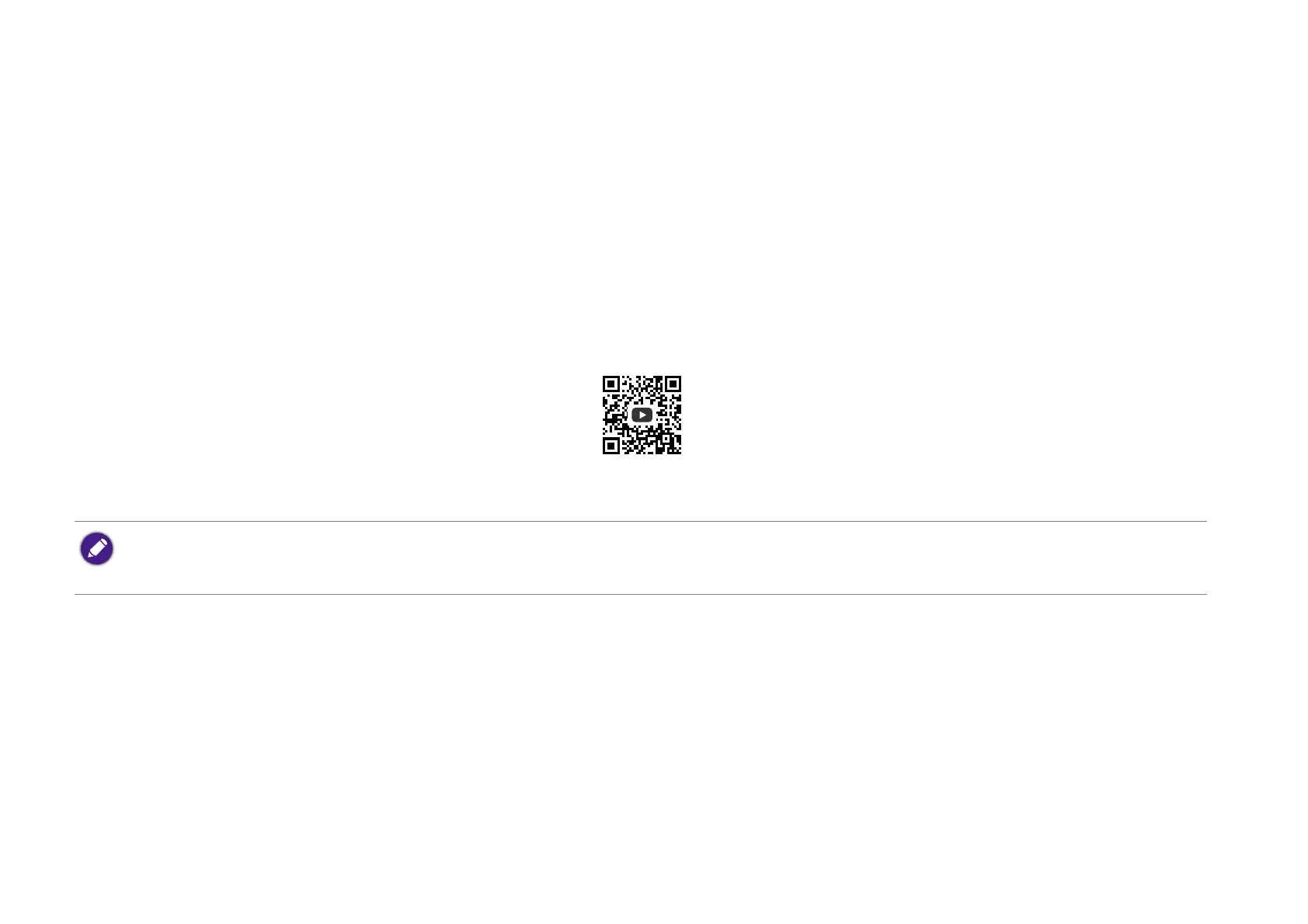
first. Refer to the QS01 user manual (available from Support.BenQ.com) or scan the following QR code for instructions on BenQ Smart Control
download and connection.
Choose one of the following methods to use BenQ Smart Control:
• You must be connected to the same wireless network as the projector for BenQ Smart Control to work correctly.
• If the app does not automatically connect to your ATV dongle (QS01), or if multiple compatible products are connected to the same network, select the corresponding
ATV dongle (QS01) you want to control from the list of products
How-to video
How to use
Smart Control


 To Next Page