52
Wireless connections
Before you can project wirelessly via the projector you must first connect the projector to a wireless network. Depending on your mobile device,
different procedures and options are required. Follow the instructions.
Wireless projection
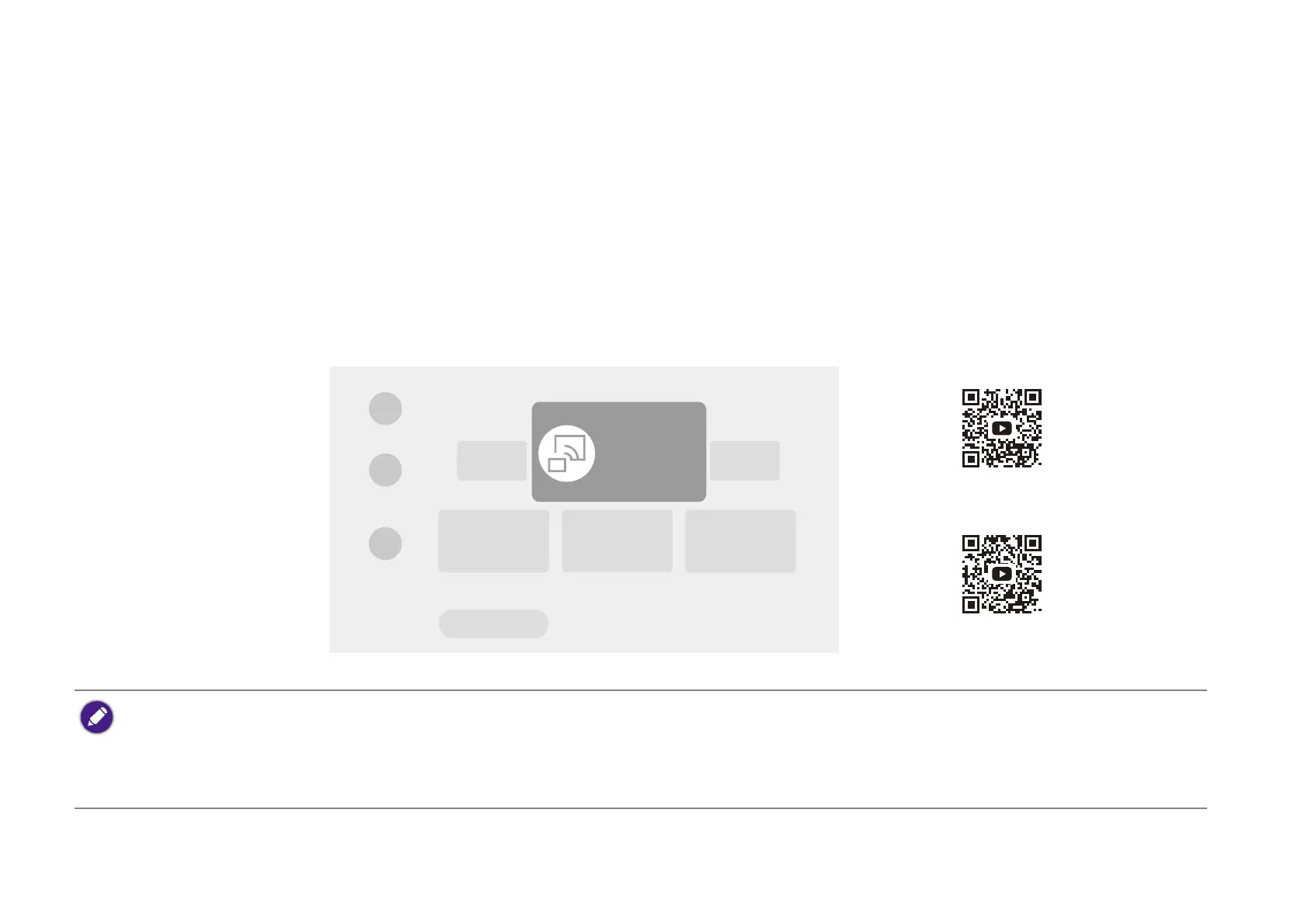
To wirelessly connect a device to the projector for the first time, you need to launch the Wireless Projection app from the Android TV Home
screen on the projector to activate the function automatically.
Refer to the QS01 user manual (available from Support.BenQ.com) or scan the following QR codes for instructions on how to perform wireless
projection.
• To download the QS01 user manual, visit Support.BenQ.com.
• The projector supports wireless projection via the AirPlay (for iOS devices) or Chromecast built-in (for Android devices). As a result, not all Android devices are able to
wirelessly project on the projector. To check if your Android device supports wireless casting via Chromecast built-in, check support.google.com.
• Netflix only supports specific authorized devices and is not natively available on BenQ smart home projectors. Please follow the recommended viewing procedures in
this how-to video to cast your screen from a projector. Visit Support.BenQ.com and check out the QS01 product page for details.
How-to video
Wireless projection
from iOS
Wireless projection
from Android


 To Next Page