Chapter 1 Basics Page 7
The meter will now load the settings and then boot to the Status Page.
Refer to the Settings Chapter on Inputs for more information about Input Types
Status Page
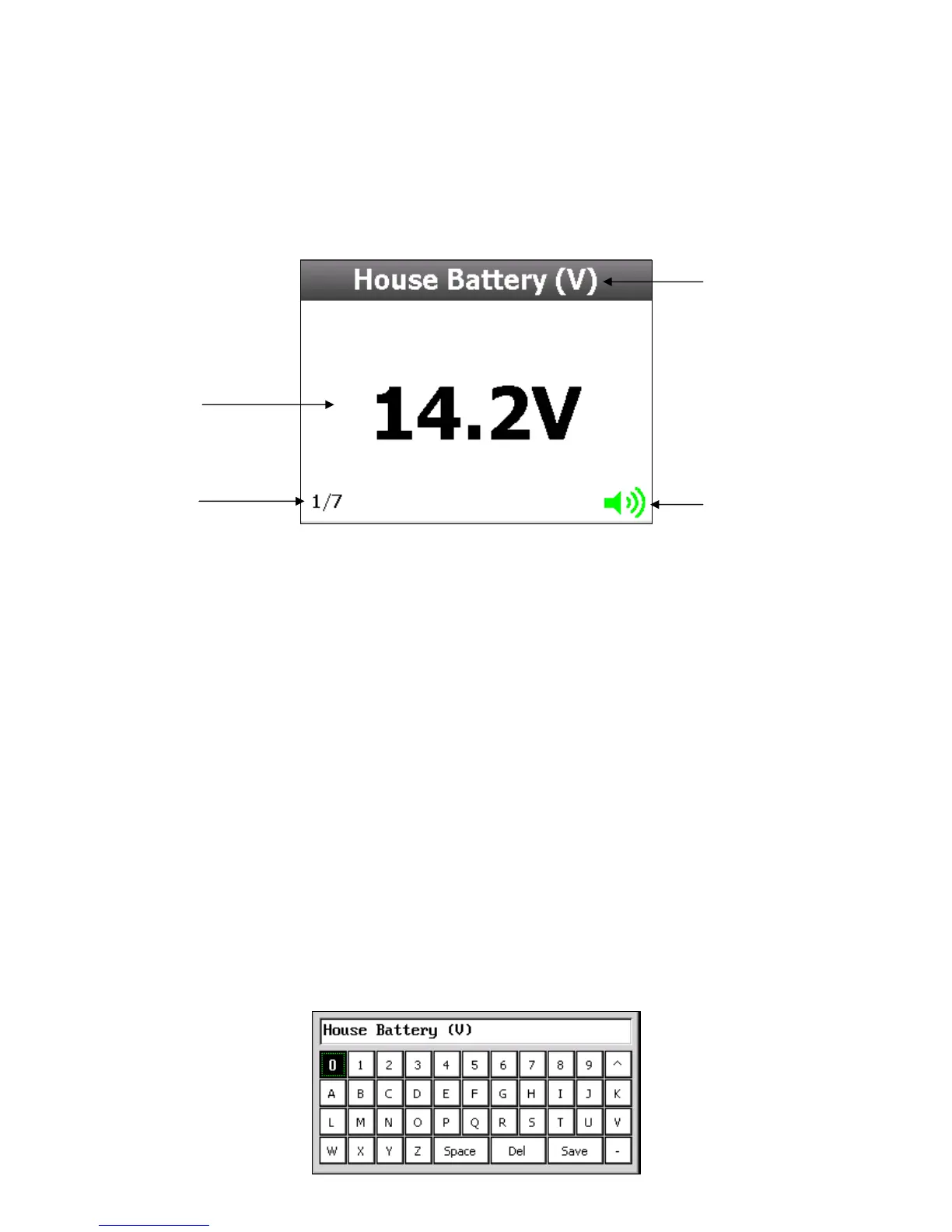
A Status Page is the first screen that the meter will show after booting. To navigate through the
enabled status pages press the ‘Up’ or ‘Down’ button.
Label
All inputs have a label assigned to it for identification. It can be chosen from a preset list of labels
or custom set using the onscreen keyboard.
Page Numbers
Every time an input is enabled to a status page it will be assigned a page number.
Alarm Icon
The alarm icon is a visual warning to show the status of all alarms. Green means no alarm, red
means alarming.
For more information on alarms & alarm icons refer to the Alarms Configuration section.
Onscreen Keyboard
Use the onscreen keyboard to enter text such as custom labels, numerical values for Voltage,
Amps and Timer values. The two types of keyboards are listed below:
Text/Numeric Keyboard (Custom Labels)
Page #
Alarm Icon
Label
Status
Window



 To Next Page