Chapter 1 Basics Page 8
Step 1
Press the meters Up or Down button to move the selection box to the character of choice then
press the Enter button to accept. Any existing labels will be overwritten by first character input.
Tip. To quickly move selection box through the keyboard press and hold the Up or Down buttons.
Step 2
Repeat Step 1 until the required label is finished. If there are any mistakes select ‘Del’ to delete the
previous character. Note the text will change from Upper to Lower case after the first character is
input.
Press this button to toggle between Upper and Lower case text.
Step 3
Select the Save button to accept the desired Label and exit the keyboard screen. If you are not
happy with the label, press Esc to cancel and revert to the previous label.
Note the label will not be saved until you accept the Save Settings prompt when you exit to the
Main Screen.
Numeric Keyboard (High/Low Levels/Timers)
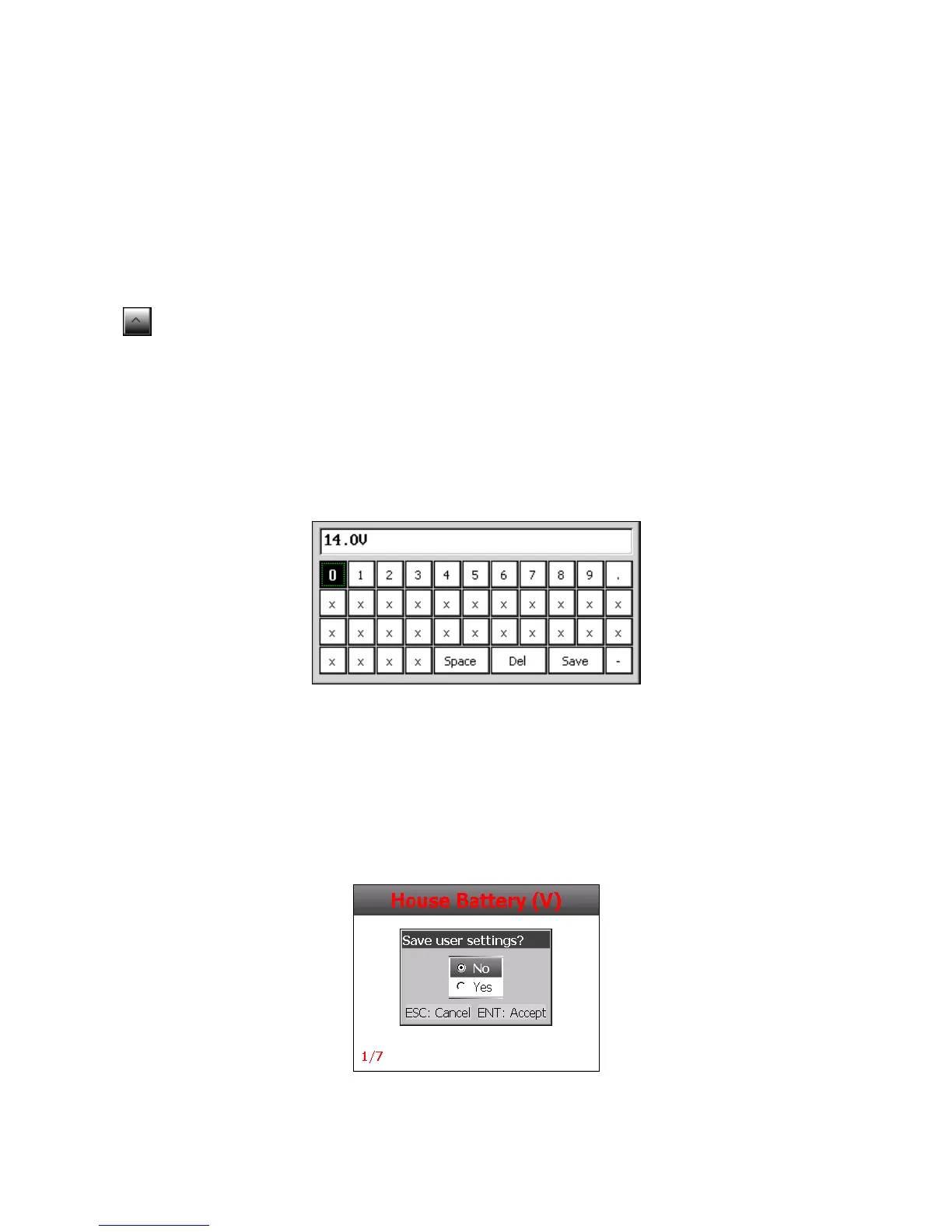
When prompted to change a numerical value for High/Low Limits, Current/Voltage settings, you will
see a Numerical keyboard. It is used exactly the same as the Text/Numeric Keyboard.
Note, the unit of measure (V,A etc) does not need to be entered. It is set by default.
Saving
When any meter settings have been changed a save settings prompt will open when exiting to the
main screen.



 To Next Page