Shaoxing Bibo Automatic Equipment Co., Ltd.
Tel:+86 575 88918283 Mobile:+86 133 25759139
Url: www.ourbibo.com E-Mail: bibo@ourbibo.com
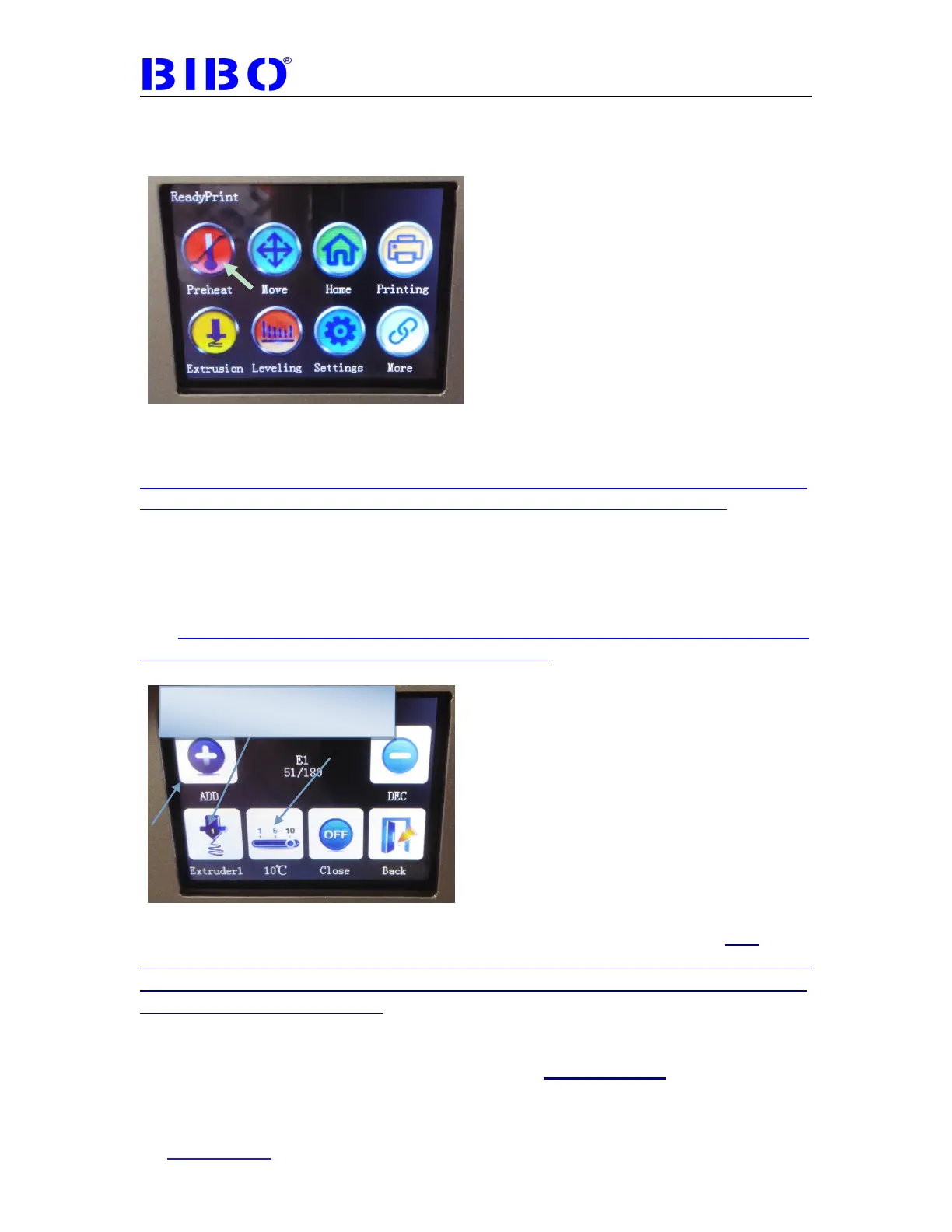
1) Turn on the power switch on the back of the printer and you will see the main
menu:
If your touch screen’s main menu’s background is not in black as the photo
above,
You can update the latest firmware according to this link:
https://docs.google.com/document/d/1dpXsl0ZKrTG7c7OuIY9BxZCUDk8tSWcX/
edit?usp=sharing&ouid=103768291371300327502&rtpof=true&sd=true
2) Now use your fingernail to touch the “Preheat” button, and you will see
NOTE: Using fingernail or a pen, not finger bellies or soft part to touch the
touch screen, or will let some move button not be responsive. Please kindly
check our way to click the touch screen on this
link: https://drive.google.com/file/d/0B76TjeOkslHlNl9fZUI3U0xoMTg/view?usp=s
haring&resourcekey=0-TuvWre7IijIVJTd3nALrSQ
3)You can choose nozzle Extruder 1(right extruder) and nozzle2 Extruder 2(left
extruder), then set the temperature at 220℃ by “add” button as usual (this
temperature is according to your material type and manufacture’s instruction. For
PLA usually 200℃, and for ABS usually 220-240℃. It also based on the former
existing filament in the nozzle). Now you will see two extruder’s temperature is
rising.
4) Now we will do the loading filament step for two extruders. Put two spools
of filament in the back of the printer (We send one spool of PLA filament, and you
Touch this to choose Extruder1
or Extruder 2 or Bed


 To Next Page