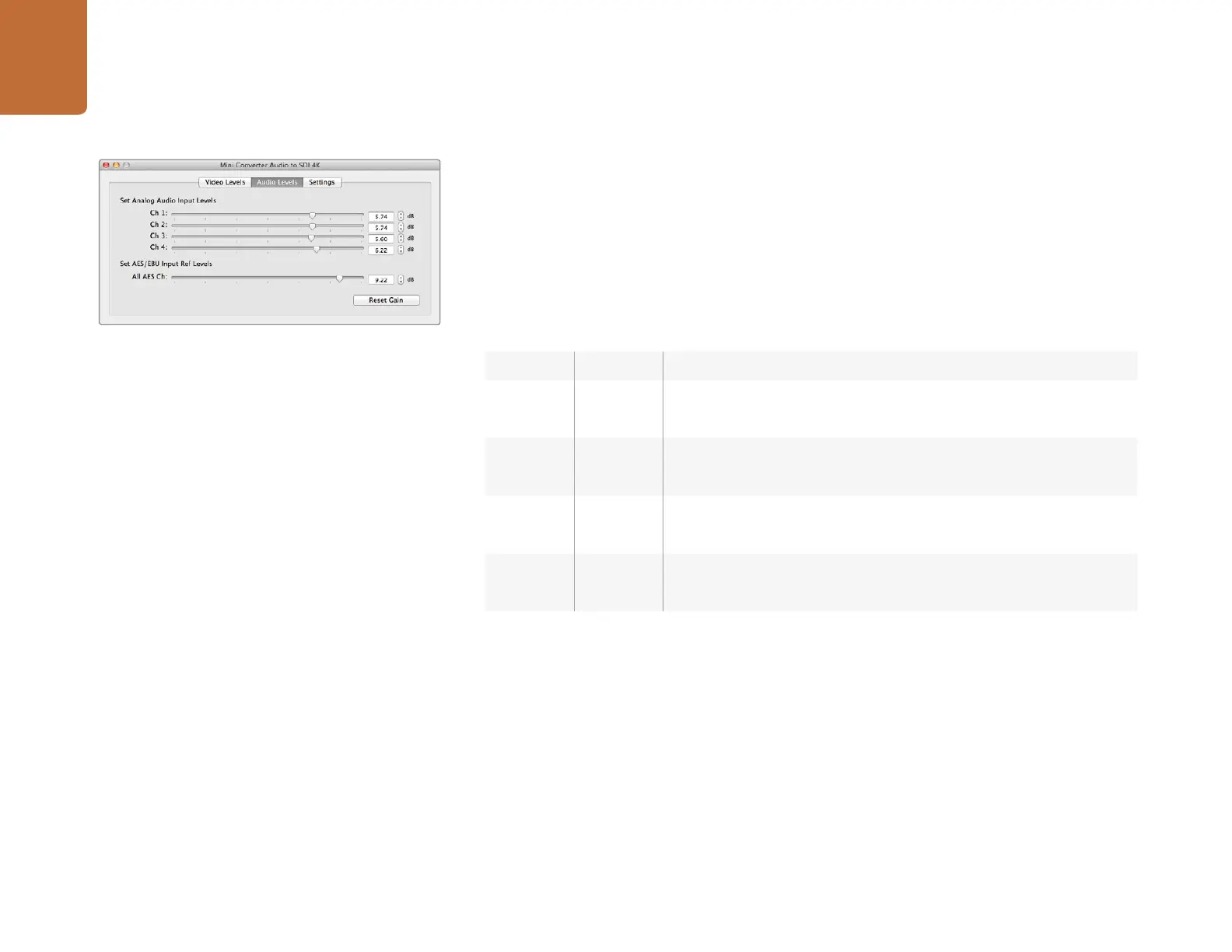
Mini Converter Audio to SDI 4K
32
Switch 5 - Audio Group Bit 0
See switch 6 description.
Embedding or Disabling Channels
Once you have selected your audio channels, use switches 4, 3, 2 and 1 to select which channels to
embed or disable. The disable setting lets you avoid overwriting audio channels you wish to keep in
the SDI signal.
For example, you can disable analog audio channel 1 or AES/EBU channels 1 and 2 by setting switch 1 to
the ON position. Alternatively, you can embed the audio channels by setting switch 1 to the OFF position.
Audio Selection Tables
Mini Switch Settings Example: Try experimenting with the mini switches. Select analog audio channels
1 to 4 by setting switches 8, 6 and 5 to the OFF position.
Embed analog audio channels 1 to 4 by setting switches 8, 6, 5, 4, 3, 2 and 1 to the OFF position.
Blackmagic Converter Utility Settings
The Converter Utility software complements your mini switch settings by providing additional adjustment
options.
The Audio Levels pane lets you adjust audio levels for the selected analog channels or AES/EBU audio
reference levels.
Adjust audio levels for the selected analog channels or AES/
EBU audio reference levels using Blackmagic Converter Utility.
Switch Setting
Audio Channels
4 ON
Disable analog CH 4, AES/EBU CH 7 and 8
OFF
Embed analog CH 4, AES/EBU CH 7 and 8
3 ON
Disable analog CH 3, AES/EBU CH 5 and 6
OFF
Embed analog CH 3, AES/EBU CH 5 and 6
2 ON
Disable analog CH 2, AES/EBU CH 3 and 4
OFF
Embed analog CH 2, AES/EBU CH 3 and 4
1 ON
Disable analog CH 1, AES/EBU CH 1 and 2
OFF
Embed analog CH 1, AES/EBU CH 1 and 2




 To Next Page