Adjusting Monitor Settings
10
Adjust Both Monitors Together
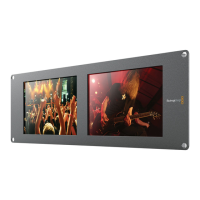
When this setting is enabled, any changes made to the brightness, contrast and saturation will be applied
to both independent SmartView Duo or SmartScope Duo monitors. Yellow borders will appear on both
monitors in the software interface to indicate that any changes to brightness, contrast and saturation will be
applied to both.
Deselect this setting if you wish to make independent changes to the two monitors. Click on Monitor 1 or
Monitor 2 and a yellow border will appear so you know that changes to brightness, contrast and saturation
will only be applied to the selected monitor.
You can enable or disable the "Adjust both monitors together" setting when connected to SmartView Duo
or SmartScope Duo via Ethernet or USB.
Identify Monitor
Check the Identify box to display a white border on a selected monitor. If you have several SmartView and
SmartScope units on a network, this setting makes it easy to identify the selected monitor. The white border
will appear both on the LCD and in the Blackmagic SmartView Utility software interface.
If this setting is used in conjunction with the "Adjust both monitors together" setting, the white border will
be displayed on both SmartView Duo or SmartScope Duo monitors.
You can use the Identify monitor setting with Blackmagic SmartView Utility when connected to the unit via
Ethernet or USB.
A yellow border will appear around the selected monitor(s) in the
Blackmagic SmartView Utility.
A white border will appear around the selected monitor(s) when the Identify checkbox is enabled.


 To Next Page