-- 18 --
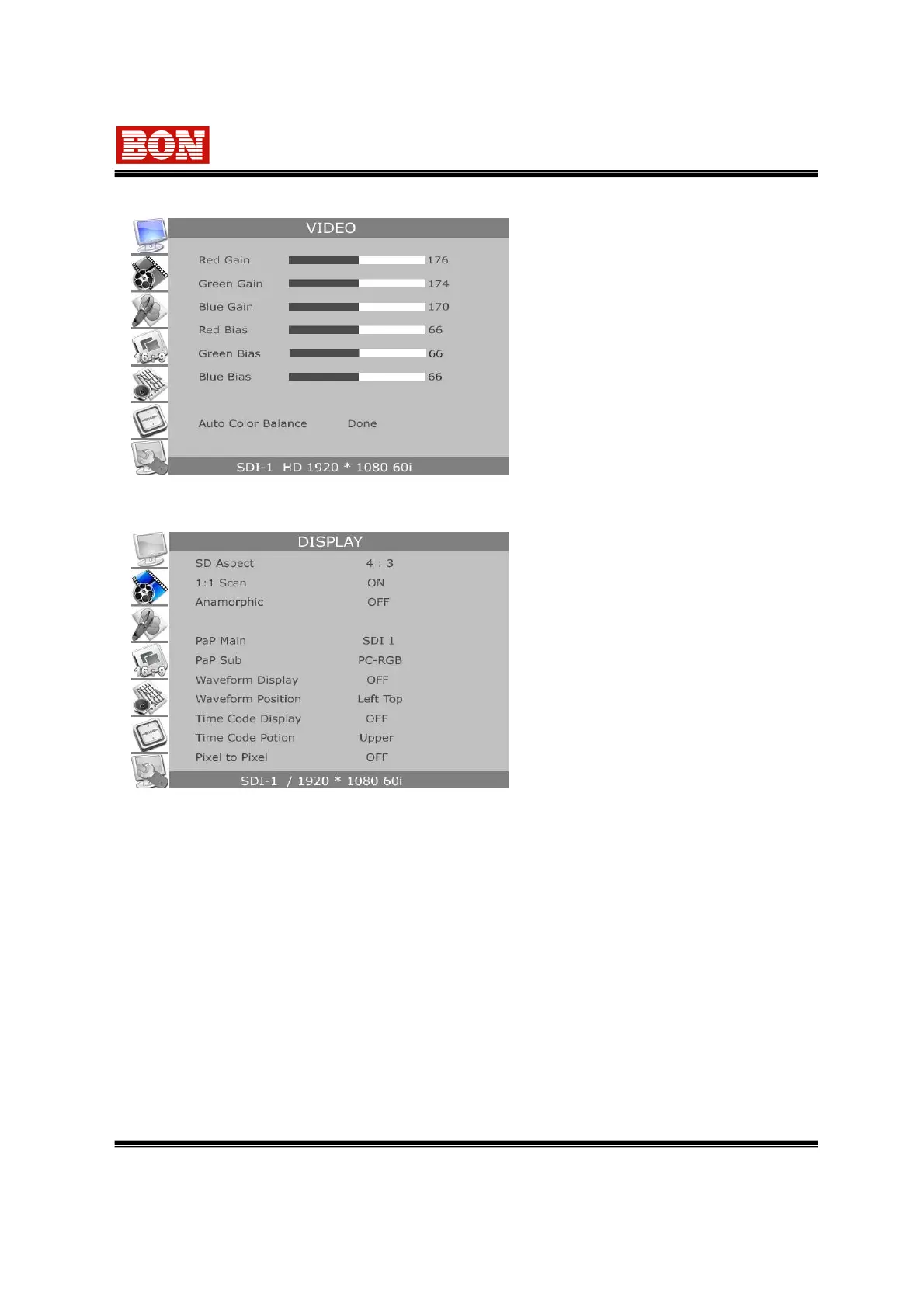
6-1-1. VIDEO (RGB,YPbPr)
It is displayed as selecting RGB Color Adjust
to User Adjust when PbPr,RGB and PC-RGB
input mode.
▪ Red Gain : Control gain of Red input.
▪ Green Gain :Control gain of Green input.
▪ Blue Gain : Control gain of Blue input.
▪ Red Bias : Control bias of Red input.
▪ Green Bias : Control bias of Green input.
▪ Blue Bias : Control bias of Blue input.
▪ Auto Color Balance : It sets Gain Bias of RGB automatically.
* Factory default is standard value for RGB Gain and Bias.
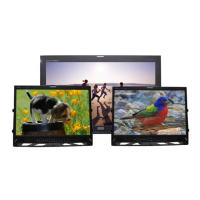
6-2. DISPLAY
Set screen size mode or display status.
▪ SD Aspect : Set screen mode 16:9 or 4:3.
▪ 1:1 Scan :
ON-> Output the screen with input Pixel
size in SD mode.
OFF ->Output the screen with LCD size
in SD mode.
▪ Anamorphic : Make vertical resize to
see Anamorphic screen (2.35:1) on
720/50P,59.94P mode.
▪ PaP Main : Select input of left main screen from PaP mode.
Possible to select all input signals. (SDI1, 2, CVBS1, 2, 3, S-VIDEO, YPbPr, RGB, PC-RGB, DVI)
▪ PaP Sub : Select input of right sub-screen from PaP mode.
It moves to input mode automatically which can be operated when selecting main screen.
Main and sub-screen have limitation to select.( the same signal and type are not possible)
▪ Waveform Display : (BLM-084/170/190/240/260/320/420/470/550)
Display Video wave of HD/SD-SDI input signal on the screen.
Select 4 display position.
▪ Time Code Display : (BLM-084/170/190/240/260/320/420/470/550)
Display Time Code of VITC area at HD/SD-SDI input signal.
Select display position. (Upper/Lower)
▪ Pixel to Pixel : Available 8.4”, 17” and 19 product only. The output of 1920*1080 is done
without scale down. You are able to set the position of screen to Left Upper, Right Upper,
Left Button, Right Button and Center.


 To Next Page