EasyManua.ls Logo

Bosch NDC-455 - User Manual

Bosch NDC-455
130 pages
Print Icon
To Next Page IconTo Next Page
Loading...
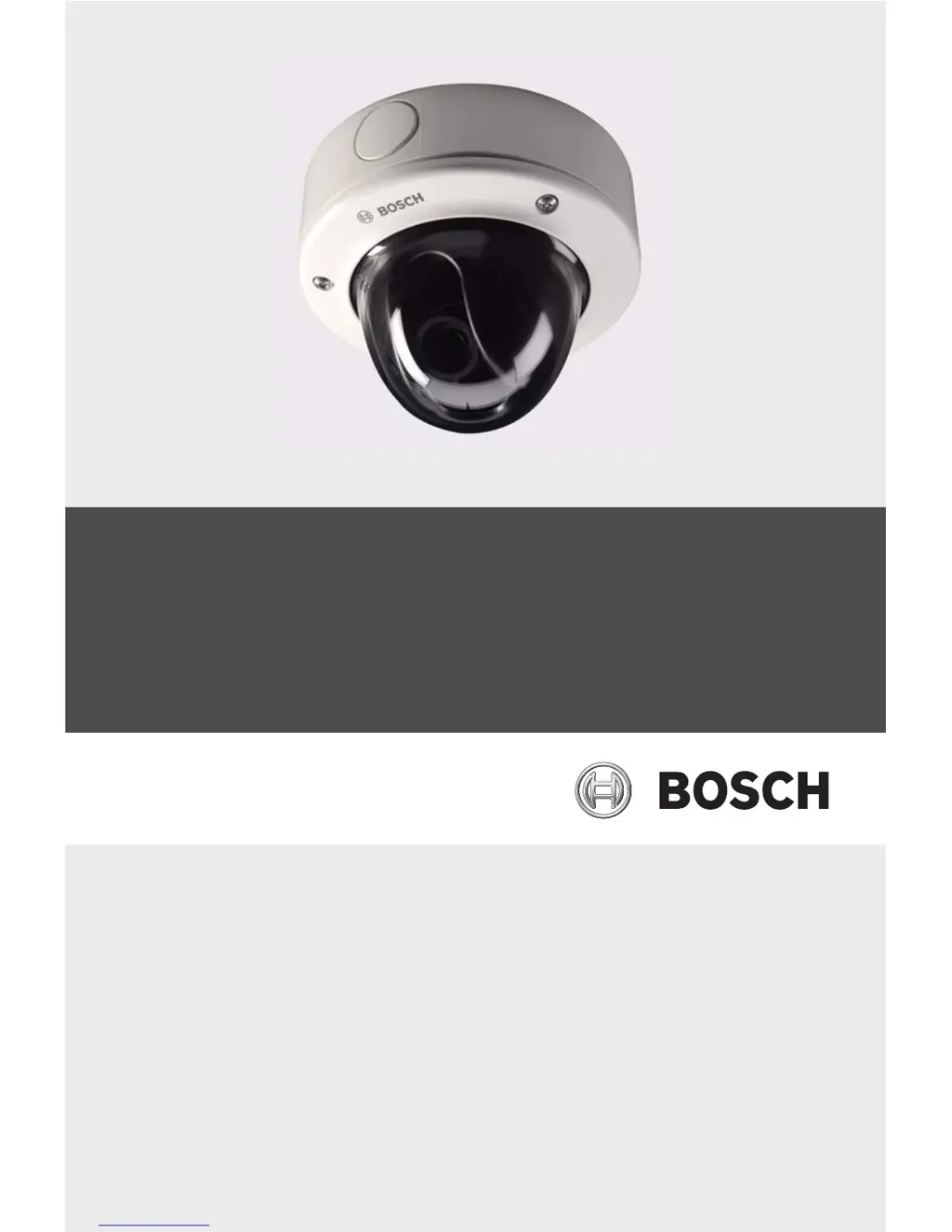
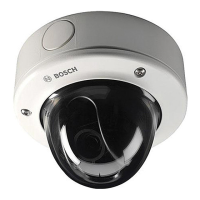
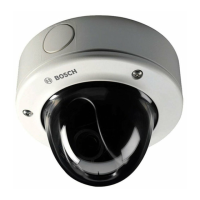
FlexiDome IP Camera
NDC-455
en Installation and Operation Manual

Table of Contents

Other manuals for Bosch NDC-455

Questions and Answers

  • J
    James BeanAug 15, 2025
    What to do if my Bosch NDC-455 has no connection and no image transmission?
    • J
      Jill McgeeAug 15, 2025
      If your Bosch IP Camera is not establishing a connection or transmitting images, begin by verifying all configuration parameters. Next, inspect all cables, plugs, contacts, and connections to ensure they are properly installed. Check the IP addresses using a terminal program to ensure they are correct. Use the ping command to check the data transmission within the LAN. Finally, if the maximum number of connections has been reached, wait until a connection is free before attempting to call the transmitter again.
  • T
    Tina RaymondAug 18, 2025
    How to fix no image transmission on my Bosch NDC-455 to a remote location?
    • D
      Dillon EnglishAug 18, 2025
      If your Bosch IP Camera isn't transmitting images to a remote location, first, connect a local monitor to the camera to check its function. Then, check all cables, plugs, contacts, and connections. If you are using a hardware decoder, select the H.264 BP+ (HW decoder) option on the Encoder Streams configuration page.
  • V
    Vanessa AriasAug 21, 2025
    Why is there no audio transmission to remote station from my Bosch IP Camera?
    • S
      Scott PhillipsAug 21, 2025
      If you are experiencing a failure of audio transmission to a remote station with your Bosch IP Camera, verify that all connected audio units are operating correctly. Then, check all cables, plugs, contacts, and connections. Also, check the audio parameters on the Audio configuration and LIVEPAGE Functions pages. If the audio voice connection is already in use by another receiver, wait until the connection is free, and then call the sender again.
  • J
    Julie WoodsAug 25, 2025
    What to do if Bosch NDC-455 IP Camera is not operational after a firmware upload?
    • Y
      ylarsonAug 26, 2025
      If your Bosch IP Camera unit is not operational after a firmware upload, have the unit checked by Customer Service and replaced if necessary, if the cause is power failure during programming by firmware file. If the cause is an incorrect firmware file, enter the IP address of the unit followed by / main.htm in your Web browser and repeat the upload.
  • J
    Jose BeanAug 28, 2025
    Why is my Bosch NDC-455 not reporting an alarm?
    • Z
      Zachary WeeksAug 28, 2025
      If your Bosch IP Camera does not report an alarm, select possible alarm sources on the Alarm sources configuration page. Also, specify the desired alarm response on the Alarm connections configuration page; if necessary, change the IP address.
  • M
    Melinda WilsonAug 31, 2025
    Why do I see a placeholder with a red cross instead of ActiveX components on my Bosch NDC-455 IP Camera?
    • K
      Kayla ThomasAug 31, 2025
      If you see a placeholder with a red cross instead of the ActiveX components on your Bosch IP Camera, install Sun JVM from the product CD, because JVM is either not installed on your computer or not activated.
  • A
    Amanda HansenSep 3, 2025
    Why is the POWER LED flashing red on my Bosch IP Camera?
    • T
      Thomas DonaldsonSep 3, 2025
      If the POWER LED on your Bosch IP Camera flashes red, repeat the firmware upload, because the firmware upload failed.
  • D
    Daniel AcevedoSep 7, 2025
    How to fix control of cameras if it is not possible with Bosch IP Camera?
    • L
      Lisa WilsonSep 7, 2025
      If you cannot control cameras or other units with your Bosch IP Camera, check all cable connections and ensure all plugs are properly fitted. Also, ensure that the settings of all units involved are compatible.
  • K
    kylemartinSep 12, 2025
    What causes the web browser to contain empty fields with Bosch NDC-455 IP Camera?
    • D
      Dwayne SalinasSep 12, 2025
      If your web browser contains empty fields when using a Bosch IP Camera, create a rule in the local computer's proxy settings to exclude local IP addresses, because there is an active proxy server in the network.

Summary

Safety

Safety precautions and instructions

Explains safety symbols (DANGER, WARNING, CAUTION) and provides essential operational and installation guidelines.

Connection safety and compliance

Details safe power line connections, power source requirements, and FCC/ICES compliance.

Installation and Setup

Planning and System Requirements

Covers unpacking, PC requirements, player installation, and system overview.

Installation Procedures

Details disassembly, mounting, connections, positioning, and camera setup.

Configuration

Browser Connection and Setup

Establishes browser connection, covers system requirements, and basic/advanced mode configuration.

Network Configuration

Settings for integrating the device into a network, including IP, subnet mask, and DHCP.

Operation and Troubleshooting

Browser Operation

Explains Livepage, recordings, playback control, and browser interface functions.

Troubleshooting and Maintenance

Covers function tests, problem resolution, customer service, network testing, and firmware updates.

Technical Data

Specifications

Detailed technical specifications for the camera models.

Dimensions

Diagrams showing physical dimensions of the camera unit.

Bosch NDC-455 Specifications

General IconGeneral
BrandBosch
ModelNDC-455
CategoryIP Camera
LanguageEnglish

Related product manuals