VideoJet XF E Product description | en 9
Bosch Sicherheitssysteme GmbH Installation and Operating Manual DOC | V5.51 | 2012.03
3 Product description
3.1 Parts included
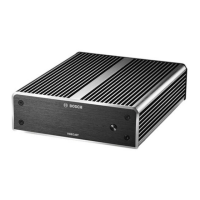
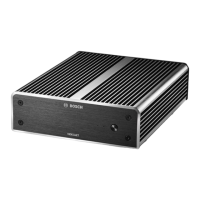
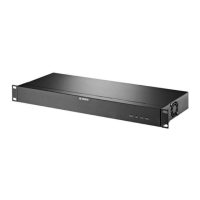
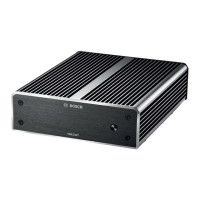
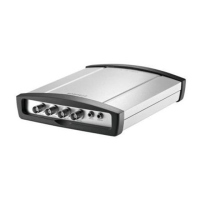
– VideoJet X20 XF E or VideoJet X40 XF E network video server
– 2 terminal blocks (6-pin, 8-pin)
– 4 self-adhesive elastic bumpers
– 1 wall-mounting panel
–2 screws
– 2 wall plugs
– 1 power supply unit with 3 primary adapters (EU, US, UK)
– 1 Quick Installation Guide
–1 Safety Hints document
3.2 System requirements
General requirements
– Computer with Windows XP or Windows 7 operating system
– Network access (Intranet or Internet)
– Screen resolution at least 1,024 × 768 pixels
– 16- or 32-bit color depth
– Installed Sun JVM
Additional configuration requirements
– Microsoft Internet Explorer (version 7.0 or higher)
or
– Installed Configuration Manager application (version 4.30 or higher)
Additional operational requirements
– Microsoft Internet Explorer (version 7.0 or higher)
or
– Receiver software, for example Bosch Video Client (version 1.3 or higher) or Bosch Video
Management System (version 3.0 or higher)
or
– H.264 compatible hardware decoder from Bosch Security Systems (for example
VIP XD HD) as a receiver and connected video monitor
– For playing back recordings: connection to storage medium
NOTICE!
Check that the delivery is complete and in perfect condition. Arrange for the unit to be
checked by Bosch Security Systems if you find any damage.
NOTICE!
Also note the information in the Releaseletter document for the respective firmware. For the
latest version of the firmware, required programs and controls, and the current version of the
Bosch Video Client (BVC) management software, access your Bosch product catalog on the
Internet.
The Web browser must be configured to enable cookies to be set from the IP address of the
unit.
In Windows 7, deactivate protected mode on the Security tab under Internet Options.
You can find notes on using Microsoft Internet Explorer in the online Help in Internet Explorer.


 To Next Page
 Loading...