84
Adding a Sense of Spaciousness
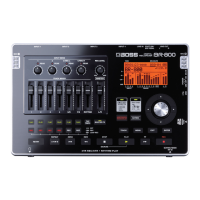
By making use of the BR-800’s onboard “Loop Effects,” you
can add a sense of spaciousness and depth to your sounds.
You can adjust the effect depth by adjusting the send level
from each input or track to the loop effect.
Since each input and track has its own independent send
level, you can make adjustments separately; for example,
you might apply deep reverberation to the vocal, but
shallow reverberation to the drums.
Here’s how to adjust the send level of each track to change
the depth of the loop effect.
1
Press the [TRACK] button.
2
Use the CURSOR [ ] [ ] buttons to move the
cursor to “REVERB” or “CHO/DLY,” and press the
[ENTER] button.
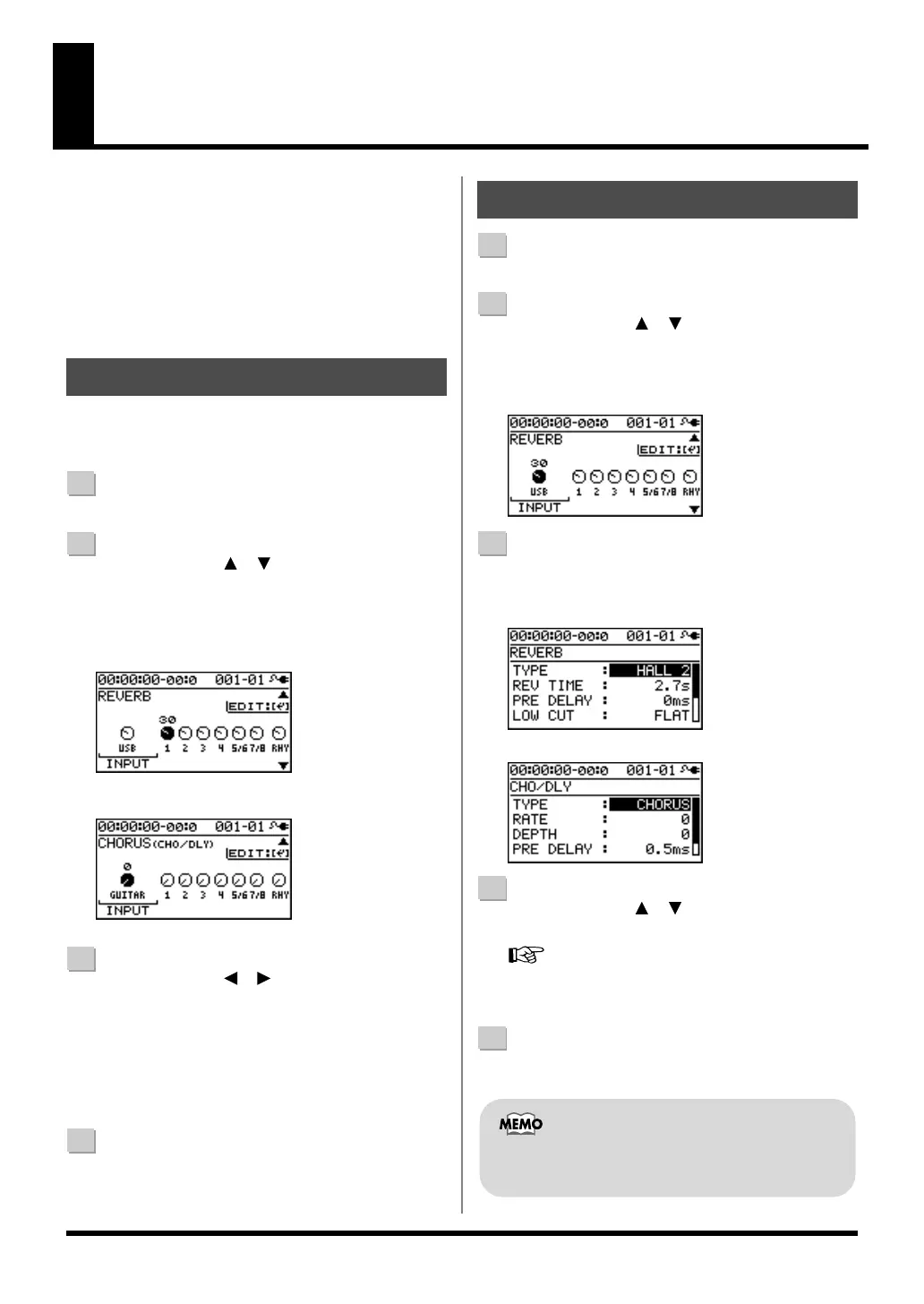
The send level edit screen will appear.
For REVERB
D_Reverb_Track1.eps
For CHO/DLY
D_Chorus.eps
3
Use the CURSOR [ ] [ ] buttons and the dial to
adjust the send level of each track.
* You can move the cursor to each track by pressing that
track’s track [REC] button.
To adjust the send level of the input source, move the cursor
to “INPUT.” To adjust the send level of the rhythm, move
the cursor to “RHY.” Then use the dial to edit the setting.
4
When you’ve finished adjusting the send levels,
press the [EXIT] button a number of times to return to
the play screen.
1
Press the [TRACK] button.
2
Use the CURSOR [ ] [ ] buttons to move the
cursor to “REVERB” or “CHO/DLY,” and press the
[ENTER] button.
The send level screen will appear.
D_Reverb.eps
3
Press the [ENTER] button.
The loop effect parameter edit screen will appear.
For REVERB
D_Reverb_Edit.eps
For CHO/DLY
D_Chorus_Edit.eps
4
Use the CURSOR [ ] [ ] buttons to select a
parameter, and use the dial to edit the value.
For details on the parameters for each effect, refer to
“Parameter List” (p. 85).
5
When you’ve finished editing, press the [EXIT]
button a number of times to return to the play screen.
Adjusting the Loop Effect Depth
Editing the Loop Effect
The loop effect does not have “patches.” Loop effect
settings are saved as part of the song data.
BR800_e.book 84 ページ 2011年6月6日 月曜日 午後2時14分


 To Next Page