20
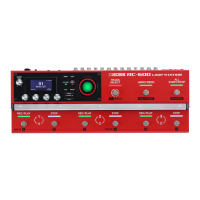
Connecting to a Computer via USB
1. Press the [MENU] button.
The MENU screen appears.
2. Use the [K] [J] buttons to switch to the page on which
“USB” is shown, and press the [2] (USB) knob.
3. Turn the [1] (STORAGE) knob to set “PREPARING...”.
4. Use a USB cable to connect the RC-600’s USB port to
your computer’s USB port.
When a connection with the computer is established, the
message “CONNECTING...” appears.
* USB connection is not possible if the unit is not stopped, or if
there is a phrase that has not been saved.
5. Open the BOSS RC-600 drive.
Windows
Within My Computer (or Computer), open “BOSS RC-600” (or
Removable Disk).
macOS
On the desktop, open the “BOSS RC-600” icon.
6. Back-up or recover the data.
Backup
Copy the entire “ROLAND” folder from the BOSS RC-600 drive
to your computer.
Recover
* When you execute this operation, the memory currently saved
in the RC-600 disappears. Back up in advance.
In the BOSS RC-600 drive, delete the “ROLAND” folder,
and then copy the backed-up “ROLAND” folder from the
computer into the BOSS RC-600 drive.
NOTE
Do not delete the folders in the BOSS RC-600 drive other than
when executing the recovery operation.
7. Eject the BOSS RC-600 drive.
Windows
In the lower right of your screen, click the [
] and then the
[
] icon, and then click “Eject BOSS RC-600.”
macOS
Drag the “BOSS RC-600” icon to the trash (“Eject” icon).
Here’s what you can do when you connect the RC-600 via USB to
your computer.
5 Back up the RC-600’s data to your computer.
5 Restore (recover) backup data from your computer to the
RC-600.
5 Use BOSS TONE STUDIO to import or back up loop phrases
(audio les).
5 Use the dedicated rhythm converter if you want to import and
use your original rhythm patterns on the RC-600.
Using BOSS TONE STUDIO and the rhythm converter
Access the website shown below to download BOSS TONE
STUDIO or the rhythm converter.
& https://www.boss.info/support/
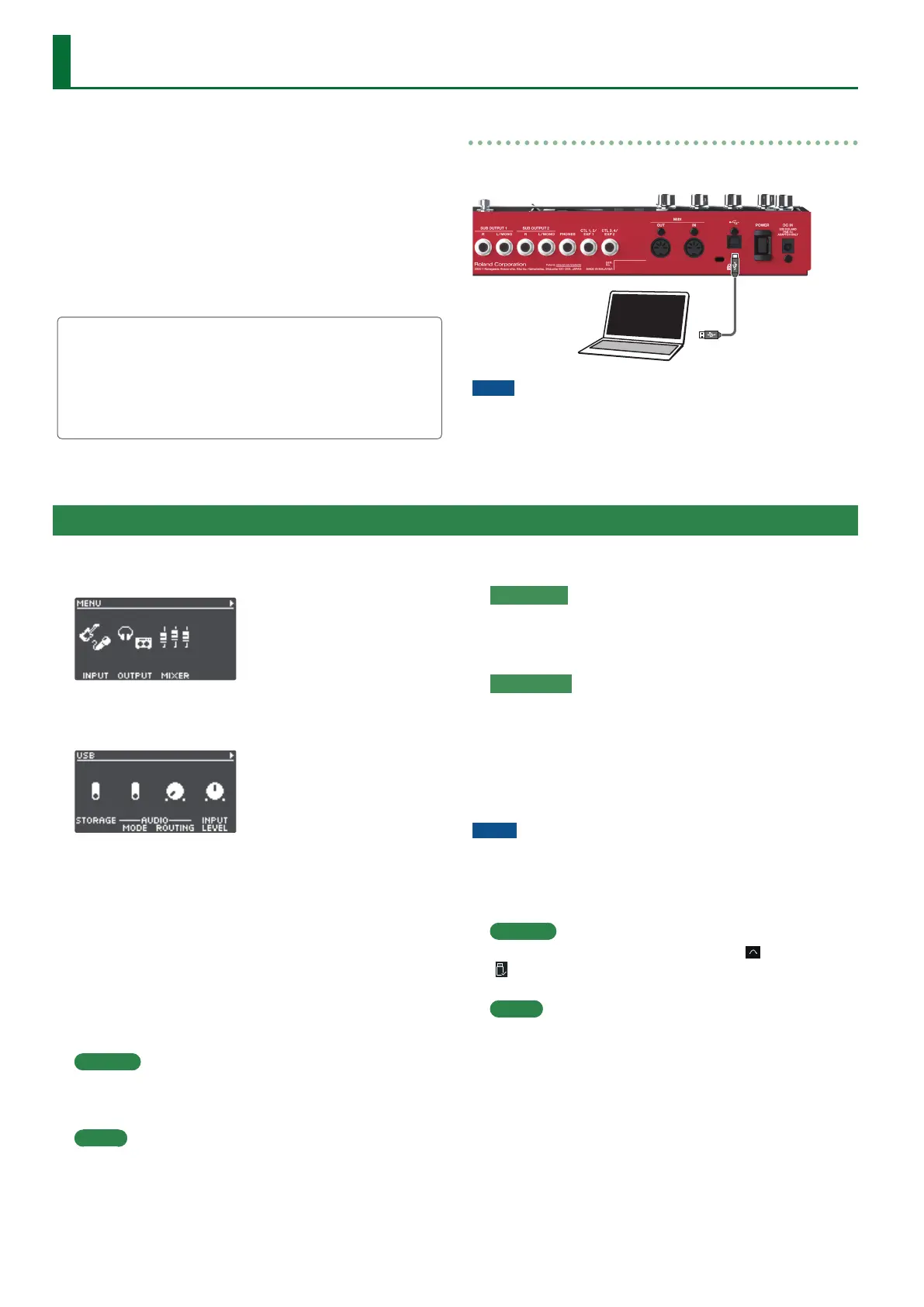
Connecting to your computer
Use a commercially available USB cable to connect the RC-600’s
USB port to the USB port on your computer.
NOTE
5 Use a USB cable that supports USB 2.0 Hi-Speed.
5 This might not work correctly for some models of computer.
Refer to the BOSS website for details on the operating systems
that are supported.
Backing Up or Recovering Data


 To Next Page