18
Naming/Copying a Sound
NAME (Naming Your Sound)
To help you remember the tonality that a sound
produces, you can assign a descriptive name of up to
12 characters to a sound.
1. Press the [MENU] button.
2. Turn the [SOUND] knob to select
“NAME.”
MENU
NAME
3. Press the [ ] button.
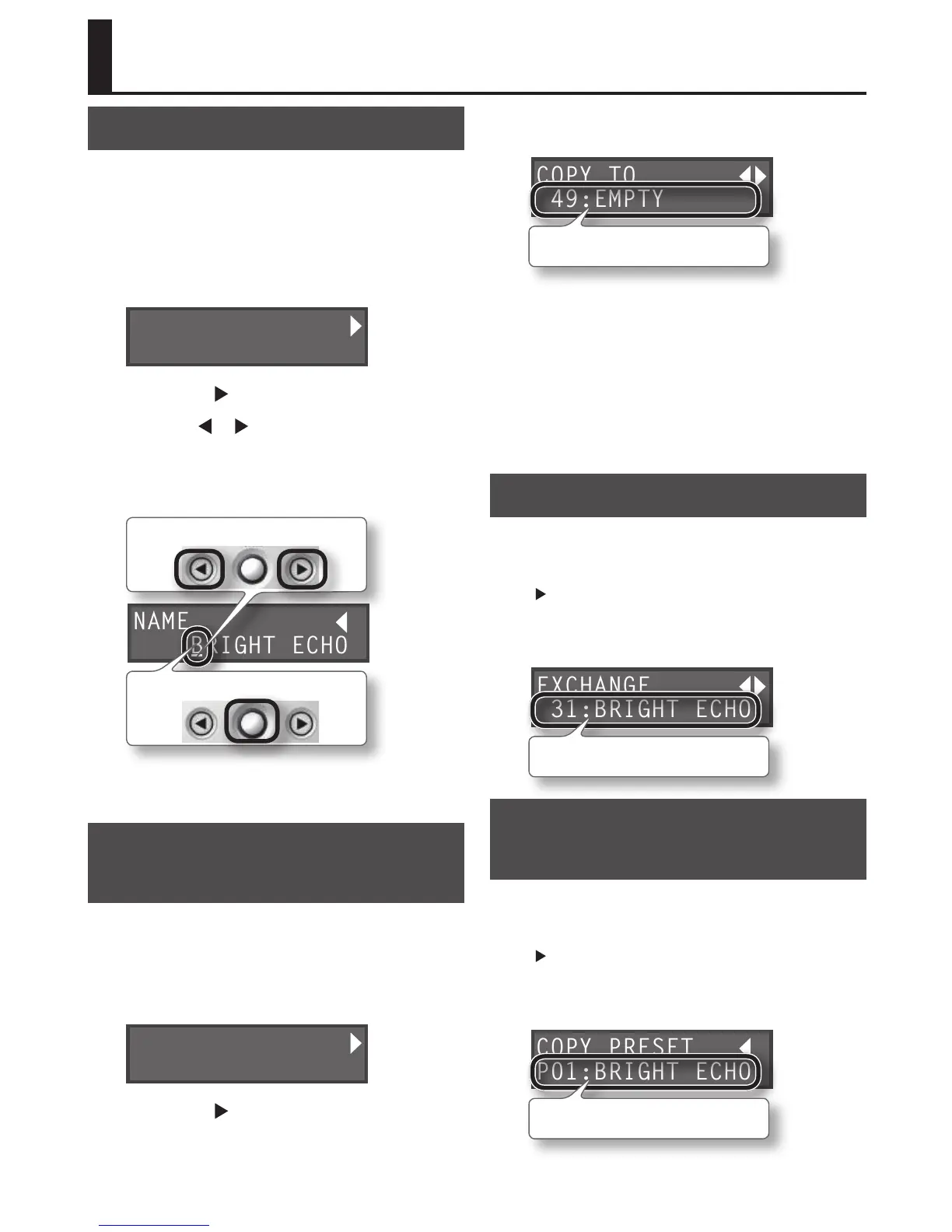
4. Use the [
] [ ] buttons to select the
character that you want to change, and
turn the [SOUND] knob to choose the
desired character.
NAME
BRIGHT ECHO
Change the character
Select the character
5. Press the [EXIT] button to return to the
top screen.
COPY TO (Copying a Sound as a
Dierent Sound)
Here’s how to copy the sound as a dierent sound.
1. Press the [MENU] button.
2. Turn the [SOUND] knob to select “COPY
TO.”
MENU
COPY TO
3. Press the [ ] button.
The [LOOP] button blinks, and the COPY TO screen
appears.
4. Turn the [SOUND] knob to select the
copy-destination sound.
COPY TO
49:EMPTY
Copy-destination sound
* When you execute the Copy operation, the copy-destination
sound will be lost.
If you decide not to execute the Copy operation, press
the [EXIT] button to return to the previous screen.
5. Press the [LOOP] button.
The sound is copied.
* Never turn o the power before the display indicates
“COMPLETED!”
EXCHANGE (Exchanging sounds)
You can change the order of the user sounds by
exchanging them.
In step 3 of the COPY TO operation, press the
[
] button twice; the “EXCHANGE” screen will appear,
allowing you to exchange the currently selected
sound with the sound selected in the screen. The rest
of the procedure is the same as for COPY TO.
EXCHANGE
31:BRIGHT ECHO
Exchange-destination sound
COPY PRESET (Copying a Preset
Sound)
You can copy a factory-set (preset) sound to the
currently selected sound.
In step 3 of the COPY TO operation, press the
[
] button three times; the “COPY PRESET” screen will
appear, allowing you to copy a preset sound to the
currently selected sound. The rest of the procedure is
the same as for COPY TO.
COPY PRESET
P01:BRIGHT ECHO
Preset sound to be copied


 To Next Page