15
1
■ Using Router's WPS button
Use this connection method if your wireless LAN access
point/router has a WPS button.
• For details on the WPS button, check your
wireless LAN manual for your wireless LAN
access point/router.
If you have already selected the
connection method, please go to step
e
: Operation performed in DesignNCut
Manager
a Click [Start Setup].
b Click [Connect].
c Select [Wireless LAN], and then click [Next].
* Skip this step for mobile and Mac version.
d Select [Use Router's WPS button], and then
click [Next].
* Mobile version will automatically go to the next
screen.
: Operation performed on the machine
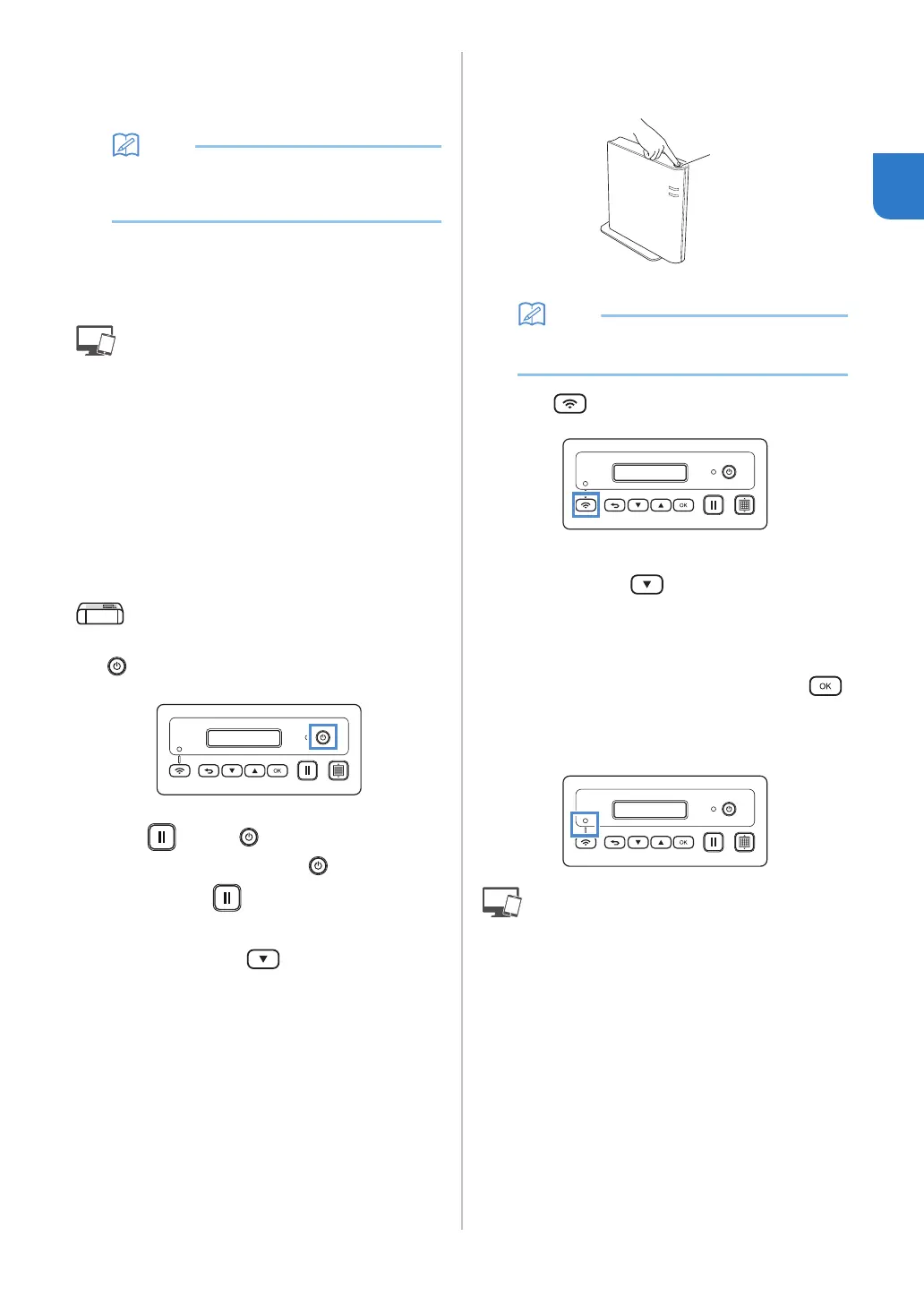
e Turn off the DesignNCut machine, by pressing
.
f Press and the at the same time, once
the power comes on release while still
pressing down .
g When the message [Machine mode?] appears
on your LCD, press
to select [WLAN].
hThe message, [Turn the machine off, then on
again.] will appear on your LCD.
Follow the machine's instruction.
Once your machine is back on, the text [Standby
(WLAN)] should display on your LCD.
i Press your router's WPS button.
Make sure your DesignNCut machine and PC
connection are on the same network.
a WPS button
• The location of the WPS button differs
depending on your device.
j Press on your DesignNCut machine.
k When the message [Enable WLAN?] appears on
your LCD, press
to select [Yes].
* Give your machine time to connect to your
wireless network.
l When the message [Connected to WLAN. Press
[OK] button.] appears on your LCD, press
button on your machine.
m The Wireless LAN Connect light will turn on.
: Operation performed in DesignNCut
Manager
n Go back to DesignNCut Manager and click
[Connect].
o Select the machine number and then click
[OK].
* For mobile version, tap [Done].
a


 To Next Page