36
■ Sending Patterns to the Machine
a Start up DesignNCut Manager.
b Log in to ScanNCutCanvas, and edit the
pattern.
• Make sure that the pattern to be cut fits the size
of the material and fits within the cutting area. If
the pattern does not fit within the cutting area,
adjust the location of the pattern and/or the
pattern size in ScanNCutCanvas.
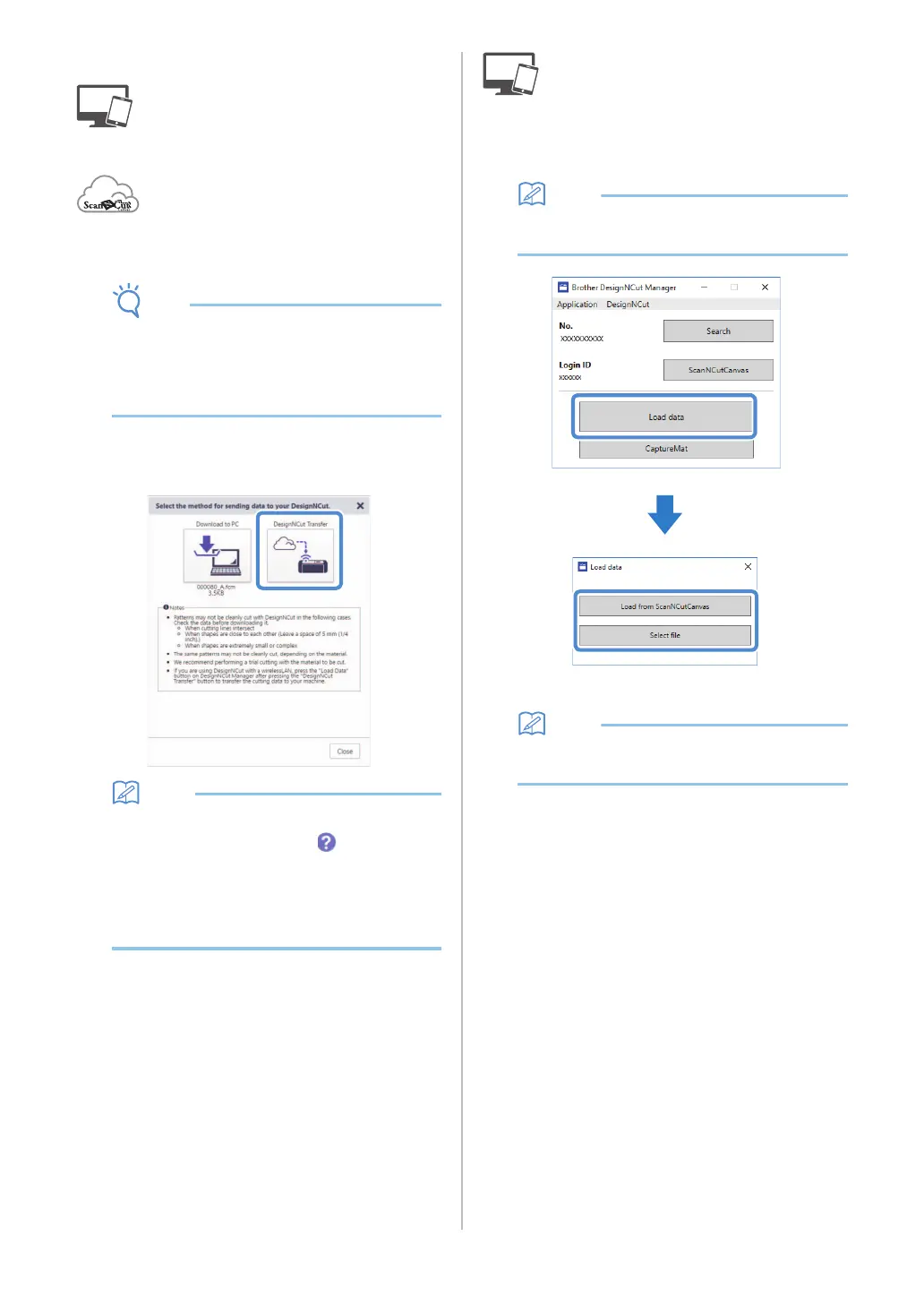
c Click [Download], then [DesignNCut Transfer]
to send the pattern to the machine.
• For details on editing, transferring or
downloading patterns, click in
ScanNCutCanvas, and then refer to
“Downloading a Project” in the Help.
• When downloading a pattern using a USB cable
(computer only), click [Download to PC] to send
the pattern.
d Click [Load data] in the main window of
DesignNCut Manager, and then click [Load
from ScanNCutCanvas] to import the pattern.
• With the mobile device version, tap [Load data]
in the main screen. A preview screen appears.
The pattern preview window appears.
• To open a pattern saved on the computer, click
[Select file].


 To Next Page