Home > Scan > Scan Using the Buttons on Your Brother Machine > Scan to an Editable Text File Using
OCR
Scan to an Editable Text File Using OCR
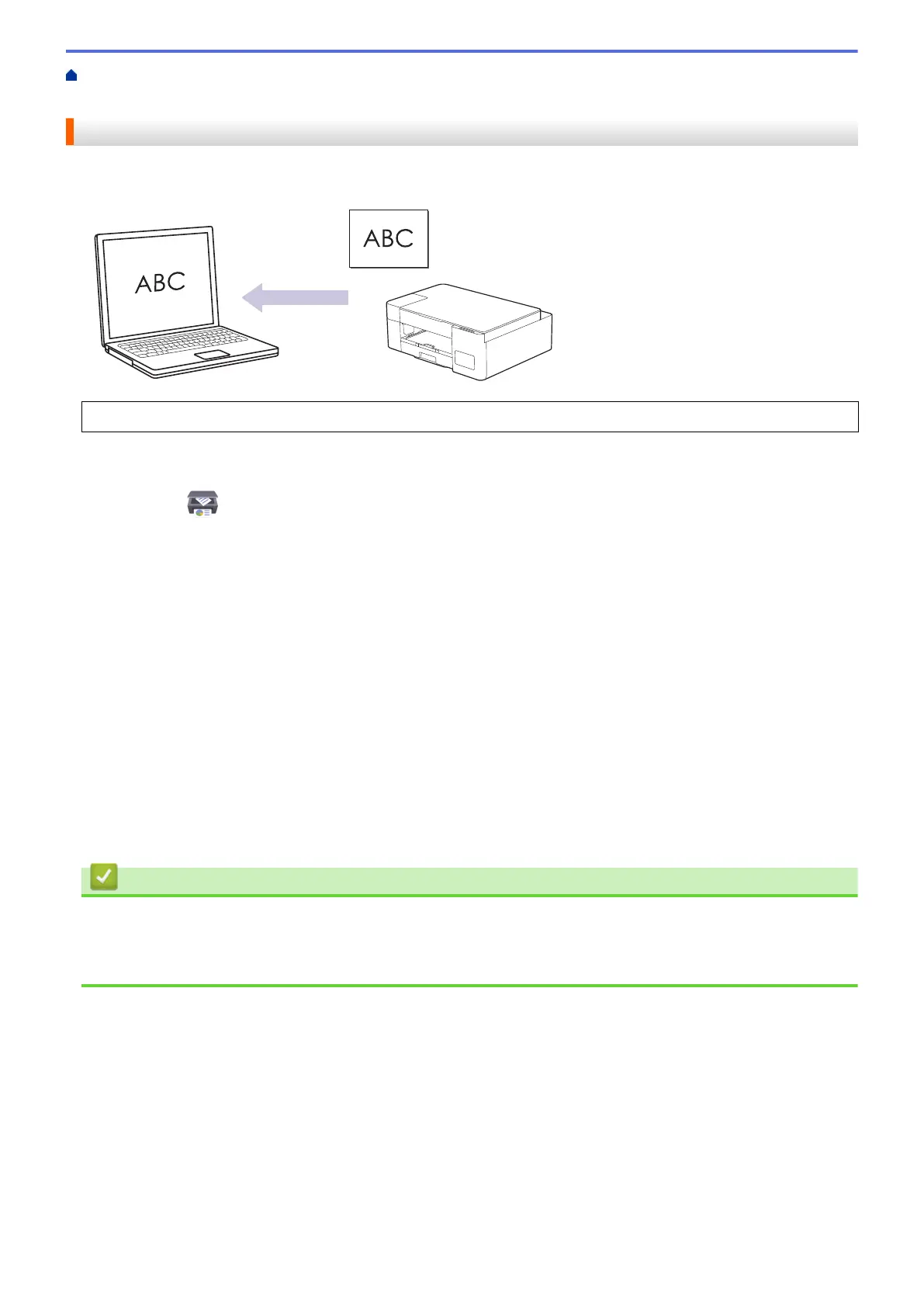
Your machine can convert characters in a scanned document to text using optical character recognition (OCR)
technology. You can edit this text using your preferred text-editing application.
The Scan to OCR feature is available for certain languages.
1. Start Brother iPrint&Scan.
• Windows
Launch
(Brother iPrint&Scan).
• Mac
In the Finder menu bar, click Go > Applications, and then double-click the iPrint&Scan icon.
The Brother iPrint&Scan screen appears.
2. Click Machine Scan Settings.
3. Click OCR.
4. Configure the scan settings, and then click OK.
5. Do one of the following:
• Windows
Click Close.
• Mac
Click OK.
6. Load your document.
7. Press Mono Start and Color Start simultaneously.
Related Information
• Scan Using the Buttons on Your Brother Machine
Related Topics:
• Scan Using the Buttons on Your Brother Machine
71



 To Next Page
 Loading...