EasyManua.ls Logo

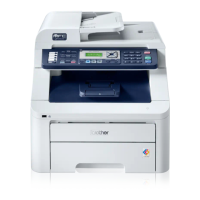
Brother MFC-9460CDN - User Manual

Brother MFC-9460CDN
315 pages
Print Icon
To Next Page IconTo Next Page
Loading...
®
Users Guide
Users Guide
PANTONE2728
Advanced User’s Guide
Safety and Legal
Basic User’s Guide

Table of Contents

Other manuals for Brother MFC-9460CDN

Questions and Answers

  • M
    Melissa LloydSep 9, 2025
    Why does my Brother Printer say 'Cooling Down Wait for a while'?
    • C
      Claudia LeeSep 9, 2025
      If your Brother Printer shows 'Cooling Down Wait for a while', the drum unit or toner cartridge is too hot. Ensure the fan is spinning and the exhaust outlet isn't blocked. If the fan works, clear any obstructions around the exhaust and let the machine sit for several minutes. If the fan doesn’t spin, disconnect the power for several minutes, then reconnect it.
  • M
    maciaspaulaAug 23, 2025
    How to fix 'Drum Error' on my Brother Printer?
    • B
      Brittany GarciaAug 23, 2025
      If your Brother Printer shows a 'Drum Error', it indicates that the corona wire on the drum unit needs cleaning. Clean the corona wire on the drum unit to resolve this issue.
  • E
    Eugene RobertsAug 25, 2025
    How to fix 'Replace Parts Drum' message on Brother Printer?
    • J
      John TuckerAug 25, 2025
      If your Brother Printer is displaying 'Replace Parts Drum', it indicates that it is time to replace the drum unit. Replace the drum unit to resolve this issue.
  • T
    Teresa GonzalesAug 26, 2025
    Why Brother All in One Printer is not found on the network during MFL-Pro Suite installation?
    • V
      Virginia PrattAug 27, 2025
      If your Brother All in One Printer is not found on the network during the MFL-Pro Suite installation, here are a few things to try: * Make sure to choose to search for the Brother machine again on the installer dialog. * Allow access when the alert message of the security software appears during the MFL-Pro Suite installation. * Place your Brother machine within about 3.3 feet (1 meter) from the WLAN access point/router when you configure the wireless network settings. * Move your Brother machine to an obstruction-free area, or closer to the WLAN access point/router. * Move all the devices away from Brother machine or WLAN access point/router.
  • M
    michaelmatthewsAug 27, 2025
    What to do if Brother All in One Printer cannot print or scan over the network?
    • R
      Ryan MilesAug 28, 2025
      If your Brother All in One Printer cannot print or scan over the network, confirm the IP address and the Subnet Mask. Verify that both the IP addresses and Subnet Masks of your computer and the Brother machine are correct and located on the same network. If the failed printing job is still in the print queue of your computer, delete it. You can also try to uninstall the MFL-Pro Suite and reinstall it.
  • W
    William JohnsonAug 29, 2025
    How to complete wireless network setup configuration on Brother All in One Printer?
    • X
      xvaughnAug 29, 2025
      To complete the wireless network setup configuration on your Brother All in One Printer, reconfirm and choose the correct security settings. The manufacturer's name or model no. of the WLAN access point/router may be used as the default security settings. Also, confirm the MAC address of the Brother machine is allowed in the filter. You can find the MAC address from the Brother machine's control panel. You should type the correct SSID name or Network Key by hand. Check the SSID name or the Network Key in the instructions supplied with your WLAN access point/router and reconfigure the wireless network setup. Use the Network Connection Repair Tool.
  • B
    Bryan BriggsSep 17, 2025
    Why does my Brother Printer say 'Access Denied'?
    • H
      Heather MatthewsSep 17, 2025
      If your Brother Printer displays 'Access Denied', the function you're trying to use is restricted by Secure Function Lock. Contact your administrator to check your Secure Function Lock settings.
  • L
    Lawrence WellsSep 18, 2025
    How do I check my network devices are working properly with Brother All in One Printer?
    • C
      Charles WeberSep 18, 2025
      To check if your network devices are working properly with your Brother All in One Printer, make sure you have confirmed all instructions in First check the following. Print the Network Configuration List. Print the Network Configuration List and check that Ethernet Link Status or Wireless Link Status is Link OK. Ping the Brother machine from your computer using the IP address or the node name. Print the WLAN report to confirm the state of the wireless connection.
  • C
    Christina ThomasSep 7, 2025
    How to fix 'Fuser Error' on my Brother Printer?
    • J
      Jennifer MasonSep 8, 2025
      If your Brother Printer displays 'Fuser Error', it means the fuser unit's temperature isn't rising to the specified level within the needed time. Turn the power off, wait a few seconds, and then turn it back on. Leave the machine on for 15 minutes.
  • C
    Cynthia FrenchSep 4, 2025
    How to fix 'Drum Stop' message on Brother Printer?
    • D
      David MartinSep 4, 2025
      If your Brother Printer shows 'Drum Stop', it means it is time to replace the drum unit. Replace the drum unit.

Brother MFC-9460CDN Specifications

General IconGeneral
Typeall in one
Colorblack
Automatic Document Feeder Capacity35 sheets
Paper Sizeplain paper, thin paper, thick paper, thicker paper, recycled paper, bond, label, envelope, thin envelope, thick envelope, glossy paper
Paper Handlingup to 300 sheets
Color Print Speed25 pages per minute
Mono Print Speed25 pages per minute
Print Resolution Monoup to 2400 x 600
Print Resolution Colorup to 2400 x 600
Maximum Number of Pages Per Monthup to 40, 000
Scan Resolutionup to 1200 x 2400
Copier Resolution Monoup to 2400 x 600
Number Of Cartridges4
Internal Memoryyes
Memory Cardno
Networkwired
Connectivityusb 2.0
OS Compatibilitynone
Mobile Devices Connectionyes
Weight and Dimensions IconWeight and Dimensions
Height19.4 inches
Width19.8 inches
Net Weight58.4 pounds

Related product manuals