EasyManua.ls Logo

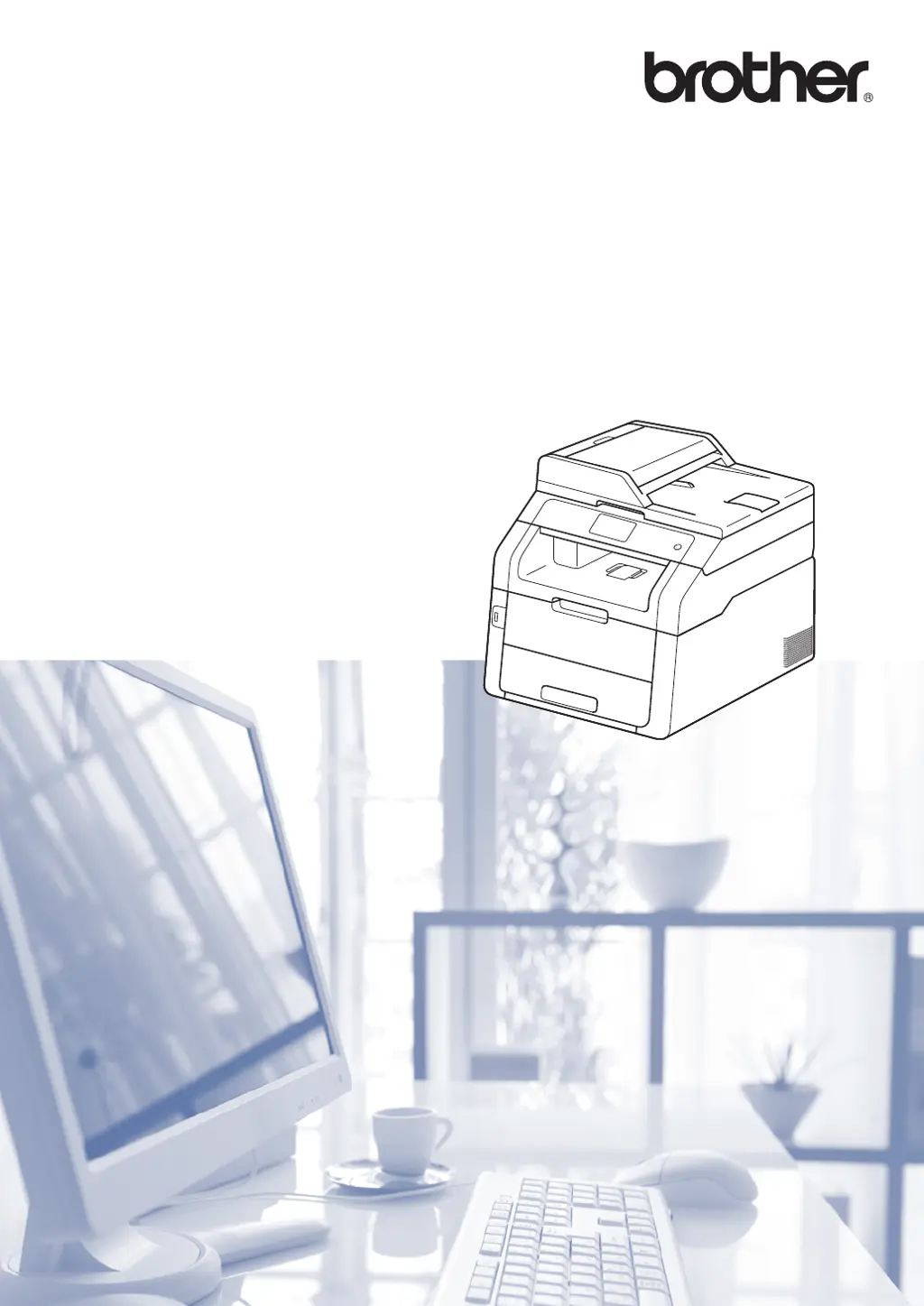
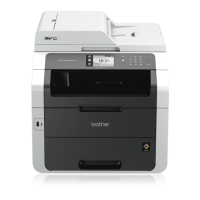
Brother MFC-9330CDW - User Manual

Brother MFC-9330CDW
217 pages
Print Icon
To Next Page IconTo Next Page
Loading...
Basic User’s Guide
MFC-9330CDW
Version 0
TWN-ENG

Table of Contents

Other manuals for Brother MFC-9330CDW

Questions and Answers

  • K
    Kelly MartinAug 6, 2025
    How to check wireless connection status on Brother All in One Printer?
    • K
      Kathryn WilkersonAug 7, 2025
      To check the wireless connection status of your Brother All in One Printer, print the WLAN report. If there is an error code on the printed WLAN report: see Quick Setup Guide: Troubleshooting.
  • M
    Matthew FlynnAug 13, 2025
    What to do if Brother MFC-9330CDW All in One Printer still won't print/scan?
    • M
      marcusramosAug 13, 2025
      If your Brother All in One Printer still won't print or scan after trying the above steps, uninstall and then reinstall the MFL-Pro Suite.
  • L
    Luis WrightSep 10, 2025
    What happens if I didn't accept security alert during MFL-Pro Suite installation for Brother All in One Printer?
    • K
      Kevin ParkerSep 12, 2025
      If you did not accept the security alert dialog box during the MFL-Pro Suite installation, application start-up process, or when using the printing/scanning features, the firewall function of your security software may be rejecting access. Some security software might block access without showing a security alert dialog box. To allow access, see the instructions of your security software or ask the manufacturer.
  • T
    Theresa MasonOct 25, 2025
    What to do if Brother MFC-9330CDW All in One Printer is not found on network during MFL-Pro Suite installation?
    • T
      Troy HinesOct 25, 2025
      If the Brother All in One Printer is not found on the network during MFL-Pro Suite installation, consider the following: * Print the Network Configuration Report and verify that the Ethernet Link Status or Wireless Link Status shows 'Link OK'. If it displays 'Failed To Associate' or 'Link DOWN', consult your network administrator to validate your IP address. * Retry searching for the Brother machine in the installer dialog box. * Allow access if a security software alert appears during the MFL-Pro Suite installation. * Position the Brother machine within approximately 3.3 feet (1 meter) of the WLAN access point/router during wireless network settings configuration. * Relocate the Brother machine to an area free of obstructions or closer to the WLAN access point/router. * Remov...
  • M
    Matthew JohnsonOct 31, 2025
    How to handle a failed printing job on Brother All in One Printer?
    • Y
      youngbobbyNov 1, 2025
      If a previous printing job failed on your Brother All in One Printer, remove it from the computer's print queue. To do this: * (Windows® XP/Windows Vista®/ Windows® 7/Windows Server® 2003) Double-click the printer icon in the following folder and then choose Cancel All Documents in the Printer menu: (Windows® XP/Windows Server® 2003) Start and Printers and Faxes. (Windows Vista®), Control Panel, Hardware and Sound, and then Printers. (Windows® 7), Devices and Printers, and then Printers and Faxes. * (Windows® 8) Move your mouse to the lower right corner of your desktop. When the menu bar appears, click Settings, and then click Control Panel. In the Hardware and Sound group, click View devices and printers. Right-click your Brother machine, select See what’s printing, and then select y...

Summary

Loading Paper and Print Media

Loading Paper and Print Media Overview

Information on loading various types of paper and print media into the machine.

Loading Paper in the Paper Tray

Detailed steps for loading paper into the main paper tray.

Loading Documents for Operations

How to Load Documents

General instructions for loading documents for fax, copy, and scan operations.

Using the Automatic Document Feeder (ADF)

Step-by-step guide to using the Automatic Document Feeder for multiple pages.

Sending a Fax

How to Send a Fax

Comprehensive guide on initiating and sending fax transmissions.

Receiving Faxes

Choosing the Correct Receive Mode

Guidance on selecting the appropriate receive mode based on line setup.

Using PC-FAX

How to Use PC-FAX

Instructions for utilizing the PC-FAX functionality for sending and receiving.

Dialing and Storing Numbers

How to Dial Numbers

Methods for dialing numbers, including manual and address book.

Making Copies

How to Make Copies

Basic steps for making copies using the machine.

Printing from USB Drives and Cameras

Direct Printing from USB;Camera

Steps to print files directly from USB devices or cameras.

Printing from a Computer

Printing Documents from Computer

Instructions for printing documents from a connected computer.

Scanning to a Computer

Routine Maintenance Procedures

Replacing Consumable Items

Overview of replaceable consumable parts for machine maintenance.

Replacing Toner Cartridges

Detailed procedure for replacing toner cartridges.

Cleaning Corona Wires

Steps to clean the corona wires for print quality.

Replacing Drum Units

Guide for replacing the drum units.

Replacing Belt Unit

Instructions on how to replace the belt unit.

Replacing Waste Toner Box

Procedure for replacing the waste toner box.

Troubleshooting Common Issues

Identifying the Problem

Initial steps to diagnose and identify machine issues.

Paper Handling and Printing Issues

Solutions for common issues related to paper and printing.

Telephone and Fax Issues

Troubleshooting steps for telephone and fax related issues.

Brother MFC-9330CDW Specifications

Print Specifications IconPrint Specifications
print speed blackup to 23 ppm
print speed colorup to 23 ppm
print resolutionup to 600 x 2400 dpi
Copy Specifications IconCopy Specifications
copy speed blackup to 23 cpm
copy speed colorup to 23 cpm
copy resolution600 x 600 dpi
Scan Specifications IconScan Specifications
scan resolution optical1200 x 2400 dpi
scan resolution interpolated19200 x 19200 dpi
document glass size8.5” x 11.7”
Fax Specifications IconFax Specifications
fax modem speed33.6k bps
fax page memoryup to 500 pages
speed dial locations200
Paper Handling IconPaper Handling
auto document feeder capacityup to 35 pages
paper size maximumup to 8.5” x 14” (legal)
standard paper capacity250 sheets
Power and Energy IconPower and Energy
deep sleep mode power consumption<2W
automatic duplex printingYes
energy star qualifiedYes

Related product manuals