24
Ch. 2 Getting Started
Getting Started
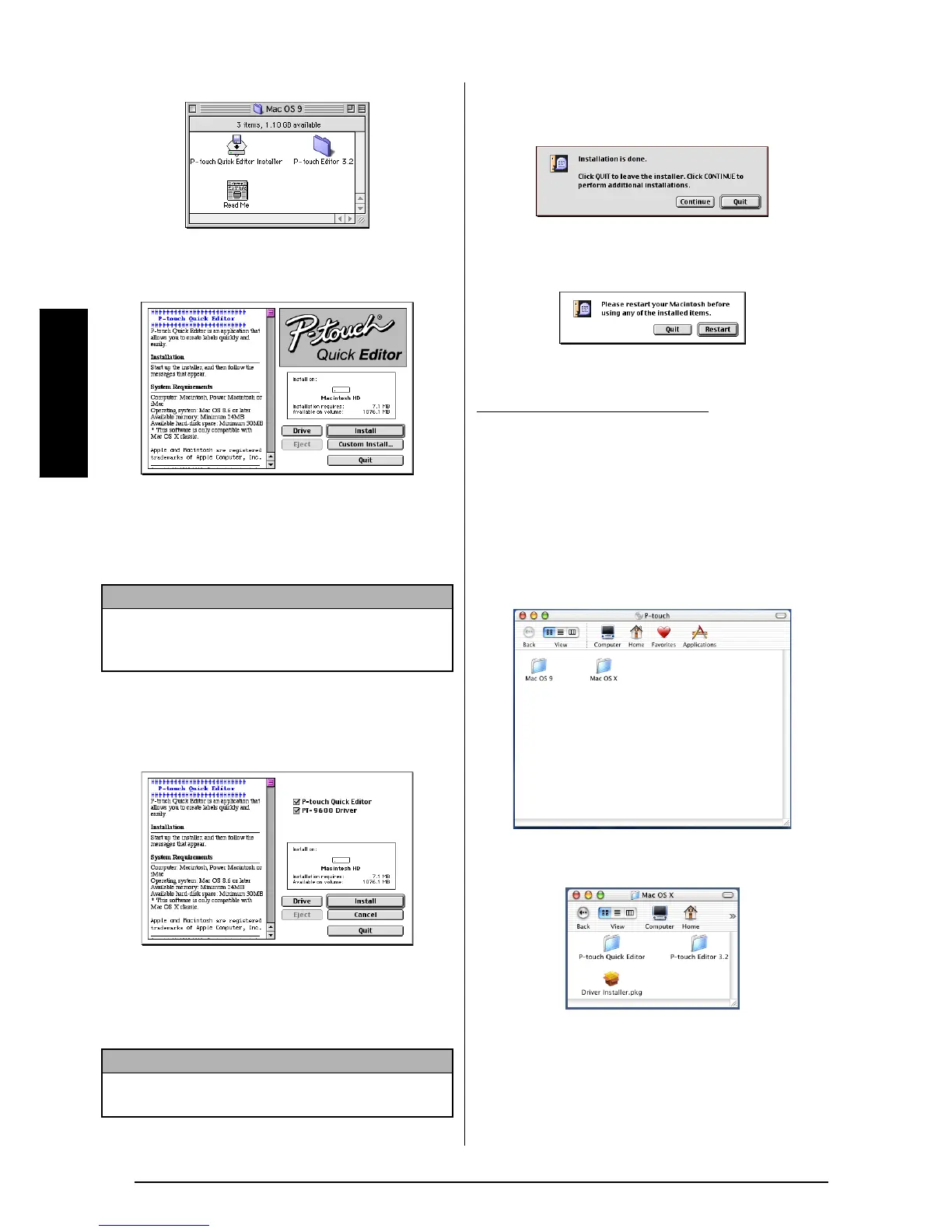
4 Double-click the Mac OS 9 folder to open it.
5 Double-click the P-touch Quick Editor
Installer icon in the folder that appears. The
installer starts up.
6 Select the installation method.
● For a basic installation
Clicking the Install button immediately
starts installing the most basic options.
● For a custom installation
Clicking the Custom Install button dis-
plays a dialog box that allows you to
select which options to install.
Only the options with a check mark
beside them are installed. Select the
options that you wish to install, and then
click the Install button.
7 When the dialog box appears, indicating
that the installation is finished, click the
Quit button.
8 When the dialog box appears, asking if you
wish to restart the computer, click the
Restart button to restart the computer.
1 With the P-touch and the Macintosh turned
off, connect the P-touch to the computer
using the enclosed USB interface cable as
described on page 9. Be sure to leave the
P-touch turned off.
2 Turn on the Macintosh.
3 Insert the enclosed CD-ROM into the com-
puter’s CD-ROM drive.
4 Double-click the Mac OS X folder to open
it.
5 Double-click the P-touch Quick Editor
folder to open it.
NOTE
About 20 MB of available hard-disk space is
needed to begin installation. If enough hard-disk
space is available, click the Install button.
NOTE
In order to print from the P-touch 9600/3600, “PT-9600/
3600 Driver” must be selected for installation.
With Mac OS X 10.1 to 10.2.3:



 To Next Page
 Loading...