23
STEP
1
STEP
2
STEP
3
For WindowsFor MAC
STEP
4
Getting started
Maintenance and
Troubleshooting
Connecting to your PC
Creating a label
Introduction
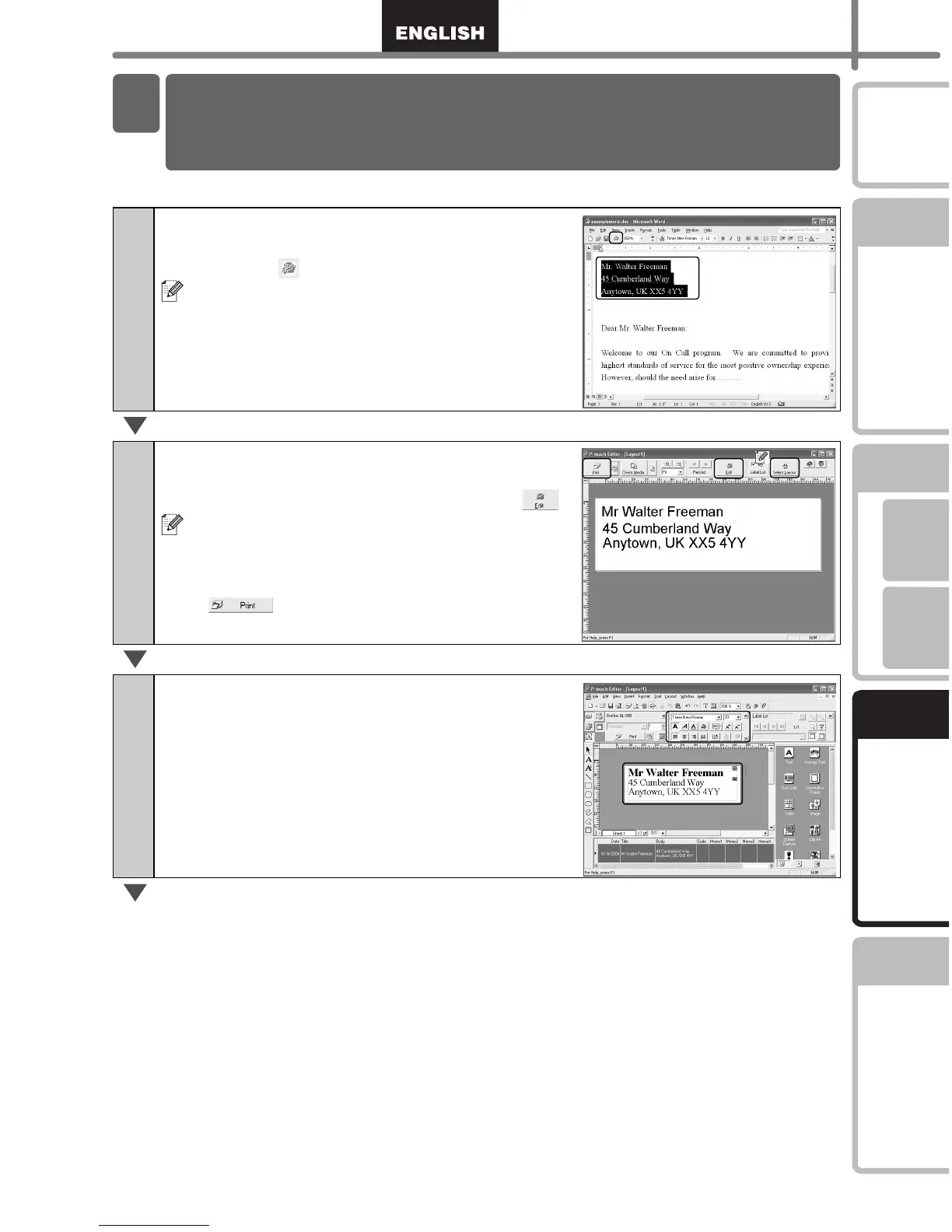
Copy text from Microsoft Word and create an address label.
1
Copy text.
In Microsoft Word, select the text to be imported,
and then click in the toolbar.
Text can also be copied from Microsoft Excel
and Microsoft Outlook.
2
Verify the copied data.
The Add-in Preview Window appears. Verify the
contents. To make formatting changes click .
• Changes to the layout of a label can also be
made using the Layout Style Function.
For details refer to step 2 on Page 25.
• If you want to print immediately, click on
to print your label.
3
Format the text.
Click the text box of the text you want to format to
select it.
Use the Text Property box to change the text
formatting.
3 Creating an Address Label using the
Microsoft Word Add-In



 To Next Page
 Loading...